


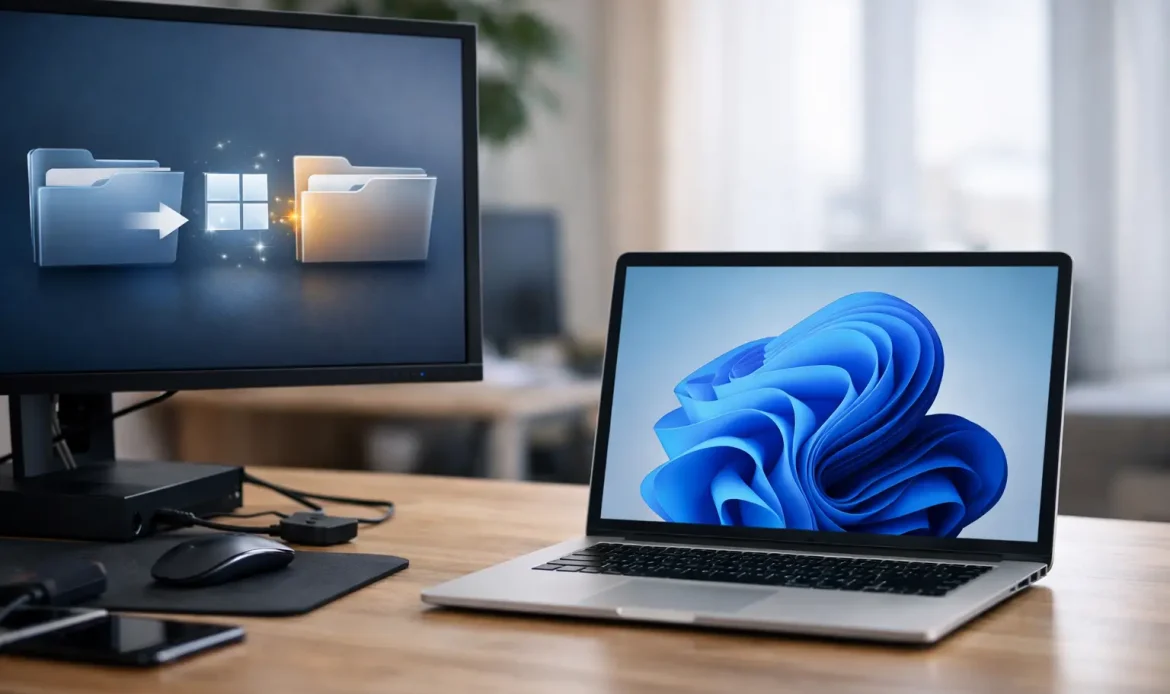
If your PC keeps reminding you about Windows 11, or you have heard that Windows 10 support is winding down, it is fair to ask one simple question – should you upgrade now or wait a bit longer? This Windows 11 migration guide is here to make that decision easier for home users and small businesses who just want clear advice, not a pile of jargon.
For most people, moving to Windows 11 is not especially difficult. The tricky part is knowing whether your current computer is actually a good candidate, whether your programs and printers will keep behaving properly, and whether a standard upgrade is enough or a clean install would give you a better result. That is where a bit of planning saves a lot of frustration.
Windows 11 migration guide – start with the right question
The first thing to understand is that upgrading to Windows 11 is not the same as fixing an old, slow computer. If your machine already takes ages to boot, freezes during updates, or has a failing hard drive, installing a newer operating system will not magically sort that out. In some cases, it can make the weak points more obvious.
That does not mean you need a brand new computer every time. Many PCs can be brought up to a comfortable standard with the right upgrades, especially if they are otherwise reliable. But if the system is too old, lacks the required hardware security features, or struggles with everyday tasks already, replacing it may be the smarter and cheaper long-term move.
For home users, the goal is usually simple: keep the family computer working without losing files, email access, saved passwords or printer setup. For small businesses, the stakes are a bit higher. Downtime costs time, and often money, so compatibility checks matter more than the upgrade itself.
Check if your PC is ready
Before anything else, confirm whether the computer meets Windows 11 requirements. The main items are a supported processor, enough memory and storage, Secure Boot capability, and TPM 2.0 enabled. That last one catches a lot of people out, because the feature may exist in the machine but not be turned on in the BIOS.
This is one of those areas where online advice can be misleading. You will see plenty of workarounds for installing Windows 11 on unsupported hardware. Yes, some of them work. No, they are not always a good idea. If you rely on the computer for work, study, banking or family use, forcing an unsupported upgrade can create update issues later and leave you with a setup that is harder to maintain.
A proper readiness check should also look at practical compatibility, not just Microsoft’s minimum requirements. Ask whether your printer still has current drivers, whether your accounting or trade software supports Windows 11, and whether any older peripherals are likely to stop working. A PC can pass the official test and still cause headaches afterwards.
Back up before you touch anything
If there is one step people skip too often, it is the backup. Not because they do not care, but because the upgrade looks routine and they assume nothing will go wrong. Most upgrades do go smoothly. Some do not.
Back up documents, photos, email files, browser bookmarks, saved passwords if they are not already synced, and any business data stored locally. If you use desktop email software or older programs that keep data in odd places, make sure those files are included as well. It is worth checking the backup afterwards rather than just hoping it copied properly.
For a small business PC, it is also wise to note software licence keys, login details for critical services, printer settings, and any shared folder or mapped drive arrangements. These are the little things that people only remember when they suddenly cannot print invoices or access the office NAS.
Upgrade or clean install?
This is where a good Windows 11 migration guide needs to be practical. There are two main paths.
An in-place upgrade keeps your files, programs and settings while moving the operating system to Windows 11. It is the easier option and often the best starting point for a relatively healthy computer. If the machine is running well under Windows 10 and has no strange errors, an in-place upgrade is usually fine.
A clean install wipes the system drive and installs Windows 11 fresh. It takes longer because programs need to be reinstalled and settings need to be put back, but it often gives the cleanest result. If the PC has years of clutter, old security software, corrupted system files or performance issues, a clean install can save a lot of trouble down the track.
There is a trade-off here. An upgrade is faster and less disruptive, but it can carry old problems forward. A clean install is tidier, but it needs better preparation. The right choice depends on the condition of the machine and how much downtime you can tolerate.
What a sensible migration plan looks like
A good migration is not just the moment Windows 11 gets installed. It is a short process with a few checkpoints.
Start by checking the hardware and confirming compatibility. Then clean up obvious issues such as low drive space, failed updates, or unwanted security software. After that, complete the backup and confirm you can access it. Only then should the upgrade or clean install begin.
Once Windows 11 is on the computer, the work is not quite finished. Updates need to be run fully, drivers should be checked, and core functions should be tested. Open your usual programs. Print a page. Check email. Try your scanner if you use one. Connect to Wi-Fi. Make sure shared drives are still available. These ordinary tasks are the real test.
For a business environment, it also helps to stagger upgrades rather than changing every PC at once. That way, if a software issue appears, it affects one machine instead of the whole office.
Common problems after moving to Windows 11
Most post-upgrade issues are not dramatic. They are just annoying. Printers may disappear, audio settings may reset, older software might ask to be repaired, and OneDrive or email accounts can need signing in again. These are manageable, but they can be frustrating if you were expecting everything to look exactly the same.
Performance complaints are common too. Sometimes Windows 11 is genuinely slower on marginal hardware. Other times, the real issue is that the PC still has a traditional hard drive rather than a solid-state drive, or it is short on RAM. In those cases, people blame the operating system when the hardware was already the bottleneck.
Another common problem is user confusion rather than system failure. The Start menu is different, settings are in new places, and right-click options have changed. For confident users, that is a minor adjustment. For less technical users, it can feel like the computer has been rearranged for no good reason. A bit of patient setup after the migration can make the transition much easier.
When it makes more sense to replace the PC
Sometimes the honest answer is that migration is not worth the effort. If a computer is too old to support Windows 11 properly, needs multiple hardware upgrades, and still may not perform well afterwards, replacing it can be the better choice.
That is especially true for small businesses relying on daily productivity. Spending money on an ageing machine only to get another year or two out of it may not stack up. A newer system is usually faster, more stable and more secure, and it avoids the uncertainty of trying to squeeze modern software onto old hardware.
For home users, the decision is often more budget-sensitive. If the PC is used mostly for web browsing, email, schoolwork and bill payments, a sensible upgrade path might still be worthwhile. It really comes down to condition, not just age.
Getting help can save time and data
A lot of people can start a Windows upgrade on their own. Far fewer enjoy dealing with failed updates, account issues, BIOS settings, missing drivers or data recovery if something goes wrong. That is why many Adelaide home users and small businesses prefer to get hands-on help before the process turns into a weekend project.
Southern Computer Services SA regularly helps customers decide whether to upgrade, repair or replace, and that advice matters because not every PC should follow the same path. A migration done properly should leave you with a computer that works better, not one that simply has a newer logo on the screen.
If you are unsure where your machine sits, start with the basics. Check compatibility, protect your data, be realistic about the computer’s condition, and choose the upgrade method that suits the job. A calm, well-planned migration is usually cheaper and less stressful than cleaning up a rushed one later.