




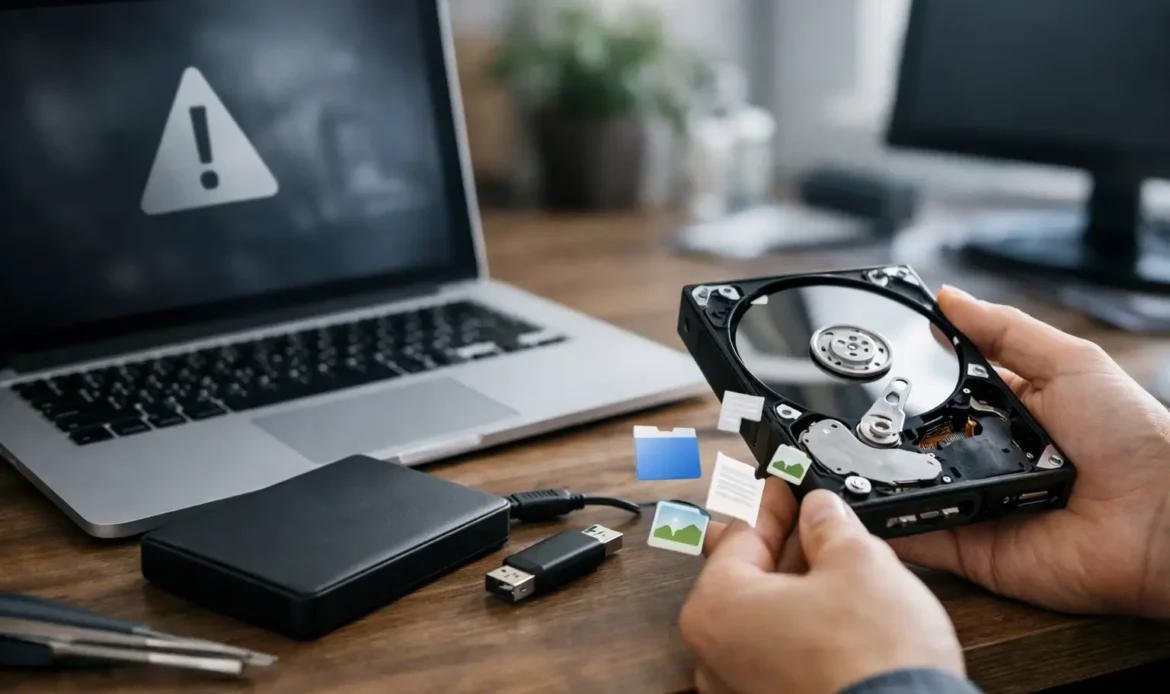
A Windows crash can turn an ordinary day into a stressful one very quickly. One moment you are working on family photos, invoices or an important document, and the next the PC will not start properly. If you need to recover files after Windows crash, the most useful thing you can do first is stop, avoid making changes, and protect the drive from further use.
The good news is that a crash does not automatically mean your files are gone. Windows may have failed while the files themselves are still intact. The right recovery method depends on what happened, whether the computer can still boot, and whether the drive is healthy.
First, avoid making the problem worse
When a computer repeatedly crashes, displays a blue screen, gets stuck in an automatic repair loop or will not load Windows, it is tempting to keep restarting it until something works. A couple of careful attempts are reasonable, but repeated restarts can make recovery harder if the storage drive is failing.
Do not reinstall Windows, reset the PC or accept a prompt to format a drive before checking whether your files can be copied elsewhere. Those actions can overwrite data that may otherwise be recoverable. Avoid installing recovery software onto the same drive that contains the missing files as well.
If the computer is still running, save what you can immediately to an external drive, a USB storage device or trusted cloud storage. Start with the folders that matter most, such as Desktop, Documents, Pictures, Downloads and any business folders that may sit outside the usual Windows locations.
What caused the Windows crash?
Knowing the likely cause helps determine the safest next step. A Windows update that did not finish properly, a faulty driver, malware, a corrupted user profile or a damaged system file can stop Windows from loading even when the hard drive or solid-state drive is fine.
A failing drive is more concerning. Warning signs include clicking or grinding noises from an older hard drive, very slow opening of files, folders that disappear, frequent freezing, messages about drive errors, or a computer that only starts occasionally. In these cases, every extra minute of use can matter.
A power outage or sudden shutdown can also corrupt Windows files. That can look serious, but it often leaves personal data untouched. The aim is to access and copy the data before attempting repairs that change the system.
How to recover files after a Windows crash
Try Windows recovery options without resetting the PC
If Windows reaches the recovery screen, look for Advanced options rather than choosing Reset this PC straight away. Safe Mode may allow the computer to start with only essential drivers. If it opens, connect an external drive and copy your important files first.
You may also see options such as Startup Repair, System Restore and Uninstall Updates. These can fix a Windows loading problem without affecting personal files, although they are not a substitute for a proper backup. System Restore generally changes Windows settings, drivers and installed programs, not your documents and photos.
Be cautious with any option that says it will remove everything, perform a clean installation or format a partition. Read each screen carefully. If the files are valuable and you are unsure, stop before proceeding.
Check whether the files are still visible
If Windows loads but folders appear empty, do not assume the data has been deleted. Check the Recycle Bin first. Then look in the usual user folders and search for a known file name or file type.
Sometimes a crash leads Windows to load a temporary profile. This can make the desktop and documents folder look unfamiliar or blank. Your original files may still be under the previous user profile on the drive. A technician can identify the correct profile and copy the data safely rather than guessing which folders are safe to remove.
If the issue began after an update, checking earlier versions of a file or folder may help. This only works if File History, backup software or another versioning service was configured before the crash. It is worth checking, but it is not something Windows creates automatically after the fact.
Copy files from another working environment
When Windows cannot start normally but the drive is still readable, files can often be copied using a separate boot environment or by connecting the drive to another computer with the correct adapter. This approach avoids relying on the damaged Windows installation.
It can be very effective, but there are risks. A desktop drive and laptop drive may need different handling, and opening some laptops can be fiddly. Modern systems may also use encryption. If BitLocker device encryption is enabled, you may need the recovery key before files can be accessed from another environment.
For home users and small businesses, this is often the point where professional help makes sense. The goal is not simply to get the PC starting again. It is to preserve the information you cannot easily replace before repair work begins.
Use recovery software carefully
Data recovery software can sometimes find files that were deleted or lost after file system damage. It is most useful where the drive is stable, the missing data has not been overwritten, and the recovery results can be saved to a different drive.
There are limits. Recovery software cannot reliably repair a drive that is physically failing, and it may return files with incomplete names, damaged contents or no folder structure. Solid-state drives add another complication: after deletion, Windows and the drive may use a process that makes data far less recoverable than it would be on an older hard drive.
If the drive makes unusual noises, drops in and out of Windows, or is not detected consistently, do not keep scanning it. A long scan can place additional strain on hardware that is already struggling.
When the drive is failing
A failed Windows installation and a failed storage device are different problems. Windows can be reinstalled. Original photos, business records and years of emails may not be replaceable.
Signs that you should stop DIY attempts include a drive that is clicking, overheating, disappearing from the BIOS, reporting read errors, or causing the PC to freeze whenever you try to open folders. In these situations, avoid running repair commands that write changes to the drive. A proper assessment can determine whether the data can be copied directly, recovered from an image of the drive, or needs more specialised recovery work.
Do not put a drive in the freezer, knock it, or take it apart. Those old internet suggestions can turn a recoverable fault into permanent damage.
A sensible order of priorities
When a Windows computer crashes, think in this order: protect the data, confirm the condition of the drive, copy critical files, then repair or reinstall Windows. Reversing that order is how many people accidentally lose files during a reset or format.
For a small business, start with current customer records, accounting files, job documents, email archives and any files held only on that computer. For a household, prioritise photos, personal documents, schoolwork and saved passwords or browser data where appropriate. Programs can usually be installed again. Your own files are the priority.
Southern Computer Services SA can assist with practical data recovery and Windows repair for customers across southern Adelaide, including cases where a computer will not boot, has suffered a failed update, or needs important files copied before repair work starts. A clear assessment early on can save a great deal of stress and prevent unnecessary work.
Once your files are safe, consider a backup routine that fits how you actually use the computer. One external backup drive may be enough for some households, while a small business may need regular automated backups and a separate copy kept away from the main PC. The best backup is the one that runs consistently and can be restored when you need it.
A crashed Windows PC is frustrating, but it does not have to become a data-loss disaster. Pause before resetting anything, keep the drive as untouched as possible, and put your irreplaceable files first.

