



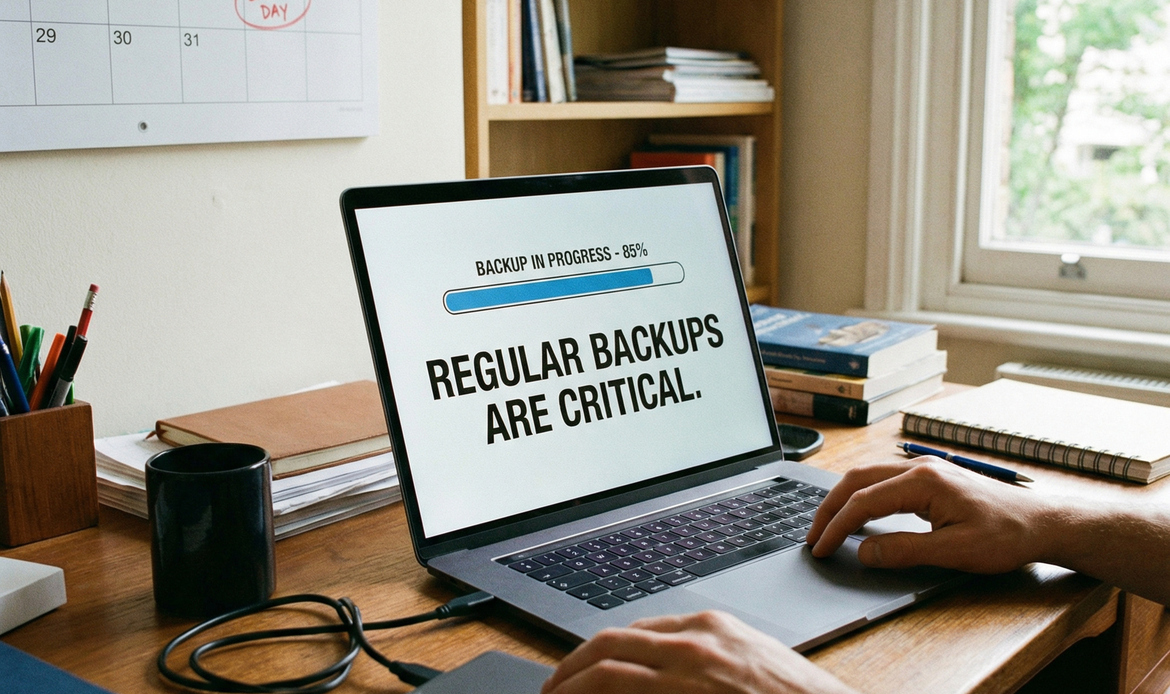
Regular Backups Are Critical -(& How to Set Them Up in Minutes)
Imagine waking up tomorrow and discovering your PC is blank—photos, documents, email archives, even that year-end tax spreadsheet—gone. Hard-drive failure, ransomware, accidental deletion, power surges, theft, and even spilled coffee can wipe out years of data in seconds. As a computer-repair service, we see these disasters all too often, and in most cases a simple, automated backup would have saved the day.
Below is a concise guide on:
1. Why regular backups are critical
2. The best places to store them (local, off-site, and cloud)
3. Step-by-step resources to automate the entire process
1. The High Cost of “It’ll Never Happen to Me”
• Hardware failure: All drives fail eventually; the only question is when.
• Ransomware & viruses: Encryptions and infections can lock or destroy files.
• Human error: A single mistaken deletion, format, or overwrite can be permanent.
• Natural disasters & theft: Fire, flood, lightning, or burglary can remove both PC and external drive in one swoop.
Bottom line: If your data exists in only one place, it’s already at risk. Regular backups are critical if you want to negate that risk.
2. Where Should You Store Your Backups?
A strong backup strategy follows the 3-2-1 rule:
• 3 copies of your data
• on 2 different media
• with 1 copy off-site
Here are your main options:
A) Local On-Site Options
1. External USB hard drives (HDD)
• Inexpensive per TB
• Fast restores
2. External SSDs
• Costlier but much faster & shock-resistant
3. Network Attached Storage (NAS)
• Centralised storage for multiple PCs
• Often supports RAID for redundancy
B) Off-Site / Cloud Options
1. Cloud backup services
• Backblaze, CrashPlan, Carbonite
• “Set it and forget it” continuous backups
2. Cloud-sync storage
• Microsoft OneDrive, Google Drive, Dropbox, iCloud
• Great for critical work folders; not a full-image backup
3. Remote physical media
• Keep a rotated external drive at work, a friend’s house, or a safe-deposit box
C) Hybrid Approach (Our Recommendation)
• Local backup for lightning-fast recovery
• Cloud backup for disaster protection
• Automated scheduling so you never think about it again
3. How to Automate Backups (Links & Tutorials)
Below are official guides and quick-start videos—no technical degree required.
Windows 10 & 11
1. File History (Incremental personal-file backup)
• Microsoft docs: https://aka.ms/filehistory
2. Windows Backup and Restore (System Image)
• Tutorial: https://aka.ms/systemimage
3. OneDrive PC Folder Backup
• Setup guide: https://aka.ms/onedrivebackup
Third-Party Cross-Platform Tools
• Backblaze (cloud image backup) — https://www.backblaze.com
• Acronis Cyber Protect Home Office (local + cloud) — https://www.acronis.com
• Macrium Reflect Free (Windows image) — https://www.macrium.com/reflectfree
Remember: Regular backups are critical. Set your schedule to daily or at least weekly, enable email alerts, and perform a test restore once a quarter.

4. Pro Tips from the Repair Bench
1. Encrypt sensitive backups—especially cloud or off-site drives.
2. Label external drives with the date of last backup.
3. Use surge protection when plugging in USB drives.
4. Verify backups—a backup you can’t restore is no backup at all.
Need Help? We’ve Got Your Back(up)
If any of this feels overwhelming, let us handle it. Our technicians can:
• Recommend the perfect drive or cloud plan
• Configure automated, encrypted backups in under an hour
• Perform periodic health checks and test restores
Schedule a consultation by filling out our quick contact form online or call us on 0407396188. Don’t wait until data loss strikes—protect your digital life today!
Stay safe, and keep your data safe too!
Stay tuned to our blog for the latest updates on the semiconductor industry and technology trends.
Still Have Questions?
© 2025 Southern Computer Services SA – Computer & Laptop Repair Specialists