




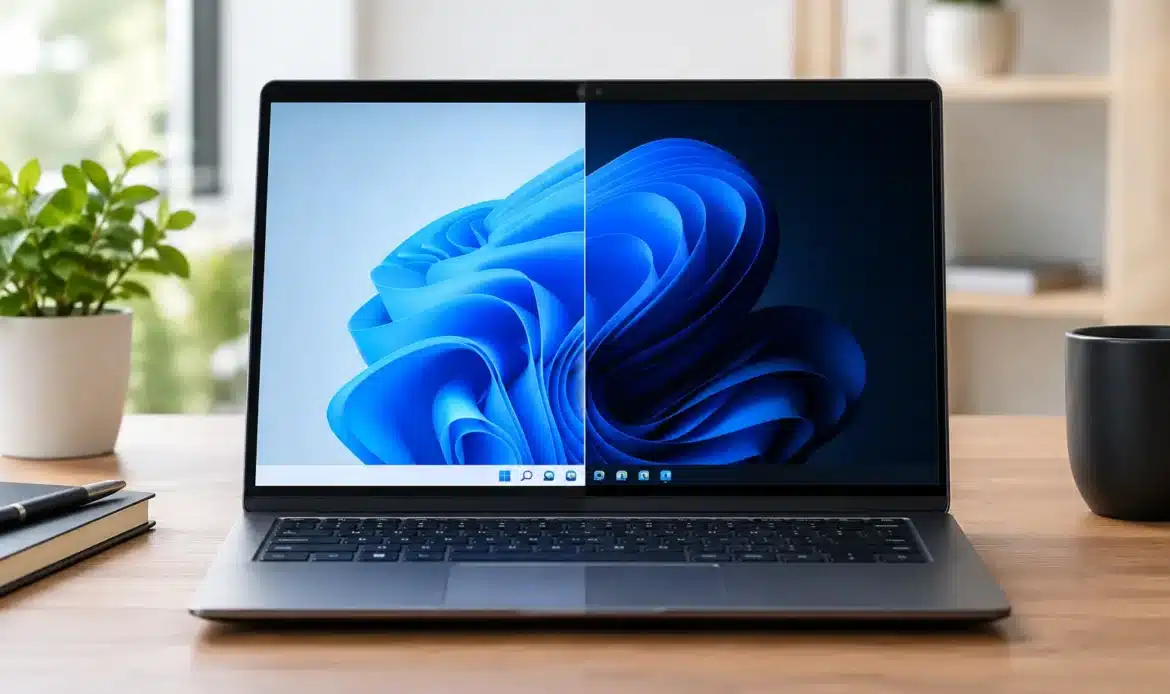
A new PC often arrives with Windows 11 Home, while a business-grade laptop may come with Pro. When comparing Windows 11 Home versus Pro, the key question is not which edition has more features. It is whether the extra features solve a real problem for the way you use your computer. For many households, Home is the sensible choice. For some small businesses, Pro can prevent headaches before they start.
Both editions run the same everyday programs, receive the same regular security updates and look almost identical on screen. You can browse, bank, email, print, join video calls, run accounting software and use Microsoft Office on either version. Pro does not make a slow computer fast, add more storage or repair an ageing hard drive. The difference is mainly about management, security and how the computer connects to a work environment.
Windows 11 Home versus Pro at a glance
Windows 11 Home is designed for personal and family computers. It includes the features most people expect from a modern PC, such as Windows Hello sign-in options, built-in antivirus protection, firewall settings, parental controls, device encryption on compatible hardware and standard remote assistance tools.
Windows 11 Pro includes all of that, then adds features aimed at workplaces and people who manage more than one computer. The big additions are BitLocker drive encryption, Remote Desktop hosting, the ability to join a business domain or Microsoft Entra ID, Group Policy controls, Hyper-V virtualisation and Windows Sandbox.
Those names can sound technical, but the practical difference is straightforward. Home is built for using one computer normally. Pro gives an owner, IT provider or employer more ways to secure, configure and manage computers consistently.
What stays the same on both editions
It is easy to assume Pro provides a better day-to-day Windows experience. Usually, it does not. The Start menu, File Explorer, settings screens, web browsers, printers, Wi-Fi connections and common software work in much the same way.
Both versions can use multiple monitors, connect to Bluetooth devices, run games and support modern hardware. A Home computer can still be protected with a strong password, multi-factor authentication, regular updates and sensible backups. It can also receive remote support through appropriate support software when you need help with an issue.
This matters when choosing a new computer. If a retailer suggests Pro because it sounds more professional, ask what feature you will actually use. Paying extra for features that remain switched off is rarely good value.
The Pro features that can genuinely matter
BitLocker encryption
BitLocker is often the strongest reason to choose Windows 11 Pro. It encrypts the contents of your drive, helping protect your files if a laptop is lost or stolen. Someone who removes the drive or tries to start the computer without the proper credentials should not be able to read the data easily.
This is particularly useful for a laptop containing customer details, invoices, staff records, legal documents or business financial information. A home user who travels regularly with important personal files may also see value in it.
Some Windows 11 Home devices offer a simpler form of device encryption, provided the hardware supports it and the right account settings are in place. However, BitLocker in Pro gives more control and is generally the better fit where protecting sensitive information is a priority. Encryption is only helpful when it is set up correctly, though. Keep recovery details somewhere safe, separate from the computer.
Remote Desktop hosting
Windows 11 Pro allows the computer to act as a Remote Desktop host. In plain terms, you can securely sign in to your office PC from another authorised Windows device and work with its programs and files as though you were sitting in front of it.
This can suit a small business where a staff member occasionally works from home but needs access to software installed on the office computer. Windows 11 Home can connect to another computer using Remote Desktop, but it cannot normally accept an incoming Remote Desktop connection itself.
There is an important catch. Remote access needs to be configured carefully, particularly if it will be used away from the office. Simply exposing a computer to the internet is not a good security plan. A safe setup may involve a properly configured network, user permissions and additional protection. For occasional assistance, remote support software may be more suitable than Remote Desktop.
Joining a work network
Pro can join a Windows domain or Microsoft Entra ID environment. This is useful when a business has centrally managed staff accounts, shared policies, standard software settings and controlled access to company resources.
For a sole trader with one or two PCs, this capability may be unnecessary. For a growing office with several staff members, it can make account management and computer setup far more orderly. Instead of configuring every machine from scratch, consistent rules can be applied across the business.
Group Policy and management controls
Group Policy lets an administrator control many Windows settings in a structured way. For example, it can set password requirements, restrict access to certain settings, control update behaviour or apply standard configurations across several computers.
It is useful in managed business environments, but it is not a feature most home users need to touch. In fact, changing policies without knowing why can create frustrating problems. Pro offers more control, but more control is not automatically better for everyone.
Virtual machines and Windows Sandbox
Windows 11 Pro includes Hyper-V and Windows Sandbox. These tools let advanced users test software in isolated environments. Sandbox creates a temporary, clean Windows session that disappears when closed, while Hyper-V can run virtual computers for testing or specialised work.
These are handy for developers, IT professionals and some technical businesses. They are not necessary for normal web browsing, email, home office work or gaming. If these features are unfamiliar, that is a good sign they should not drive your purchase decision.
Is Windows 11 Pro more secure?
Pro has extra security tools, especially BitLocker and business management options, but it is not automatically safe just because it says Pro on the box. A Pro PC with weak passwords, skipped updates and no backup can still be at risk.
For most home users, the biggest security wins are practical habits: keep Windows and your browser updated, use unique passwords with a password manager, be cautious with unexpected email attachments, and maintain a backup that is not permanently connected to the computer.
For a small business handling customer information, Pro can be part of a better security approach. Encryption, managed accounts and controlled settings can reduce risk, but they should sit alongside regular backups and sensible staff practices. No Windows edition can recover files that were never backed up.
Who should choose Windows 11 Home?
Windows 11 Home is usually the right option for a family desktop, a personal laptop, a student computer or a gaming PC. It handles everyday workloads perfectly well and avoids paying for workplace features you may never need.
It also makes sense for many sole traders who use cloud-based email, accounting and document storage, particularly if there is no need to remotely control an office computer or join a centrally managed network. A well-configured Home PC can be reliable, secure and easy to use.
If performance is your concern, focus on the hardware rather than the Windows edition. More memory, a solid-state drive, a suitable processor and a healthy battery will make a much bigger difference than moving from Home to Pro.
Who should choose Windows 11 Pro?
Pro is worth considering when a computer stores sensitive business data, needs BitLocker encryption, will be accessed remotely, or must join a managed workplace network. It is also a sensible choice for staff laptops used outside the office, where loss or theft would be a genuine concern.
Businesses with multiple PCs can benefit when Pro is paired with a proper setup and ongoing support. Standardised user accounts, security policies and access controls make it easier to add staff, replace devices and keep systems organised over time.
For an advanced home user, Pro may be worthwhile if you specifically need Remote Desktop hosting, virtual machines or Sandbox. The word to focus on is specifically. Buying Pro just in case is not always the best use of your budget.
Can you upgrade from Home to Pro later?
Yes. If your needs change, a computer running Windows 11 Home can usually be upgraded to Pro without replacing the PC or reinstalling Windows. You will need a legitimate Pro licence, and it is wise to back up important files before making system changes.
Before upgrading, check whether the feature you want will solve the actual issue. For instance, if you need to work from home, the answer might be a better cloud storage arrangement, secure remote support or an office network adjustment rather than a Pro upgrade. If your laptop is slow, an upgrade to Pro will not fix it.
For southern Adelaide households and small businesses, Southern Computer Services SA can help assess whether a Windows 11 Home or Pro setup makes sense before you spend money on an upgrade or replacement PC.
The best edition is the one that matches your real needs today and leaves room for sensible growth tomorrow. Choose Home when you want a capable personal computer without extra complexity. Choose Pro when its security and management tools will be actively used, not just sitting in the settings menu.

