




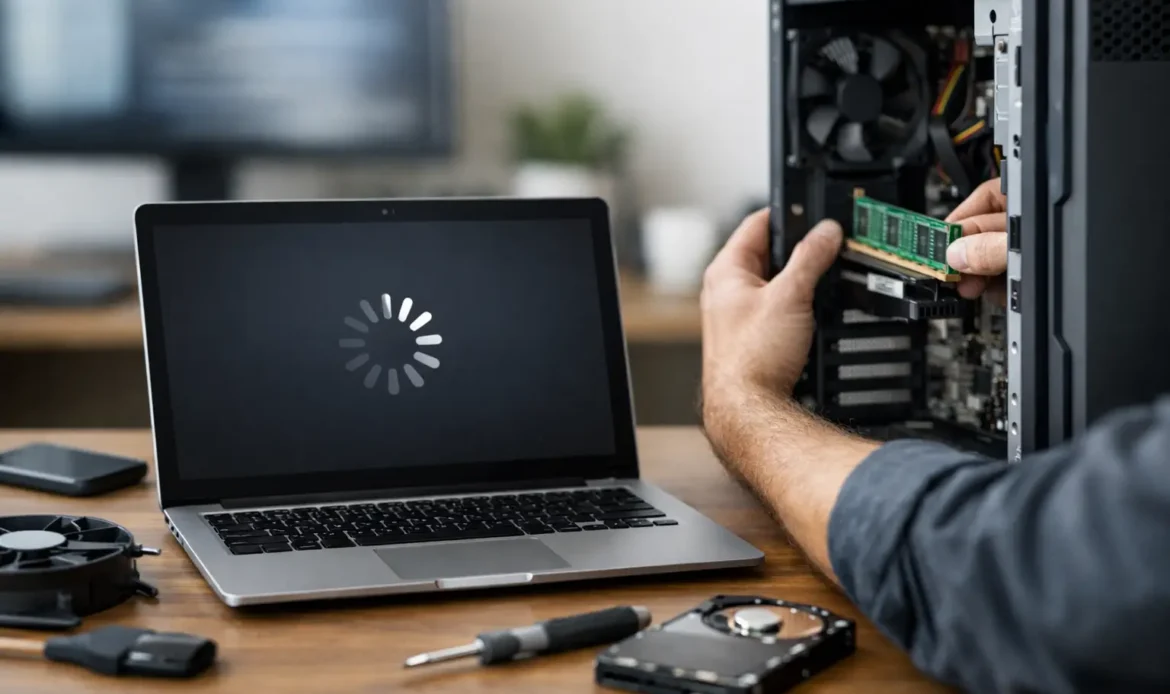
A computer that takes ten minutes to become usable can make even simple jobs feel frustrating. When people ask us for the best fixes for slow computer problems, the answer is rarely a single magic setting. A slow PC may be dealing with too many background programs, a nearly full drive, unwanted software, ageing hardware, overheating, or a fault that needs proper attention.
The good news is that many causes can be identified without guessing or buying unnecessary parts. Start with the simple checks, pay attention to when the slowdown happens, and only spend money on upgrades that will make a noticeable difference.
Start by working out when the computer is slow
The pattern matters. If the computer is slow only when you first turn it on, startup programs are often the main issue. If it runs poorly whenever you open files, save documents, or browse photos, the storage drive may be too full or beginning to fail. If everything slows down once several browser tabs or programs are open, the system may simply not have enough memory for the way it is now being used.
Internet problems can also look like computer problems. If web pages, email, and video calls are slow but programs already installed on the PC run normally, check the Wi-Fi or internet connection before assuming the computer itself is at fault.
A few useful clues to note are:
- whether the computer is slow from startup or only after it has been running for a while
- whether a particular program causes the issue
- whether you hear clicking, grinding, or unusually loud fan noise
- whether pop-ups, unfamiliar toolbars, or unexpected adverts have appeared
These details make it much easier to find the real cause and avoid a trial-and-error repair.
Best fixes for a slow computer you can try first
Restart properly and install updates
A restart is more useful than simply closing the lid or pressing the power button. It clears temporary processes and allows pending Windows updates to finish installing. If the computer has not been restarted for weeks, it can gradually become less responsive, especially after updates or long work sessions.
Once it is back on, allow Windows a few minutes to settle. Updates, security scans, and cloud file syncing can use a lot of processing power just after startup. If performance improves after that period, the computer may be working normally but needs less going on at the same time.
Clear space on the main drive
Windows needs free space to work efficiently. When the main drive is almost full, the system has less room for temporary files, updates, and virtual memory. That can lead to slow startup, lag when opening programs, and error messages during updates.
Check the storage settings and remove files you no longer need, empty the Recycle Bin, and move large videos or old downloads to suitable backup storage. Be cautious with folders you do not recognise and avoid deleting Windows files manually. If you are unsure what is safe to remove, it is better to ask than risk losing important documents or photos.
As a practical rule, try to keep at least 15 to 20 per cent of the main drive free. A drive that is constantly full will continue to cause headaches even after other changes are made.
Reduce unnecessary startup programs
Many programs add themselves to the startup list when they are installed. Some are useful, such as security software or a trusted backup service. Others do not need to open every time the computer starts.
In Windows Task Manager, check the Startup apps section and look for programs with a high startup impact. Disable software you do not need immediately after turning on the computer. This does not remove the program, so you can still open it when needed.
Avoid disabling items if you are not sure what they do. Security software, hardware utilities, and business tools may be needed. The goal is not to switch everything off. It is to stop unnecessary programs competing for resources before you have even opened your email.
Check for malware and unwanted software
A sudden slowdown, frequent pop-ups, changed browser settings, or unfamiliar programs are warning signs. Malware and unwanted software can use processing power in the background, interfere with your browser, and put personal information at risk.
Run a full scan using your current security software and allow it to remove or quarantine anything it finds. If the problem continues, or if you believe accounts or banking details may have been exposed, it is worth getting professional help. A proper clean-up may involve more than deleting a suspicious program, particularly when browser extensions, startup tasks, or remote-access tools are involved.
Close the programs and browser tabs you are not using
Modern browsers can use a surprising amount of memory, particularly with many tabs open. Online meetings, streaming video, large spreadsheets, photo editing, and browser-based business systems can all add up.
Try closing tabs you no longer need and restarting the browser. If one program regularly makes the whole computer sluggish, check whether it needs an update or whether its files have become too large. A small business computer that struggles only during accounting, quoting, or design work may need a targeted upgrade rather than a complete replacement.
When cleaning up is not enough
Older computers often feel slow because the hardware was suitable years ago but no longer suits current versions of Windows and modern software. This does not automatically mean it is time to replace the whole machine.
A solid-state drive can make the biggest difference
If a computer still uses an older mechanical hard drive, replacing it with a solid-state drive can transform everyday performance. Startup times, program loading, file access, and general responsiveness are usually much faster.
The trade-off is that the drive needs to be installed and Windows, programs, and data transferred correctly. If the existing drive is failing, acting early is particularly important. A slow drive can sometimes be a sign of a developing hardware fault, and waiting until it stops completely may make data recovery harder and more expensive.
More memory helps with multitasking
Adding memory can help when a computer slows down while several programs are open. It is often worthwhile for people who regularly keep lots of browser tabs open, work with large documents, attend video meetings, or run business software alongside email and web tools.
Memory upgrades are not a cure for every issue. If the main drive is slow or the processor is too old, adding memory alone may provide only a modest improvement. A technician can check what is fitted, what can be upgraded, and whether the cost makes sense for the computer’s age and intended use.
Heat can quietly reduce performance
A laptop or desktop that gets hot may slow itself down to protect internal components. Dust buildup, blocked vents, worn cooling fans, and dried thermal material can all contribute. You may notice the fan running loudly, the case feeling unusually warm, or the computer becoming slower after half an hour of use.
Do not use a computer on soft bedding or a thick rug that blocks air vents. For a desktop, make sure there is room around the case for airflow. Internal cleaning is best handled carefully, as forcing compressed air into the wrong area or opening a device without experience can create other problems.
Know when to repair, upgrade, or replace
The right choice depends on the computer, the fault, and what you need it to do. A well-maintained desktop with a good processor may be worth upgrading with a solid-state drive and more memory. An older laptop with a failing battery, damaged screen, worn keyboard, and outdated hardware may not be good value to repair.
For Windows 11, compatibility is another consideration. Some older PCs can continue to be useful for basic tasks, but they may not meet current requirements or provide the smooth experience you expect. Before buying a new computer, it is sensible to have the existing one assessed. You may be able to extend its life with a practical upgrade, or you may be better off putting that money towards a new system built for your work, study, gaming, or home use.
Back up important files before any major repair, reinstall, or upgrade. This includes documents, photos, email files, business records, and browser bookmarks. A backup is valuable even when the computer appears healthy, because hardware faults can happen without much warning.
Get help before a small issue becomes data loss
If your computer is freezing, making unusual noises, showing drive errors, repeatedly crashing, or becoming suddenly slow, do not keep pushing it through important work. Those symptoms can point to a failing drive, malware, overheating, or a Windows problem that needs a closer look.
Southern Computer Services SA can assess slow Windows desktops and laptops, advise whether a repair or upgrade is worthwhile, and provide practical help at home, in a small office, remotely, or through pickup and return servicing across southern Adelaide. The aim is straightforward: find the cause, explain the options clearly, and get you back to a computer that does not make every task harder than it needs to be.
A slow computer is often fixable, but the best result comes from addressing the actual bottleneck rather than applying every possible tweak. Start with the safe checks, keep your files backed up, and get honest advice if the problem keeps returning.

