



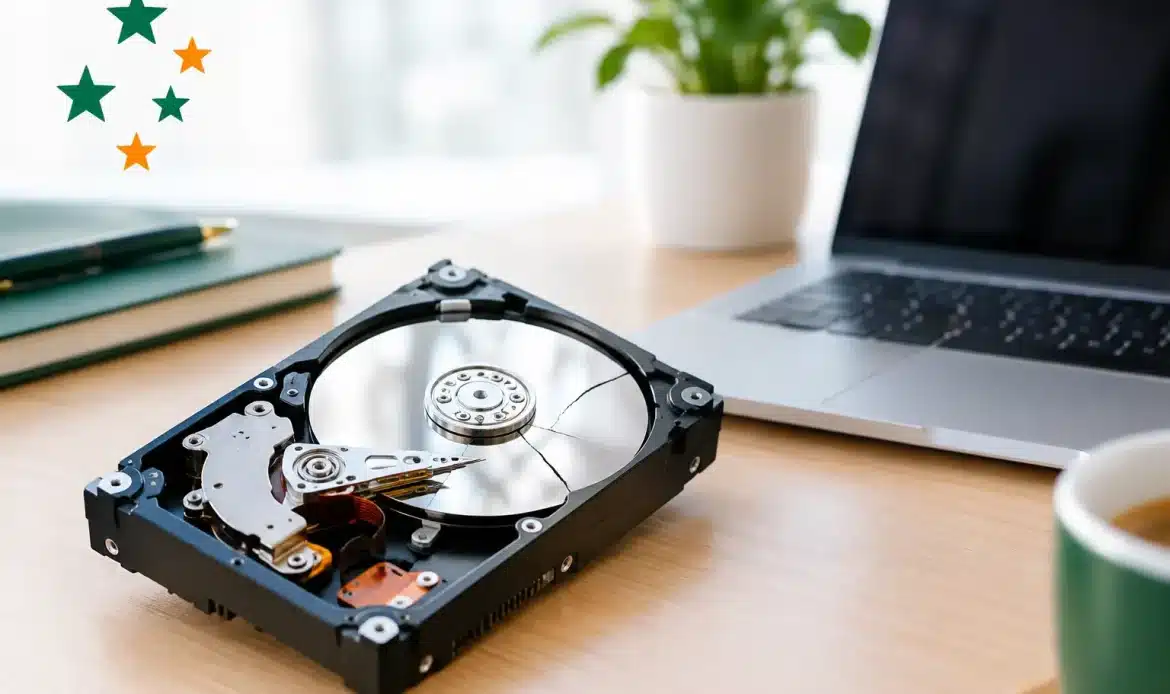
A computer that suddenly takes ten minutes to open a folder can turn an ordinary morning into a stressful one, particularly when your photos, invoices, email or work files are on the line. The top signs of hard drive failure are not always dramatic, but acting early can be the difference between a straightforward backup and a difficult data recovery job.
A hard drive can fail without warning, especially if it is older, has been dropped, overheated or is regularly switched off during updates. That said, a slow or unreliable computer is not automatically a failed drive. Windows problems, low storage space, malware and memory faults can cause similar symptoms. The key is to notice patterns and protect your files before trying too many fixes.
Top signs of hard drive failure
New clicking, grinding or whirring noises
A traditional hard disk drive has moving parts. If it begins making repeated clicking, grinding, scraping or unusually loud whirring sounds, take it seriously. A brief quiet sound when the PC starts can be normal, but a new repetitive noise while opening files or booting Windows is not.
Do not keep restarting the computer to see whether the sound goes away. Each attempt can place more stress on a failing drive. If the files matter, shut the PC down and get advice before continuing. An SSD does not have spinning parts, so it will not make these mechanical noises, but it can still fail in other ways.
Files disappear, will not open or become corrupted
Documents that suddenly vanish, photos that will not preview, or files that open with strange errors can indicate damaged areas on the drive. You may also find that a file saves successfully, then cannot be found later. A program may report that a file is corrupted even though it worked perfectly the day before.
One damaged file does not prove the drive is failing. It may have been interrupted while saving or affected by a software issue. But if corruption is happening across different folders, programs or user accounts, back up what you can immediately. Start with irreplaceable files such as family photos, business records and current projects.
Your PC is much slower than usual
A computer that takes a long time to start, freezes when opening File Explorer, or struggles to load familiar programs may have a drive issue. This is especially concerning if the slowdowns are getting worse over days or weeks rather than appearing after a known software update.
Watch for delays when copying files, saving documents or searching folders. Windows may become unresponsive while the little loading circle appears, then recover after a minute or two. A drive having trouble reading data can create these long pauses.
However, performance problems are not always storage problems. An older PC with too little memory, a full drive, too many start-up programs or unwanted software can also feel painfully slow. A proper assessment helps separate a repairable Windows issue from a disk that needs urgent replacement.
Frequent crashes, freezes and blue-screen errors
An occasional crash can happen for many reasons. Repeated freezes, unexpected restarts or blue-screen errors are more concerning, particularly when they occur while accessing files or starting Windows.
You may see messages about an inaccessible boot device, missing operating system files or disk read errors. The computer might boot normally one day and fail to find Windows the next. Intermittent behaviour is common with failing storage because the drive may read some areas successfully while others are becoming unreliable.
Write down any error message or take a photo with another device. It gives a technician useful clues and can save time during diagnosis.
Windows asks to scan or repair the drive
When Windows repeatedly offers to scan and repair a drive after start-up, it has detected a problem with the file system. This can happen after an improper shutdown, such as a power outage, and sometimes the repair is all that is needed.
Repeated repair prompts are different. They can point to bad sectors or an underlying drive fault. If the scan finds errors again after they have supposedly been fixed, do not assume the problem has gone away. Copy important data first, then arrange a check-up.
The drive is missing sometimes
A drive that appears in Windows one day but is missing the next needs attention. Your PC may fail to detect it at start-up, show it with the wrong capacity, or ask you to format it before use. Never format a drive containing files you need just because Windows suggests it.
For an external drive, the issue could be a damaged USB cable, loose connection or insufficient power rather than the drive itself. Try a known-good cable and another USB port if it is safe to do so. If the drive still drops in and out, stop using it until the data has been assessed.
Bad sectors or SMART warnings appear
Drives monitor some aspects of their own health through SMART status information. A warning about pending sectors, reallocated sectors or predicted failure is a clear reason to back up straight away. It does not tell you exactly when the drive will stop working, but it tells you not to trust it with the only copy of important data.
A drive can also fail without displaying a SMART warning, so a clean result is not a guarantee. Treat it as one diagnostic clue alongside the symptoms you are seeing.
What to do when you suspect a failing drive
Your first priority is the data, not getting the computer back to normal as quickly as possible. If the computer is still stable and the drive is not making unusual mechanical noises, copy essential files to a separate external drive or a trusted cloud backup. Start with the newest and most valuable files, as a full backup may take time.
Avoid installing updates, running a disk cleanup, defragmenting the drive or downloading recovery programs onto the affected drive. These actions can write new data over files that may still be recoverable. Repeatedly rebooting a noisy drive is also a poor bet.
If Windows will not start but the drive is quiet, a technician may be able to test it from another system and copy data safely. If the drive is clicking, grinding, has been dropped, or has stopped being detected entirely, switch it off. Continued use can turn a recoverable issue into a more serious one.
Hard drive failure versus an SSD problem
Many newer Windows PCs use a solid-state drive, or SSD, rather than a traditional spinning hard drive. SSDs are usually faster and have no moving parts, so they do not develop the familiar clicking noises associated with mechanical disks. They can still fail, though, often with sudden freezing, missing files, boot errors or a drive that is no longer detected.
The practical response is similar: protect the data first and diagnose the device before attempting repairs. Replacing a failing drive and reinstalling Windows is often straightforward. Recovering years of unbacked-up files may not be.
When to call for help
It is worth seeking help promptly if the computer holds business records, family photos, accounting files or anything that cannot be replaced. Small businesses should be particularly careful: a failing workstation can affect invoices, customer information and day-to-day operations, not just one employee’s productivity.
Southern Computer Services SA can assess Windows PCs, help with backups and replacements, and advise on the safest next step for computers across southern Adelaide. In some cases, a new drive and Windows setup are the sensible answer. In others, the focus should be on recovering the existing data before any replacement work begins.
If your computer is behaving differently and your files matter, trust that instinct. Pause the troubleshooting, make a copy of what you can, and get the problem checked before a minor warning becomes a permanent loss.