



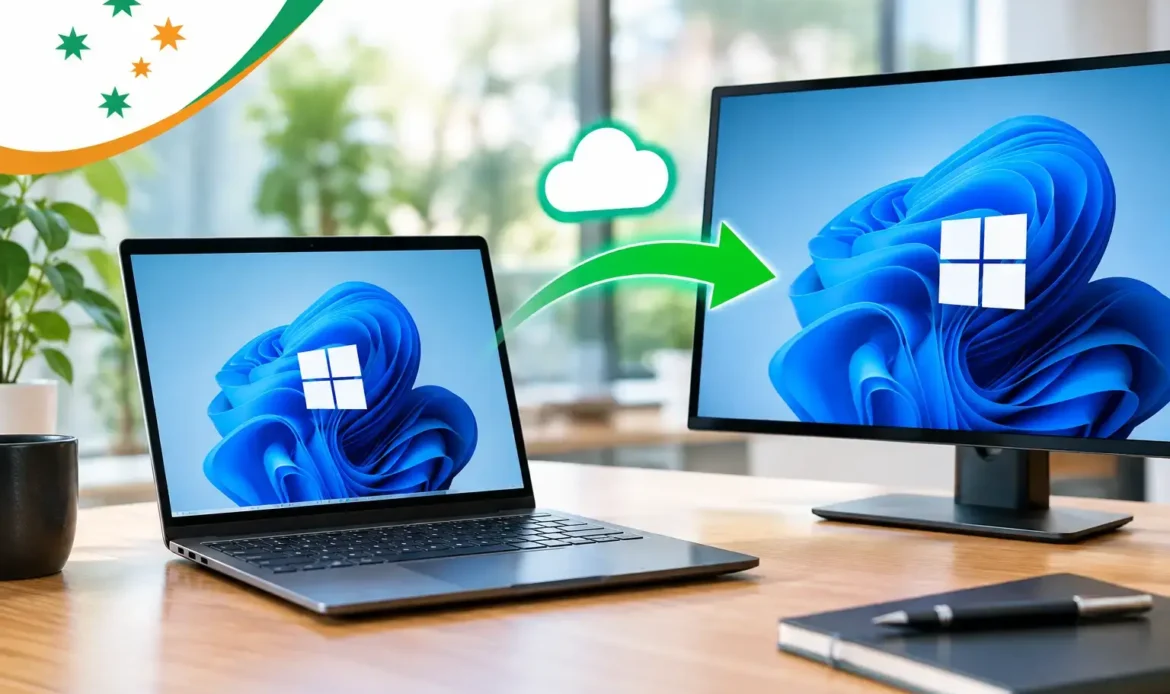
A Windows migration is more than copying a few folders to a new computer. Your documents matter, of course, but so do saved passwords, email settings, accounting files, browser favourites, printers, specialist programs and the small settings that make the computer feel familiar. This Windows migration guide explains how to plan the move properly, whether you are upgrading to Windows 11, replacing an ageing PC or setting up a new workstation for a small business.
The best migrations are planned before the old computer becomes unreliable. A failing hard drive, repeated error messages or a computer that will not start can turn a straightforward job into a data recovery exercise. If your current PC is still working, you have time to check what needs to move and make a verified backup.
First, decide what kind of move you need
Not every Windows upgrade requires the same approach. If your existing computer meets the hardware requirements for Windows 11 and is otherwise performing well, an in-place upgrade may be the sensible option. Your files, installed programs and most settings remain on the same machine, although the upgrade should still be preceded by a full backup.
If the computer is older, slow, short on storage or not compatible with Windows 11, moving to a new PC is usually the better long-term choice. A fresh Windows installation on a new machine avoids carrying years of unwanted software, old drivers and hidden problems into the next system. The trade-off is that programs and settings need more careful attention.
For a small business, consider whether the migration involves just one computer or a shared setup. Files held on a network drive, an office printer, cloud storage, business email and software licences can affect several people. It is worth scheduling the changeover at a quieter time rather than trying to solve access issues in the middle of a busy workday.
What should be checked before moving Windows
Start by making an inventory of what is on the old computer. This need not be overly technical. Walk through the way you use the PC during an ordinary week. Where are your documents stored? Which email address is set up? What programs do you open for work, study, photos, banking or record keeping?
Pay particular attention to files that are not stored in the usual Documents, Pictures or Desktop folders. Older software may save data in its own folder, on a second drive or in a shared network location. Accounting databases, contact lists, saved templates, scans and downloaded invoices are commonly missed. If you use a USB drive for backups, check that the backup actually opens and contains recent files.
Before the migration, make sure you have access to:
- your Windows sign-in details and recovery information
- email addresses and passwords, including any verification method
- program licence keys, subscription logins and installation files where needed
- passwords for your Wi-Fi network and any shared folders
- the latest backup of personal and business files
It is also wise to check browser bookmarks and saved passwords. Browsers can synchronise this information through an account, but only if synchronisation was switched on and is up to date. Do not assume a password stored in a browser will automatically appear on the new PC.
Check Windows 11 compatibility honestly
Windows 11 has specific requirements, including supported hardware and security features. Some older computers can continue to run their current system for a while, but forcing an unsupported upgrade is rarely a good solution. It may create update issues, driver problems or an unreliable computer that costs more in time and frustration than a replacement would.
A compatibility check gives a useful starting point, not the whole answer. A PC may technically qualify for Windows 11 but still have a slow hard drive, too little memory or a battery that is nearing the end of its life. In those cases, an upgrade or replacement may be more practical than simply installing a newer version of Windows.
Back up before you touch anything
A backup is your safety net, not an optional extra. Ideally, keep more than one copy of important data: one on an external drive and another in a suitable cloud service or separate location. This protects you if a device fails during the move or if an old computer is damaged, lost or infected by malware.
For many home users, copying personal folders to an external drive is a good first step. For business users or anyone with years of files, a full image backup can be useful because it preserves the computer in its current state. It may allow individual files to be retrieved later, even if you do not want to transfer every old setting and program.
Check the backup after it finishes. Open a few documents, photos and spreadsheets directly from the backup drive. Confirm that the most recent work is there. A backup that cannot be read when needed is no backup at all.
Moving files is easy. Moving access is the real job
Most personal files can be copied to the new PC, but the migration should be organised rather than rushed. Transfer folders in a clear order and avoid deleting anything from the old computer until you have checked the new one thoroughly.
Email deserves extra care. If your email is web-based, signing in may be all that is required. If messages are stored locally in an email program, however, there may be archive files, contacts and folders that need to be exported and imported. Small business email accounts can also require server settings, security prompts and multi-factor authentication to be set up again.
Programs generally need to be installed afresh on a new PC. Copying an application folder across does not usually create a working installation because Windows also relies on system files, drivers and registration information. Keep a list of the programs you need, then install current versions from trusted sources. This is a good chance to leave behind software you no longer use.
Printers, scanners and other devices should be tested individually. A printer that worked perfectly on an older version of Windows may need an updated driver or a fresh network connection. If it is shared across a home or office Wi-Fi network, test it from each computer that needs to use it.
A practical Windows migration checklist
Once the new PC is ready, work through the essentials before retiring the old one. Confirm that Windows is activated, updates have been installed and security protection is working. Connect to your Wi-Fi, set up email, restore files, install required programs and test printing.
Then check the details people often notice only later: browser favourites, saved contacts, desktop shortcuts, document templates, scans, photo folders and access to shared files. Open several files in the programs you normally use. If you work from home, test any remote access, video meeting software or VPN connection before you need it.
For a small business, ask each user to sign in and confirm they can reach their email, files, printer and key applications. One final check is far less disruptive than discovering a missing permission or licence when a customer is waiting.
Do not wipe the old computer too soon
Keep the old device untouched for at least a couple of weeks after the move, provided it is safe to do so. It gives you a reference point if an old file, password or setting is missing. Once you are confident everything has transferred, remove personal data properly before selling, donating or recycling the computer.
A simple file deletion is not enough. The device should be reset or securely wiped, particularly if it contains tax records, client information, saved passwords or personal photos. If the hard drive is failing, it may need a different approach to make sure private information is not left accessible.
When it is worth getting local help
A Windows migration can be very manageable when the setup is simple and the old computer is healthy. It becomes more involved when there are multiple email accounts, business programs, a slow or failing drive, printers, shared folders or uncertainty about where important files are stored.
For customers across southern Adelaide, Southern Computer Services SA can help assess whether an existing PC is suitable for Windows 11, back up data, set up a replacement computer and make sure the everyday essentials work before the old machine is retired. That can be done with practical, plain-English advice rather than leaving you to sort through technical prompts alone.
The right time to plan a migration is while your current computer still gives you choices. Take the opportunity to keep what matters, clear out what does not and start the next PC with a setup you can rely on.