




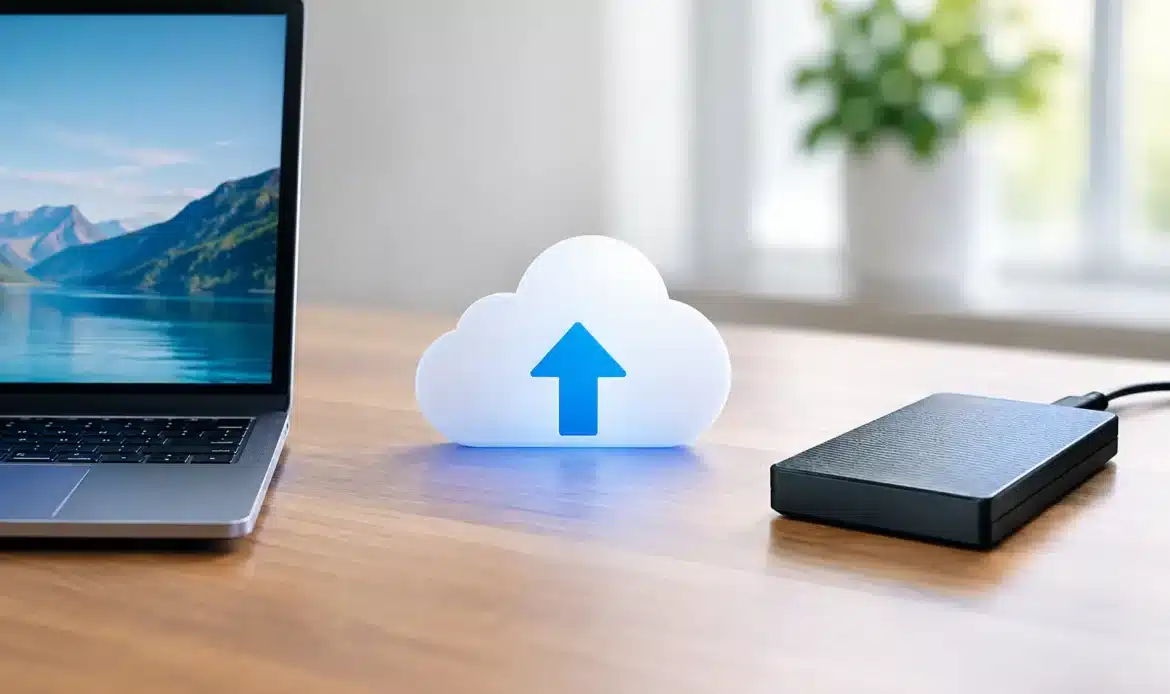
A laptop can fail without much warning. A spilled drink, a failing hard drive, theft, a power surge or a ransomware attack can leave family photos, tax records, customer files and years of emails out of reach. When weighing cloud backup versus external drive, the best choice is rarely about which option is better in every situation. It is about what you need to recover, how quickly you need it back, and what could happen to the computer and the backup at the same time.
For most homes and small businesses, using both is the sensible answer. Each protects against risks the other does not.
Cloud Backup Versus External Drive: The Key Difference
An external drive is a physical hard drive or solid-state drive connected to your computer, usually by USB. It can hold a copy of your files or, better still, a full backup of the computer. You own it, it is nearby, and restoring a large amount of data can be fast.
Cloud backup stores an encrypted copy of selected files, or sometimes your whole device, on secure servers accessed over the internet. It normally runs automatically in the background and keeps a copy away from your home or office.
That off-site protection is the major difference. If a burglary, fire, flood or electrical event affects both your computer and the drive sitting beside it, an external drive alone may not help. A cloud backup remains available from another location, provided you can access your account.
On the other hand, cloud backup depends on your internet connection. Restoring hundreds of gigabytes over a slow connection can take a long time. An external drive is often the faster way to get a computer running again after a hard drive failure.
When an External Drive Makes Sense
An external drive is a practical, affordable starting point for many households. It is particularly useful when you have a large photo collection, videos, documents or a full Windows system image to protect. Once the backup is complete, files can generally be restored without downloading them from the internet.
It also gives you control. There is no ongoing storage subscription for the drive itself, and you can keep it disconnected when it is not being used. That last point matters. A drive permanently plugged into a computer may be affected by ransomware, accidental deletion or a power problem just like the computer’s internal drive.
A good routine is to connect the drive, run a backup, confirm it has completed, then disconnect it and store it somewhere safe. For important data, keep the drive in a different part of the house or, better again, at another secure location. A drive kept in the same computer bag as the laptop is convenient, but it will not protect you if the bag is stolen.
External drives do have limits. They can fail, be dropped, go missing or simply be forgotten in a drawer. They also rely on someone remembering to run the backup unless the drive is connected regularly and backup software is configured correctly.
Choose a drive with room to grow
As a simple rule, choose an external drive with at least twice the capacity of the data you plan to back up. This leaves room for future files and allows backup software to retain older versions. If your computer holds 500 GB of data, a 1 TB drive is a reasonable minimum, while 2 TB may provide more breathing room.
Capacity is not the only consideration. A portable drive is easy to store and carry, while a larger desktop drive can offer more space for a home office or small business. Whichever type you choose, remember that a backup drive is not permanent storage. It should be checked and replaced if it starts reporting errors or becomes unreliable.
Where Cloud Backup Is Stronger
Cloud backup is designed for protection with less hands-on effort. Once set up, it can back up changed files automatically each day or whenever the computer is online. This is a real advantage for busy households and small businesses where manual tasks are easy to put off.
Its greatest strength is protection from a local disaster. If your computer and external drive are damaged, stolen or inaccessible, you can sign in from another device and begin recovering your data. Many services also keep earlier versions of files. That can be valuable when a document is overwritten, a folder is accidentally deleted, or ransomware encrypts your current files.
Cloud backup has ongoing costs, and those costs usually rise with the amount of data stored. Uploading the first full backup can also take days or weeks, especially where there are many photos and videos or limited upload speed. That is not necessarily a reason to avoid it, but it is worth planning for.
Be clear about the difference between cloud storage and cloud backup. A folder that synchronises files across devices is handy, but synchronisation can copy mistakes as well. If you delete a file from the synced folder, that deletion may be repeated elsewhere. A proper backup service should retain file versions for a defined period and allow you to restore them when needed.
Check what is actually being backed up
Not every cloud service backs up everything automatically. Some cover only files in selected folders, while others can include documents, photos, desktop files and system settings. Email, accounting data, browser information and specialised business software may need separate attention.
Before relying on any backup, check the included folders and exclusions. If you save important work on the desktop, in Downloads or in an unusual program folder, make sure it is covered. For small businesses, confirm that shared files, client records and any software databases have an appropriate backup method. Simply seeing a green tick beside a folder does not always mean every important item is protected.
Recovery Speed Matters More Than Most People Expect
A backup is only useful if you can restore it when something goes wrong. This is where the cloud backup versus external drive decision often becomes clearer.
If you need a single document from last month, cloud backup is usually very convenient. If a Windows computer needs a replacement drive and you have several hundred gigabytes to restore, an external drive can be much quicker. You can copy data directly rather than wait for a large download.
For a business, downtime has a cost. A sole trader who cannot access quotes, invoices or customer records may lose work while waiting to recover files. In that situation, a local backup can provide speed, while cloud backup provides the off-site safety net if the premises or equipment are affected.
It is also worth testing a restore before there is an emergency. Open a backed-up photo, restore a document to a temporary folder, and make sure it works. For a full computer backup, check that the recovery process is understood and that any required passwords or recovery keys are recorded safely.
A Sensible Backup Plan for Homes and Small Businesses
The well-known 3-2-1 approach remains useful because it is simple. Keep three copies of important data, on two different types of storage, with one copy kept off-site. Your computer is one copy, an external backup drive is another, and cloud backup provides the off-site copy.
You do not need to overcomplicate it. Start by identifying what would be painful or expensive to lose: photos, documents, emails, financial files, customer information and work projects. Set up automatic cloud backup for those items, then make regular backups to an external drive. Keep the drive disconnected after use where practical.
For people who only have a few essential documents, cloud backup may be enough to begin with. For photographers, home offices, gamers with large collections, or small businesses with substantial data, a combined approach is usually worth the effort. The right setup depends on the amount of data, your internet speed, your budget and how much downtime you can tolerate.
Common Backup Mistakes to Avoid
The most common mistake is assuming a backup exists without checking. Another is keeping the only backup drive connected all the time, which can expose it to malware and accidental changes. Some people also replace a computer without first confirming that all their files have been copied, then discover important data was stored in an unexpected location.
Passwords are part of the backup plan too. If cloud backup is protected by an account you cannot access, recovery becomes much harder. Use a strong unique password and keep account recovery details current. For business data, consider who needs access if the owner is unavailable.
If setting up and checking backups feels daunting, local help can save a lot of worry. Southern Computer Services SA can help southern Adelaide home users and small businesses choose suitable storage, configure backups and confirm that important files can be restored.
The best time to test your backup is on an ordinary day, when there is no pressure and no missing data. A few minutes spent checking now can make a computer failure an inconvenience rather than a disaster.

