




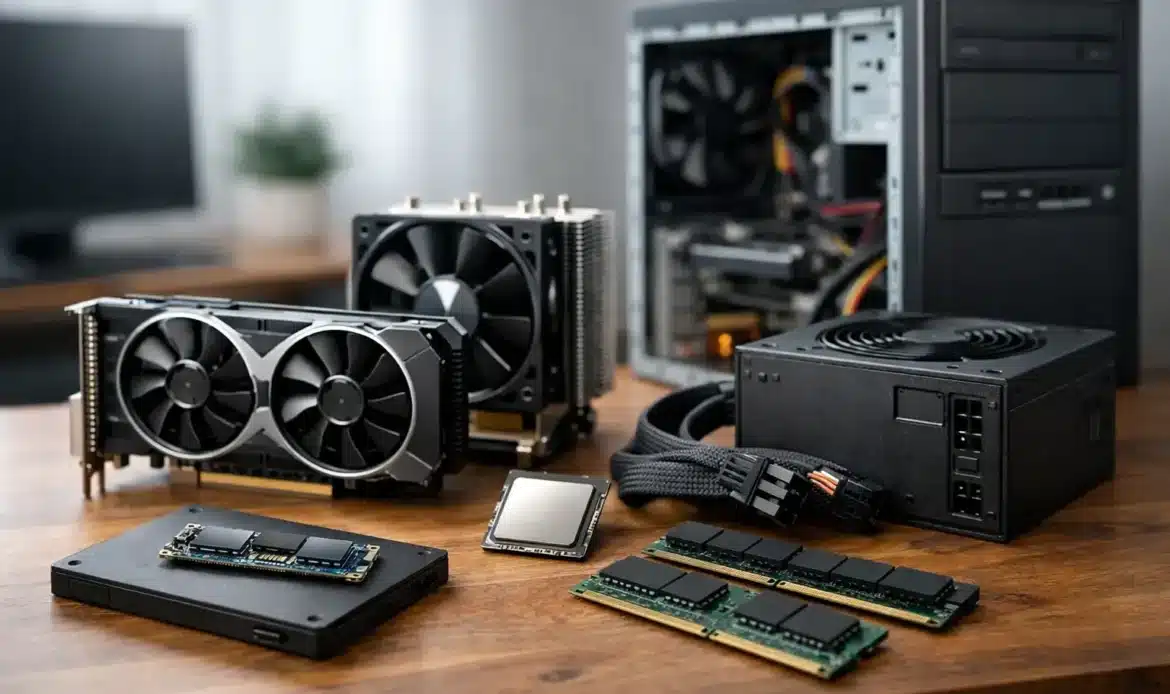
A desktop that takes ten minutes to start, struggles with email attachments or freezes during a video call can feel ready for the rubbish bin. Often, it is not. The best upgrades for older desktop PCs can make a noticeable difference for far less than the cost of a new computer, provided the machine is still a sensible candidate for improvement.
The key is to upgrade the part causing the problem rather than buying hardware at random. A slow hard drive, limited memory and an outdated Windows installation are common causes of frustration. On the other hand, some older systems have reached the point where putting more money into them is poor value. A quick assessment first can save plenty of time and expense.
Start with the problem, not the parts
Before choosing an upgrade, think about what the desktop needs to do. A home computer used for browsing, banking, documents and photos has very different needs from a small business PC handling accounting software, large spreadsheets or several screens. A computer for gaming, design work or video editing may need a more substantial rebuild.
Also consider the symptoms. If the desktop starts slowly but works reasonably well once it is running, storage is often the first place to look. If it slows down with several browser tabs, email and office programs open, memory may be the issue. Random shutdowns, blue screens and failure to turn on are usually repair matters rather than straightforward upgrades.
It is worth checking the age and specifications of the system before spending anything. A desktop that supports modern storage and has enough processing power can often serve well for years. A very old computer that cannot run a supported version of Windows, however, may be better replaced with a newer or custom-built desktop.
The best upgrades for older desktop performance
Replace the hard drive with a solid-state drive
For many older desktops, fitting an SSD is the most worthwhile upgrade available. Traditional hard drives use moving parts and become noticeably slower as they age. An SSD has no moving parts, so Windows starts faster, programs open sooner and the whole computer feels more responsive.
This is not just about the boot time. Everyday tasks such as opening photos, searching files and installing updates are generally quicker as well. For a desktop with a healthy processor and enough memory, an SSD can make it feel like a different machine.
The job needs to be handled carefully. Your files, email settings and important software may need to be transferred from the old drive, or Windows may need to be reinstalled properly. It is also a good time to make a proper backup. A new SSD improves speed, but it cannot recover data that was already lost on a failing old drive.
Add more RAM where it will help
RAM is the computer’s short-term working space. When there is not enough of it, Windows starts relying more heavily on the storage drive, which causes delays and stuttering. This is particularly noticeable when several programs are open at once.
For basic home use, moving from 4GB to 8GB can be a substantial improvement if the computer supports it. Systems used for business tasks, larger files or lots of browser tabs may benefit from 16GB. More is not always better, though. Adding a large amount of RAM to a desktop with a very slow processor or hard drive may not give the result you expect.
Compatibility matters here. Older desktops use different memory types and can have limits on how much RAM they support. The correct modules need to be matched to the motherboard, so this is one area where checking first avoids buying parts that cannot be used.
Consider a graphics card only for the right jobs
A graphics card upgrade can be useful for gaming, creative applications, multiple high-resolution monitors and some specialist business software. It is rarely the first upgrade needed for browsing, email, documents or general home use.
Older desktops can have physical and electrical limits. The new card must fit the case, be supported by the motherboard and work safely with the existing power supply. A more powerful card can also create more heat and noise. If the desktop has an ageing or low-capacity power supply, replacing that at the same time may be necessary.
For the right system, a graphics upgrade can extend its useful life. For a very old office-style desktop, it may be better value to put that money towards a newer PC designed for the work you need done.
Upgrade the power supply if reliability is a concern
The power supply is easy to overlook because it does not make a desktop faster on its own. But an unreliable unit can cause sudden restarts, failure to boot, instability and damage to other components. It is especially relevant when installing a graphics card or when a desktop is many years old.
A quality replacement power supply should be appropriately sized for the components, fit the case and have the right connections. Going for the cheapest option is usually a false economy. Reliable power is the foundation for a stable computer.
Improve cooling and clean out dust
Dust buildup can block airflow, make fans noisy and cause a desktop to run hot. Excess heat may lead to reduced performance, crashes or shortened component life. Cleaning the internal fans, vents and heatsinks can be a practical maintenance step, especially in homes with pets or dusty work areas.
In some cases, replacing a failing fan or renewing thermal paste between the processor and cooler is worthwhile. These jobs are more hands-on than adding an external accessory, but they can resolve overheating problems that have been mistaken for a slow computer.
Windows 11 changes the upgrade decision
Windows 10 reached end of support in October 2025, so compatibility is now part of any upgrade discussion. An older desktop might still run well physically, yet not meet the official requirements for Windows 11. Processor generation, TPM security hardware and Secure Boot support can all affect eligibility.
It can be tempting to force an unsupported installation, but that is not a sensible long-term approach for most home users or small businesses. Security updates, reliability and software compatibility matter more than squeezing a little extra life out of ageing hardware.
Sometimes an SSD and extra RAM are ideal because the computer is already Windows 11 compatible. In other cases, a motherboard and processor upgrade would be needed as well. Once several major components need replacing, a new desktop often represents better value, includes a warranty and gives you a clearer path for future updates.
When an upgrade is worth it
An upgrade usually makes sense when the desktop has a reasonably modern processor, is in good physical condition and has a clear bottleneck. For example, a computer with 8GB of RAM and an old hard drive may become perfectly capable for everyday work once an SSD is installed.
It can also be a sensible choice when you rely on older software, peripherals or a familiar setup that would take time to recreate. A careful upgrade and data transfer can keep your working environment intact while removing the day-to-day slowness.
For small businesses, the cost of downtime should be part of the calculation. A workstation that frequently crashes or cannot run current security updates can cost more in lost time than it saves in purchase price.
Signs replacement is the better option
There is a point where repairs and upgrades become a patchwork solution. Consider replacement if the desktop cannot run Windows 11, has repeated hardware faults, uses very old connections, or would need a new processor, motherboard, RAM, storage and power supply all at once.
Replacement is also sensible where performance demands have changed. If you now need multiple monitors, modern business software, large cloud files or specialist creative applications, a computer built for those tasks will be more dependable than continually trying to stretch an old one.
A custom-built desktop can be useful here because it can be matched to how you actually work. That avoids paying for high-end parts you do not need while ensuring the important components are not underpowered.
Get the data checked before any work begins
Whether you upgrade or replace, protect your data first. Photos, documents, saved passwords, email archives and business records can be more valuable than the desktop itself. If the drive is making clicking noises, disappears intermittently or causes repeated error messages, stop using it where possible and seek help promptly. Continued use can make data recovery harder.
A local technician can assess the existing hardware, test whether the drive is healthy, confirm Windows 11 compatibility and explain the likely benefit before parts are fitted. Southern Computer Services SA can provide practical advice at your home or small business across southern Adelaide, without pushing upgrades that do not suit the machine.
The right upgrade should make your computer easier to use, not turn into an expensive guessing game. If a new SSD or extra memory will solve the problem, it is money well spent. If the desktop has reached its practical limit, knowing that early lets you move to a replacement with confidence and a proper backup of what matters.

