




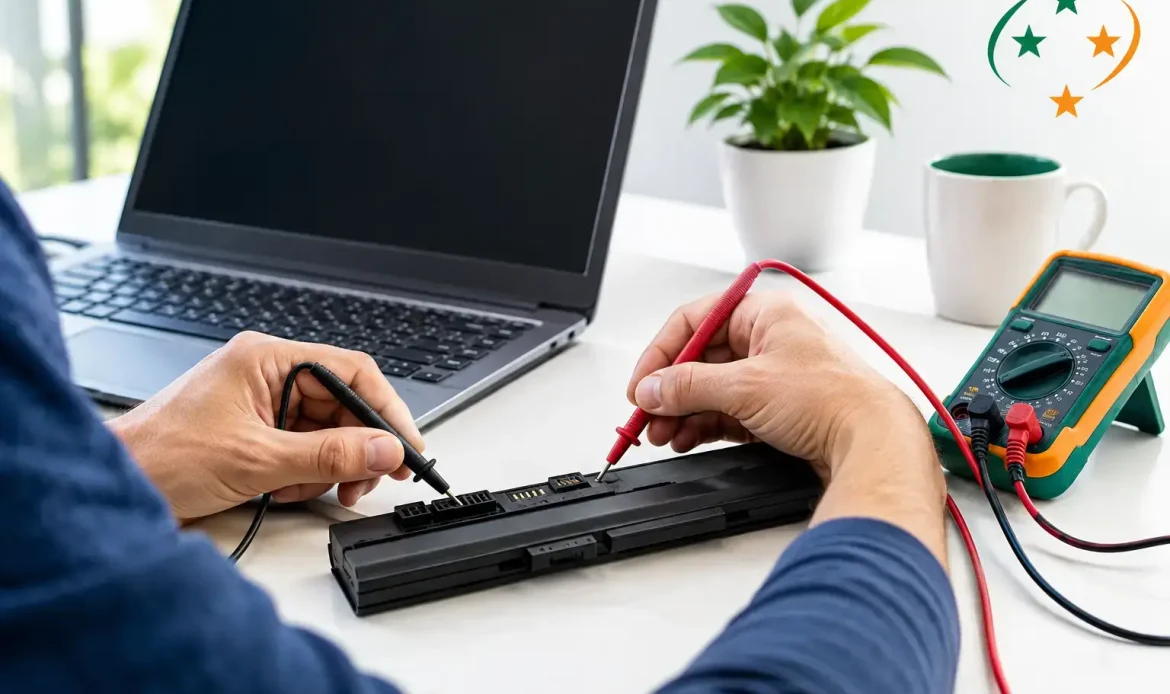
A laptop that drops from 40% to flat without warning is more than an inconvenience. It can interrupt work, risk unsaved files and leave you wondering whether the battery, charger or laptop itself is at fault. Knowing how to diagnose laptop battery problems properly helps you avoid replacing the wrong part and gives you a clearer idea of what needs attention.
Most battery faults show up gradually, but not always. Shorter run time, slow charging, an incorrect battery percentage or a laptop that only works while plugged in are all useful clues. The key is to check the simple causes first, then use the information your Windows laptop already provides.
Start with the symptoms you can see
Before changing settings or buying a replacement battery, take note of exactly what the laptop is doing. A battery that charges to 100% but lasts only 20 minutes is a different problem from one that refuses to charge at all.
If the laptop runs normally on the charger but switches off the moment the power lead is removed, the battery may have reached the end of its useful life. If it charges only when the plug is held at a particular angle, the problem could be the charger cable, power socket or charging port rather than the battery.
Also look for warning signs that need prompt attention. A bulging case, raised trackpad, separating seams around the keyboard, unusual heat or a chemical smell can indicate a swollen battery. Stop using and charging the laptop if you notice these signs. A swollen battery should be assessed and removed safely, not squeezed back into the case or ignored.
Check the charger and charging connection
It is easy to blame the battery when the actual issue is power getting to it. First, check that the wall outlet is working by trying another device. Then inspect the charger cable and plug for fraying, bent sections, exposed wiring or heat damage.
Use the correct charger for the laptop. A lower-powered replacement charger may power the laptop but fail to charge the battery properly, especially while you are using demanding programs. A charger with the wrong voltage can cause more serious issues. If a charger is damaged or suspect, do not keep using it as a test.
With the laptop connected to power, gently check whether the charging symbol appears and whether the percentage increases over 15 to 30 minutes. If it repeatedly changes between charging and not charging, or if the connector feels loose, the charging port may need repair.
How to diagnose laptop battery health in Windows
Windows can create a battery report that compares the battery’s original capacity with the capacity it can currently hold. This is one of the most useful checks because it replaces guesswork with real figures.
Open the Start menu, type Command Prompt, then choose Run as administrator. Enter the following command:
`powercfg /batteryreport`
Windows will save a report as an HTML file and show its location on screen. Open that file in your browser and look for the sections called Installed batteries, Recent usage and Battery capacity history.
The most useful figures are Design Capacity and Full Charge Capacity. Design Capacity is what the battery could hold when new. Full Charge Capacity is what it can hold now. For example, a battery designed for 50,000 mWh that now holds 25,000 mWh has roughly half its original capacity remaining.
There is no single percentage at which every battery must be replaced. A laptop used mainly at a desk may remain perfectly practical at 70% health. For someone who needs several hours away from a power point, even 80% may feel limiting. A rapidly falling capacity, sudden shutdowns or an unreliable charge level matter more than one number alone.
Rule out a Windows or driver issue
Sometimes the battery is healthy enough, but Windows is reporting it poorly or a driver has misbehaved after an update. Restart the laptop first. It sounds basic, but it can clear a temporary charging or power-management fault.
Next, open Device Manager and expand Batteries. You will usually see entries for the battery and the AC adapter. Right-click the battery-related entry, choose Uninstall device, then restart the laptop. Windows should reinstall the driver automatically. This does not erase your files or replace the battery. It simply refreshes the way Windows communicates with it.
Check for Windows updates as well. If the laptop manufacturer provides a BIOS or firmware update specifically addressing battery charging or power management, it may be worthwhile, but this is a job to approach carefully. The laptop needs stable power throughout the update. If you are not comfortable with it, getting help is safer than risking an interrupted update.
Test real-world battery run time
Battery reports are helpful, but a simple practical test gives useful context. Charge the laptop fully, disconnect the charger and use it normally for an hour. Keep notes on the percentage before and after, along with what you were doing.
Streaming video, video calls, games, photo editing and many browser tabs use far more power than email or word processing. Screen brightness also makes a noticeable difference. If the battery appears poor only during heavy work, the laptop may simply be drawing more power than expected rather than suffering a sudden battery fault.
If possible, repeat the test on another day with lighter use. Consistent, predictable drain is usually easier to manage than a percentage meter that falls in large jumps. A battery that reports 35%, then shuts down moments later, is often badly worn or out of calibration.
Be careful with battery calibration advice
You may see advice suggesting that you should fully drain the battery to zero regularly. For modern lithium-ion batteries, that is not good routine practice. Deep discharges can add unnecessary wear.
However, if the percentage reading is clearly inaccurate, a one-off calibration cycle can sometimes help the laptop estimate the remaining charge more accurately. Charge it to 100%, leave it connected for a short period, then use it normally until it reaches its low-battery warning and shuts down. Recharge it uninterrupted to full afterwards.
Treat this as a diagnostic step, not a cure. Calibration cannot restore lost battery capacity. If the laptop still switches off unexpectedly after this process, the battery is likely worn out or another hardware issue is involved.
Consider heat, age and your usual setup
Heat is one of the main reasons batteries age faster. A laptop used on a bed, couch or thick blanket can have its vents blocked, causing both the system and battery to run hot. Use it on a firm, flat surface and clear dust from the vents where possible.
Age matters too. Many laptop batteries begin to show noticeable decline after a few years, although results vary with use, heat and charging habits. Keeping a laptop plugged in most of the time is not automatically harmful, as many modern systems manage charging intelligently. But constant heat, poor ventilation and a battery already showing reduced capacity can still shorten its life.
For a laptop that stays on a desk, it may be worth checking whether its manufacturer settings include a battery charge limit. Limiting the maximum charge can reduce long-term stress, although it also means less run time when you take the laptop out.
Decide whether to repair, replace or investigate further
A replacement battery makes sense when the battery report shows significantly reduced capacity, run time no longer meets your needs, or the laptop shuts down unexpectedly when disconnected from power. It may also be the right choice when the laptop is otherwise reliable and still suitable for your work.
On some laptops, battery replacement is straightforward. On others, the battery is internal and access requires removing the base cover and delicate components. Quality matters as well. A very cheap, unknown battery can have poor capacity, fit badly or create charging problems. A reputable compatible part and correct installation are usually the better value.
If a known-good charger does not help, the battery is not detected, or the charging port is loose, further diagnosis is needed. The fault may be in the power circuit, port or motherboard rather than the battery. In that situation, replacing the battery first can be an unnecessary expense.
For Southern Adelaide home users and small businesses, Southern Computer Services SA can check battery health, charger performance and charging faults without making the process complicated. The right answer may be a battery replacement, a charger, a port repair or simply advice on getting more useful life from the laptop you already have.
A battery problem does not always mean the laptop is finished. A few careful checks can show whether it needs a straightforward replacement or a closer look, helping you make a practical decision before the next unexpected shutdown.