




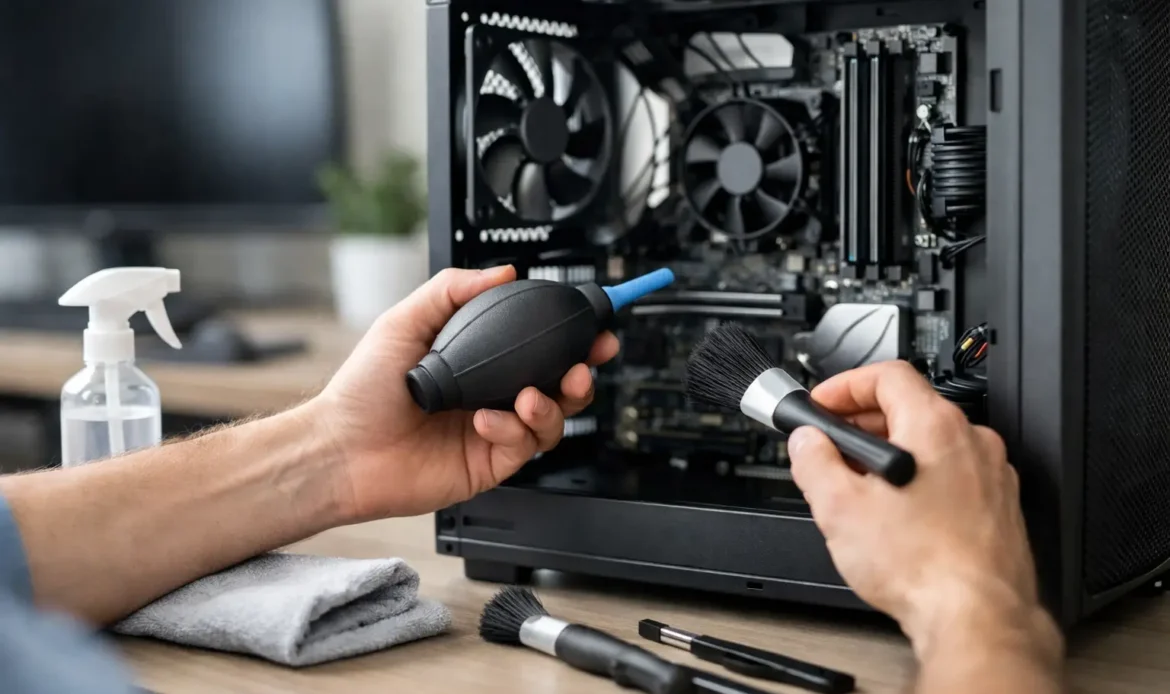
If your computer sounds louder than it used to, feels hot around the vents, or seems slower for no obvious reason, dust is often part of the problem. Computer cleaning is one of the simplest ways to improve airflow, reduce heat, and help a desktop or laptop last longer – but only if it’s done properly.
A lot of people leave it until the machine starts shutting down, freezing, or running the fans flat out. By then, dust may already be packed into the cooling system, especially in older desktops and laptops used every day. Cleaning it early is easier, safer, and usually cheaper than dealing with heat damage later.
Why computer cleaning matters
Inside any computer, heat is the enemy. Processors, graphics hardware, power supplies, and storage all produce heat, and that heat needs to be moved out efficiently. When dust builds up on fans, vents, and heatsinks, airflow drops. The system then runs hotter, noisier, and under more strain.
In a desktop PC, dust often collects around intake fans, CPU coolers, graphics cards, and power supply vents. In laptops, the problem is usually worse because everything is packed tightly into a smaller space. A thin layer of dust might not sound serious, but over time it can act like a blanket, trapping heat where it shouldn’t.
That extra heat doesn’t always cause an immediate failure. More often, it shows up as gradual problems – sluggish performance, random restarts, black screens, or fans running constantly. Small business users can also notice it during video calls, email work, accounting software, or anything else that keeps the machine busy for long periods.
What safe computer cleaning looks like
Good computer cleaning is not the same as giving the outside a quick wipe. The keyboard, screen, and case matter, but the real benefit comes from cleaning the cooling path properly.
For most home users, the safe starting point is external cleaning. Power the computer down, unplug it, and remove any connected accessories. Use a soft microfibre cloth for the case and screen, and avoid spraying liquid directly onto any part of the machine. If you’re cleaning a keyboard, a small amount of cleaner on the cloth is much safer than spraying into the keys.
When it comes to internal cleaning, more care is needed. Compressed air can help remove dust from vents and fans, but it needs to be used gently and with control. Blasting air too hard can push dust deeper into the machine or spin fans faster than they’re designed for. Vacuum cleaners are also risky inside computers because they can create static and damage sensitive components.
Common mistakes people make
The biggest mistake is opening a computer without knowing how it comes apart. Laptop clips, ribbon cables, and internal connectors are easy to damage if you force anything. Desktop towers are usually more straightforward, but even then, it’s possible to knock a cable loose or dislodge a component.
Another common issue is using the wrong products. Household cleaners, wet wipes, paper towels, and general dusting sprays are not made for computer parts. They can leave moisture behind, scratch surfaces, or cause residue to build up over time.
There’s also a point where cleaning alone won’t fix the problem. If a computer is overheating because the fan has failed, the thermal paste has dried out, malware is pushing the system hard, or the hard drive is starting to fail, dust removal may help but won’t solve the underlying issue.
Signs your computer may need more than a clean
If your system is still slow after a proper clean-up, it may be dealing with a different problem. Long startup times, pop-ups, failed updates, internet issues, storage warnings, and repeated crashes can point to software faults rather than dust.
This is where many people get caught out. They hear the fan noise, assume the machine just needs cleaning, and miss the real cause. Sometimes the fix is a virus removal, a Windows repair, a storage upgrade, or replacing a failing cooling fan. In older systems, a full service makes more sense than cleaning one area and hoping for the best.
Desktop vs laptop cleaning
Desktop cleaning is usually more accessible and less risky because there’s more room to work with. Cases can be opened without dismantling the whole machine, and parts like fans and filters are easier to reach. For a dusty home office or a family PC near the floor, a regular internal clean can make a noticeable difference.
Laptop cleaning is trickier. Dust often builds up in the fan and heatsink channels where you can’t see it from the outside. Some models require careful disassembly just to reach the cooling system. If the laptop is overheating, shutting down, or too hot to use comfortably, it’s often best handled by someone who works on them regularly.
When to get professional help
If you’re confident with a screwdriver and you’re only doing light external cleaning, that’s fine. But if the machine needs to be opened, especially a laptop or a performance desktop, professional help can save a lot of trouble.
A proper service can include internal dust removal, fan checks, temperature testing, software checks, and advice on whether the computer is still worth upgrading. For home users and small businesses around southern Adelaide, that can be far more practical than guessing and risking damage. Southern Computer Services SA sees this often – a machine that looked like it only needed a clean, but actually had a cooling fault, drive issue, or Windows problem underneath it.
As a general rule, if your computer is hot, noisy, unreliable, or overdue for maintenance, cleaning is a smart place to start. Just make sure it’s the right kind of cleaning, done the right way, so you fix the problem instead of creating a new one.

