




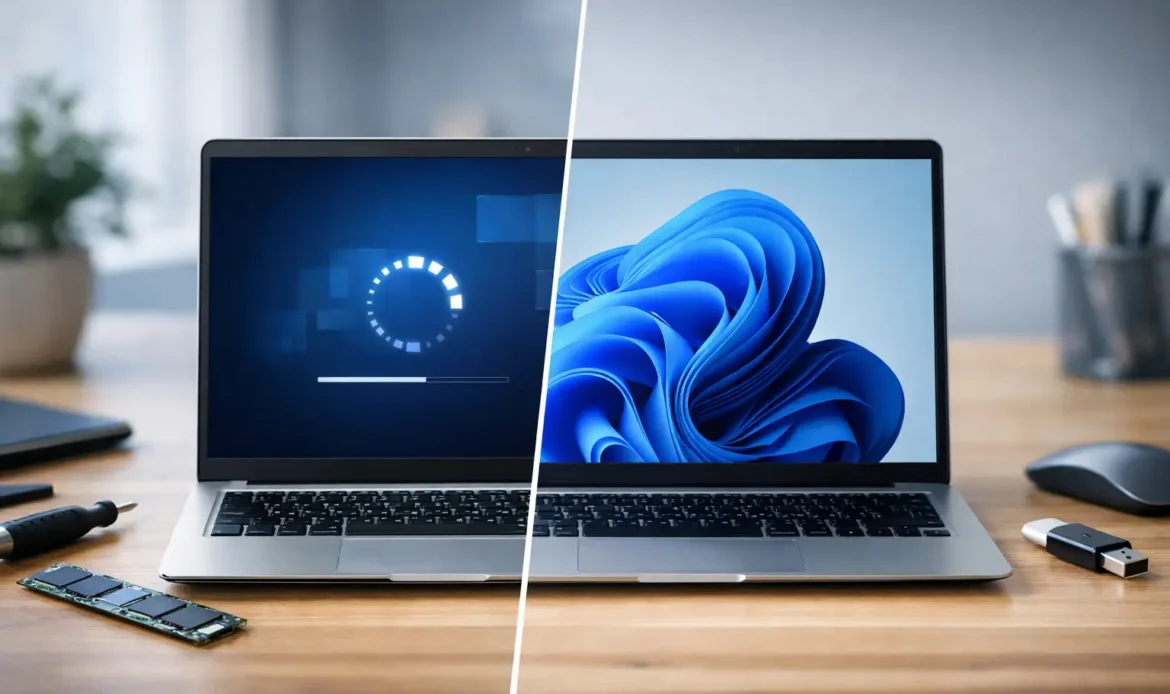
A Windows 11 upgrade vs clean install is not simply a choice between the quick option and the thorough option. The right path depends on how well your current computer is running, what programs you rely on, and whether your files are safely backed up. For many home users and small businesses, keeping familiar settings matters. For others, starting fresh is the fastest way to deal with years of clutter, errors or unwanted software.
Windows 10 support ended in October 2025, so if an eligible PC is still running it, moving to Windows 11 is now worth addressing. The good news is that both methods can produce a secure, reliable Windows 11 computer. The difference is in what comes across with you.
What a Windows 11 upgrade keeps in place
An upgrade installs Windows 11 over your existing Windows installation. Your personal files, most installed programs, user accounts and many settings are kept. When it goes well, you sign in afterwards and can continue working with very little disruption.
This is often the practical choice for a computer that is already stable and reasonably tidy. If you use specialist business software, saved email settings, printer connections or programs that would be difficult to reinstall, an upgrade can save a significant amount of time. It is also useful where a household computer has several user accounts and everyone wants their familiar desktop and documents left where they are.
An upgrade does not mean you should skip preparation. Windows carries across a great deal, including some things you may no longer need. Old startup programs, leftover utilities and existing performance issues can remain. If the PC has been slow for months, regularly crashes, or has a history of malware, installing a newer version of Windows on top may not fix the underlying problem.
There can also be compatibility issues. Older printers, scanners, security software and specialised programs may need updated drivers or may not work as expected under Windows 11. Checking these before the change is far easier than discovering a critical program has stopped working on Monday morning.
When a clean install is the better answer
A clean install removes the existing Windows installation and installs Windows 11 from scratch. It gives the computer a fresh operating system without old programs, temporary files, unwanted trial software or damaged system settings coming along for the ride.
For a PC affected by viruses, repeated errors or persistent slowness, this is often the more reliable option. It can also make sense after fitting a new solid-state drive, when handing a computer to a new user, or when a small business wants a consistent setup across several workstations.
The trade-off is time and preparation. After a clean install, programs need to be installed again, printers and other devices need to be reconnected, email accounts may need to be set up, and data must be copied back from a backup. A clean install is not difficult for an experienced technician, but it is not a job to begin without knowing where your important files, passwords and installation details are stored.
It is worth being clear about one point: a clean install can erase data from the Windows drive. Documents, photos, downloads, saved desktop files and locally stored email may all be at risk if they have not been backed up properly. A backup is not complete because it exists somewhere – it needs to contain the files you actually need and be accessible when it is time to restore them.
Windows 11 upgrade vs clean install: a practical comparison
If your computer is healthy, you know the programs on it are current, and you want the least interruption, an upgrade is usually the sensible starting point. You retain your working environment and avoid rebuilding everything from scratch.
If the computer has become unreliable, has accumulated years of software, or you want the best chance of a noticeably cleaner and faster setup, a clean install is usually better. It removes the unknowns that build up over time. This is especially relevant for computers that have changed hands, been used by several family members, or have previously had virus and spyware problems.
Neither option is automatically faster in every situation. An upgrade may take less hands-on work, but troubleshooting a poor result can take longer than rebuilding a well-backed-up computer from scratch. A clean install takes more initial effort, yet it can save frustration later when the old system was already unstable.
For a small business, the decision should also consider downtime. An upgrade may allow staff to get back to work sooner, while a clean install can be scheduled when there is enough time to test software, reconnect shared printers and confirm access to email, accounting or cloud services. The best technical choice is the one that does not leave the business unable to operate.
Check these things before changing Windows
Whether you choose an upgrade or a clean install, do the groundwork first. It reduces the chance of lost files and makes the process far less stressful.
- Confirm Windows 11 compatibility. The PC needs supported hardware, including suitable processor support, Secure Boot capability and TPM 2.0. Some older computers cannot officially run Windows 11, even if they still switch on and work well.
- Make a proper backup. Copy important documents, photos, business files and other personal data to a separate drive or trusted storage location. Check that the backup opens and includes recent files.
- List the programs you depend on. Include paid software, email applications, printer utilities, accounting tools and any specialist programs. Locate licence keys, sign-in details and installation files where required.
- Check available storage and device drivers. A crowded drive can complicate an upgrade. For a clean install, make sure drivers are available for important devices such as network adapters and printers.
- Allow enough time. Avoid starting just before a deadline, school assignment or important work day. Updates, data transfers and reinstalling programs can take longer than expected.
Do not overlook the condition of the hardware
Windows 11 will not turn failing hardware into a dependable computer. If a laptop battery is swollen, the hard drive is reporting errors, the machine overheats, or Wi-Fi drops out regularly, those issues should be checked before or during the migration.
In some cases, a hardware upgrade changes the answer. Replacing an ageing hard drive with a solid-state drive and then completing a clean Windows 11 install can give an older compatible desktop or laptop a very worthwhile second life. In other cases, the cost of repairs and upgrades may be better put towards a new computer that will provide several more years of support.
This is where straightforward advice matters. There is no benefit in paying for a clean install if the computer is about to fail, and no need to replace a PC that only needs a storage upgrade and a careful setup.
Getting help with the changeover
If you are unsure which option suits your PC, it is reasonable to have the computer assessed before making changes. Southern Computer Services SA can help home users and small businesses across southern Adelaide check compatibility, back up important data, complete Windows 11 migrations and get programs, email and printers working afterwards.
The safest choice is the one that protects your files and suits the way you use the computer. A little preparation before the installation is far cheaper and less stressful than trying to recover important information afterwards.

