




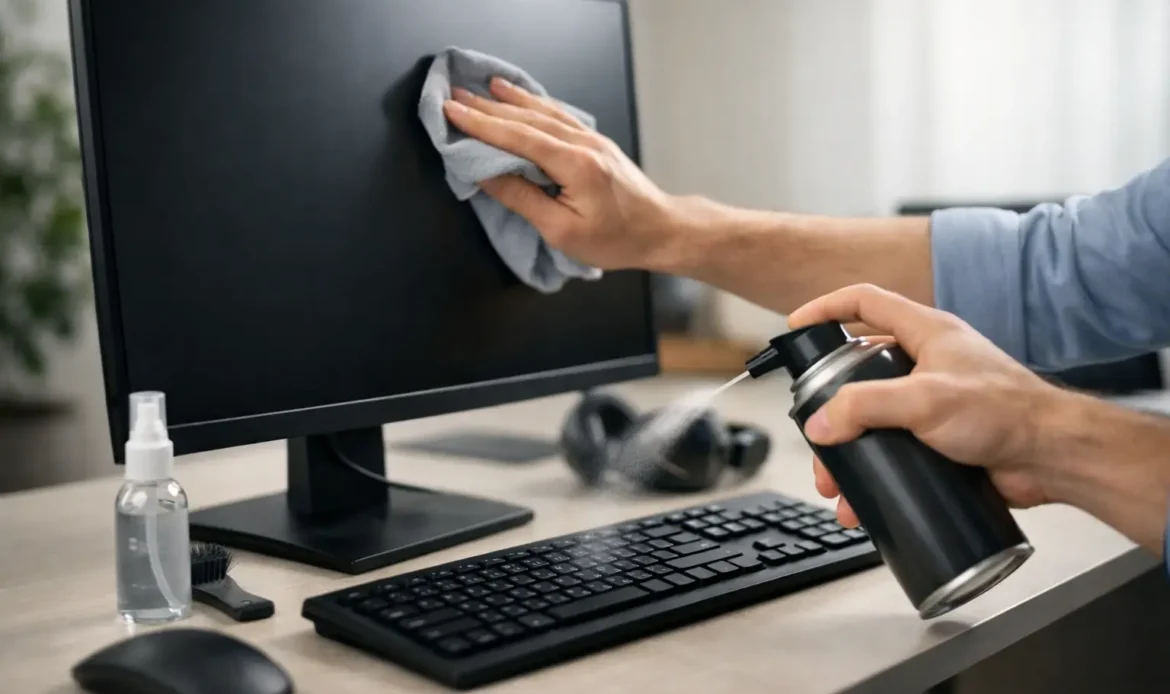
That loud fan noise you have been ignoring is often the first sign your PC is overdue for computer cleaning. Dust builds up slowly, so most people do not notice the problem until the machine starts running hot, slowing down, or shutting itself off at the worst possible time. A quick wipe over the case is not the same as properly cleaning a computer, and done the wrong way, it can create more problems than it solves.
For home users and small businesses, the goal is simple. Keep the machine cool, reliable and safe without turning a straightforward maintenance job into a repair bill. Some computer cleaning jobs are easy enough to do yourself, while others are best left alone unless you are confident working around internal components.
Why computer cleaning matters more than people think
A dusty computer is not just untidy. Inside a desktop or laptop, dust settles on fans, vents, heat sinks and power supply openings. Once that airflow is restricted, heat has nowhere to go. The system then has to work harder to stay cool, which can cause noisy fans, sluggish performance, random restarts and shorter hardware life.
In a small business, that can mean downtime in the middle of a workday. At home, it can mean a laptop that becomes uncomfortable to use, a desktop that sounds like it is about to take off, or a machine that struggles with basic tasks it handled easily a year ago. Heat is one of the quieter causes of computer trouble because it often builds gradually.
There is also a hygiene side to it. Keyboards, mice and screens collect skin oils, crumbs and general grime. Shared computers tend to get worse faster, especially in family homes, reception areas and workstations where several people use the same setup.
What computer cleaning can realistically fix
Cleaning will not solve every performance issue. If a PC is slow because of an ageing hard drive, failing updates, malware or too many startup programs, dust removal alone will not magically restore it. But proper cleaning can help with overheating, fan noise, temperature-related slowdowns and intermittent shutdowns.
It can also give you an early warning. When a machine is opened for cleaning, you sometimes spot bulging components, loose cables, failing fans or signs of liquid exposure before they turn into a larger fault. That is one reason a careful clean is more useful than simply blowing air at the outside vents and hoping for the best.
The difference between external and internal cleaning
External cleaning is the safer, simpler part. That includes the monitor, keyboard, mouse, case exterior, vents and the general area around the computer. It helps with hygiene, appearance and basic airflow around the machine.
Internal cleaning is where more care is needed. Desktops are usually easier because there is more room to work and parts are easier to access. Laptops are more delicate. They often have tightly packed components, hidden screws and clips that can crack if forced. In some models, getting to the cooling system is more involved than most people expect.
If you are just trying to freshen up your setup, external cleaning is a sensible place to start. If the system is overheating or the fans are constantly racing, internal cleaning may be needed.
How to clean a computer safely
Before doing any computer cleaning, shut the system down fully and disconnect power. For a desktop, turn it off at the wall and unplug it. For a laptop, disconnect the charger and, if the design allows it, make sure the battery is not actively supplying power while you work.
Use a soft microfibre cloth for surfaces. For keyboards and case exteriors, a slightly damp cloth is fine, but never spray liquid directly onto the computer. Put any cleaning solution on the cloth first. For screens, use a screen-safe cleaner sparingly and avoid pressing hard.
Dust around vents can often be loosened carefully with a soft brush. Compressed air can help, but it needs to be used properly. Short bursts are better than holding the nozzle down continuously, and fans should be prevented from spinning freely while air is applied. Letting a fan spin wildly under compressed air can damage it.
For desktops, opening the case and cleaning out loose dust from fans, filters and heat sinks is often straightforward if you are comfortable doing it. Work gently and avoid touching components more than necessary. For laptops, the trade-off is different. A light external clean is low risk, but opening the unit can be fiddly, and one snapped clip or disturbed connector can turn a maintenance job into a repair.
What to avoid during computer cleaning
This is where many well-meaning DIY jobs go off track. Household vacuums are not ideal inside computers. They can create static and may tug at delicate parts. Hairdryers are even worse because they can blow warm air and push dust deeper into the machine.
Avoid wet wipes that leave residue, strong chemical sprays, paper towels on screens and anything abrasive. Do not remove parts unless you know how they go back, and do not force panels that seem stuck. If a laptop needs near-complete disassembly to reach the fan, that is usually the point where professional help makes more sense.
It is also worth saying that not every dirty-looking machine needs a full strip-down. If the system is running normally and the dust is light, a careful surface clean and vent clean may be enough for now. More is not always better.
How often should you clean your computer?
It depends on where and how the computer is used. A desktop on the floor will usually collect dust faster than one sitting on a desk. Homes with pets, carpet, smokers or lots of foot traffic tend to see faster build-up. Small business environments can vary as well, especially if the computer is in a workshop, front counter area or shared office.
As a general guide, external cleaning every few weeks keeps things presentable and hygienic. A more thorough vent and dust check every few months is sensible. Internal cleaning for desktops is often worth considering every six to twelve months, depending on conditions. Laptops vary more, because some stay fairly clean while others clog quickly if used on fabric surfaces like couches, beds or laps.
If you hear fans running hard all the time, notice unusual warmth, or feel little airflow coming from the vents, that is a good sign the machine should be checked sooner rather than later.
When it is better to call a technician
Some people are perfectly comfortable opening a desktop and giving it a cautious clean. Others would rather not risk it, which is completely fair. If the computer is under warranty, physically damaged, running extremely hot, or packed with dust deep in the cooling system, it may be better handled by someone who works on these machines every day.
That is especially true for laptops and business systems where downtime matters. A proper service can include cleaning, checking fan operation, inspecting for early hardware issues and making sure the problem is not being caused by something else such as malware, storage faults or software load. There is no point cleaning a computer thoroughly only to miss the real reason it is slowing down.
For local users around southern Adelaide, this is the sort of job Southern Computer Services SA often helps with – practical support, clear advice and no unnecessary fuss.
A clean computer still needs the right setup
Computer cleaning is maintenance, not a cure-all. If your PC is full of dust and also running an old hard drive, low on memory or affected by unwanted software, the improvement from cleaning may be only part of the story. In many cases, the best result comes from combining a clean-out with a proper health check.
That could mean removing junk software, checking startup programs, testing the drive, updating Windows properly or replacing a struggling fan before it fails completely. For small business users, it can also be a chance to tidy cables, improve airflow around the workstation and make sure internet and backup equipment are not being ignored.
A computer does not need to look showroom perfect. It just needs to stay cool, stable and dependable. If you keep that in mind, computer cleaning becomes less about appearances and more about avoiding preventable trouble. A little attention now is usually easier than dealing with a machine that suddenly stops working on a busy day.

