




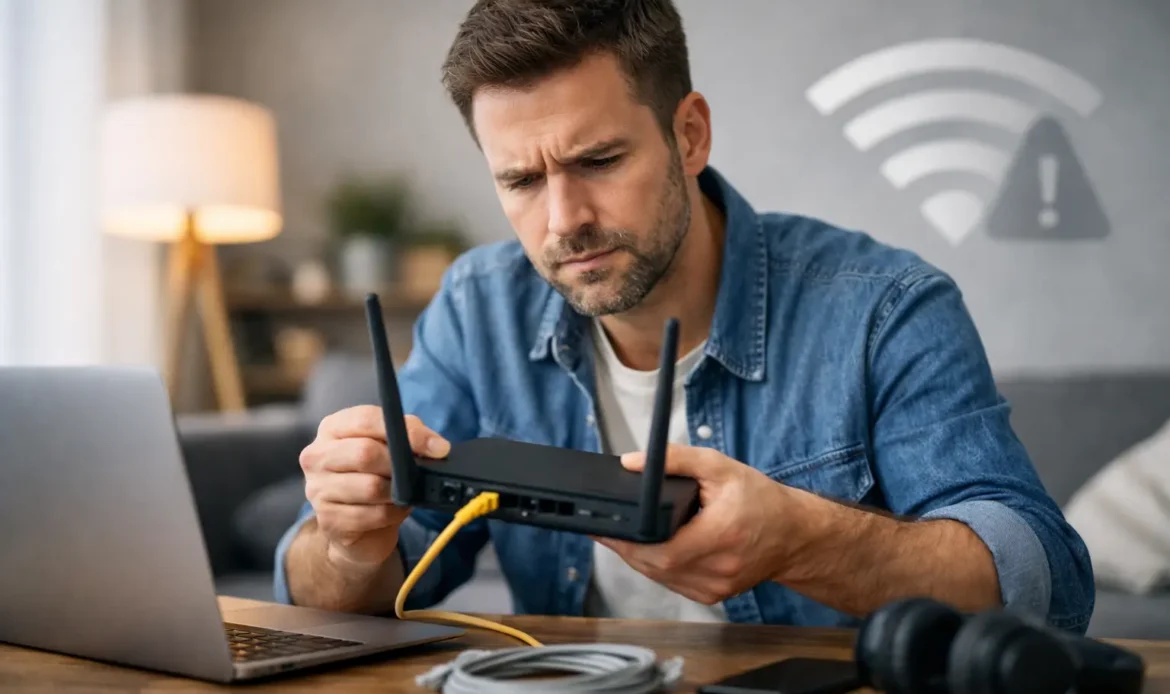
A video call freezes just as you are about to speak, the EFTPOS terminal drops out during a sale, or every device in the house suddenly loses connection. Knowing how to troubleshoot home internet dropouts can help you work out whether the problem is your Wi-Fi, a single computer, your modem or the internet service itself. A few sensible checks can save time and give you clearer answers if you need support.
Start by working out what is actually dropping out
The word “internet” covers several separate parts of your setup. Your device connects to Wi-Fi or a network cable. That connection goes to your modem or router, which then connects to your provider through the NBN or another service. A fault at any point can feel exactly the same from the lounge room.
First, check whether every device is affected. If your Windows laptop loses connection but the TV, another computer and mobile are still online, the issue is likely with that laptop or its Wi-Fi settings. If every device drops out at once, look at the modem, connection equipment or provider service.
It is also worth noticing the pattern. Does it happen only in a back bedroom, only at night, during heavy rain, or when someone starts streaming? Regular patterns are useful clues. A connection that fails at the same time most evenings may be suffering from Wi-Fi congestion or heavy use. A service that drops during wet weather could point to an outside line or connection issue that your provider needs to investigate.
Check the modem lights before restarting anything
When the internet fails, have a quick look at the modem or router. The labels differ between brands, but you will usually see lights for power, Wi-Fi, internet, WAN, DSL or connection. A steady connection light generally means the service is reaching the modem. A red, flashing or unlit internet or DSL light may indicate that it has lost its connection to the network.
Take a photo of the lights if they look unusual. It gives you something useful to refer to later and can help a technician or internet provider understand what happened.
Then restart the modem properly. Turn it off at the power point, wait for 30 seconds, and turn it back on. Give it several minutes to reconnect. NBN services can take a little while to settle after a restart, so avoid judging it after only 20 seconds.
Restarting is a sensible first step, but it should not become the long-term fix. If you need to reboot the modem every few days, there is an underlying problem worth finding. Repeated restarts can also make it harder to identify whether the fault is intermittent or caused by a particular device or setting.
Rule out a local Wi-Fi problem
A working internet connection does not guarantee good Wi-Fi in every room. Wi-Fi signals weaken through brick walls, bathrooms, large appliances and distance. In many southern Adelaide homes, a modem tucked into a front study can struggle to reach a rear bedroom, granny flat or outdoor office.
Move close to the modem and test the connection there. If it is stable nearby but unreliable elsewhere, the internet service itself may be fine. The issue is more likely coverage, interference or the placement of the router.
Try these practical changes before buying new equipment:
- Place the modem in an open, central position rather than inside a cupboard, behind a television or on the floor.
- Keep it away from cordless phone bases, baby monitors, microwaves and other electronic equipment that may interfere with Wi-Fi.
- Check that its aerials, if fitted, are secure and upright.
- Disconnect and reconnect the affected device to your Wi-Fi network, then restart that device.
- If your router offers both 2.4 GHz and 5 GHz Wi-Fi, test each one. The 5 GHz option is often faster close by, while 2.4 GHz can reach further through walls.
Wi-Fi extenders can help in the right home, but they are not always the best answer. A poorly placed extender simply repeats a weak signal. A mesh Wi-Fi system or a properly installed wired access point may provide a more dependable result in a larger house or small office.
Test one device with a network cable
One of the simplest ways to separate a Wi-Fi fault from an internet fault is to connect a computer directly to the modem or router with an Ethernet cable. If the wired connection remains stable while Wi-Fi continues to drop, focus on the wireless setup rather than the NBN service.
If the wired computer also loses internet access at the same time, the fault is more likely at the modem, connection equipment or provider end. This is especially useful information when reporting a problem, as it shows that the issue is not limited to a single room or device.
For small businesses, this test can be particularly helpful. A wired desktop used for invoicing or a point-of-sale system may stay online even when staff Wi-Fi is unreliable. That distinction can prevent unnecessary downtime and point to the right fix sooner.
Check cables, power and connection equipment
Loose or damaged cables cause more trouble than most people expect. Check that the power cable is firmly connected to the modem and power point. Confirm that the network cable between the NBN connection box and modem is secure at both ends. If a cable is bent sharply, frayed, crushed behind furniture or easily falls out, replace it.
Avoid overloading power boards where possible. A brief power interruption can reset a modem without you noticing, and an ageing power adaptor can cause random dropouts. If the modem feels unusually hot, make sure it has ventilation and is not sitting in direct sun or surrounded by paperwork.
Do not press the small reset button on the modem unless you know exactly what it does. A factory reset can erase the provider settings needed to connect, turning an intermittent problem into a complete outage. Restarting with the power switch is different and is usually safe.
Look for device-specific causes
When only one Windows computer drops out, begin with the easy checks. Restart the computer, make sure aeroplane mode is off, and confirm that it is connecting to the correct home network. Forgetting the saved Wi-Fi network and reconnecting with the password can clear a corrupted connection profile.
An outdated or faulty Wi-Fi driver can also cause intermittent disconnects, particularly after a Windows update. A USB Wi-Fi adaptor that has been bumped, overheated or is positioned behind a metal desktop case may give poor results as well. In some cases, changing the router’s Wi-Fi channel or updating its firmware improves stability, but these settings should be changed carefully. If you are not comfortable in the modem settings, it is better to get assistance than risk losing the connection altogether.
Also consider whether a new device has joined the network. Security cameras, smart televisions, gaming systems and cloud backups can all use substantial bandwidth. They do not usually cause a true dropout, but they can make the connection feel unusable. Pause large downloads or backups temporarily and see whether normal browsing and video calls improve.
Check for provider outages and record the details
Before spending hours changing settings, use a mobile connection to check whether your internet provider has reported an outage or planned maintenance in your area. If there is a known outage, restarting equipment repeatedly will not restore the service.
If no outage is listed, keep a short record for a day or two. Write down the date, time, how long the dropout lasted, the modem light status and whether wired devices were affected. Include anything that seems connected, such as rain, a power flicker or a particular device being used. These details make it much easier for a provider to run line tests or escalate a fault.
Ask the provider to test the service from their side and explain that you have already checked the modem, cables and multiple devices. If they identify a line fault or an NBN equipment issue, they can arrange the appropriate next step. If their tests show the line is stable but your connection remains unreliable, the problem may be within your home network.
When it is time to get local help with internet dropouts
Some internet issues are quick fixes. Others need hands-on testing of the modem, Wi-Fi coverage, cabling and Windows devices together. It is sensible to seek help if dropouts keep returning, the modem has no connection light after a restart, Wi-Fi is weak across much of the home, or your business relies on a stable connection for work.
Southern Computer Services SA can assess home and small-business network issues on site across southern Adelaide, helping identify whether the cause is the computer, Wi-Fi setup, modem or connection equipment. Clear testing is usually more valuable than replacing gear at random. The right fix may be as simple as repositioning a router, or it may mean improving coverage, replacing failing equipment or giving your provider the evidence they need to investigate properly.
A stable connection should not depend on luck or on switching the modem off every few days. Once you know where the dropout begins, you can make a practical decision and get back to using the internet without second-guessing every frozen screen.

