




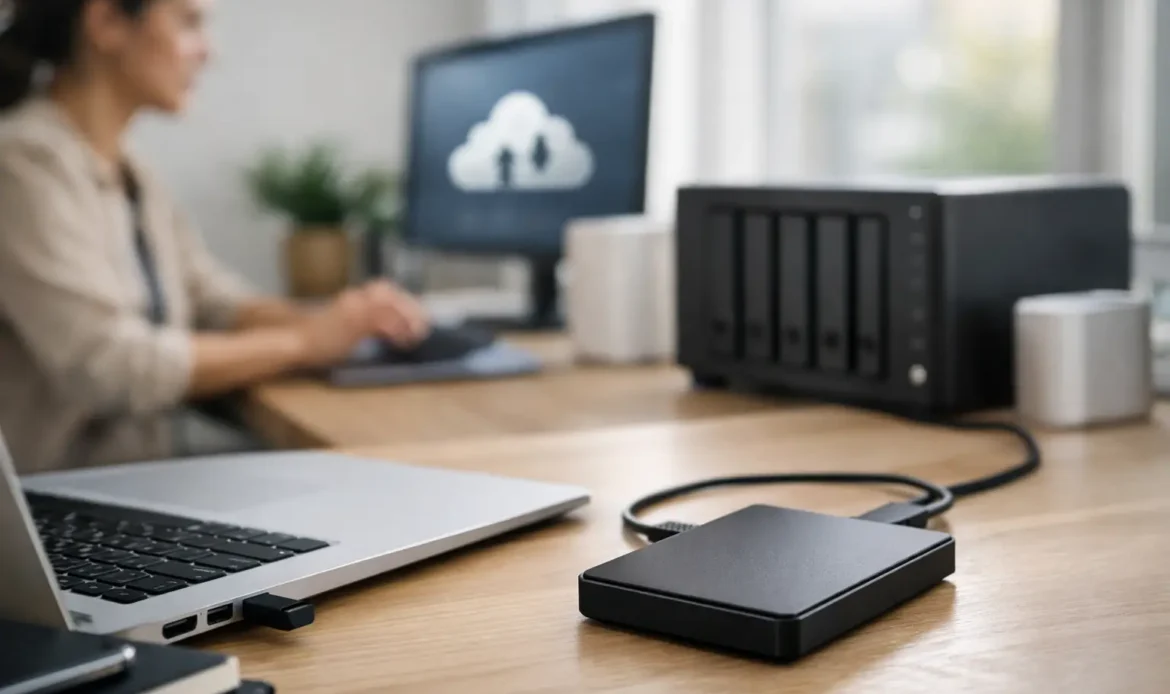
The worst time to think about a small business data backup plan is when a staff computer will not start, an invoice folder has vanished or ransomware has locked the files you need before close of business. For a small business, lost data is not just an IT problem. It can mean missed jobs, delayed payroll, upset customers and many hours trying to rebuild information that was already there yesterday.
A good plan does not need to be expensive or overly technical. It needs to suit the way your business works, protect the files that matter, and give you a clear path back when something goes wrong.
What should a small business data backup plan protect?
Start with the work you could not easily recreate. This is usually more than the Documents folder on one office PC. Think about customer records, quotes, invoices, job photos, accounting files, emails, spreadsheets, templates, payroll information and files stored on shared drives or laptops used away from the office.
Also consider the systems behind the files. Your internet banking, accounting and email services may store data online, but that does not automatically mean you have a usable backup. If an account is deleted, a staff member overwrites a folder, or access is lost, recovery may be limited or time-sensitive. Keep copies of key exports and make sure account recovery details are up to date.
For many local businesses, the biggest risk is simply that files are spread across several places. A desktop in the office, a laptop in a ute, a USB drive in a drawer and a cloud folder used by one employee can quickly become hard to manage. The first job is to identify where the current version of each important file lives.
Use the 3-2-1 rule as a practical starting point
The 3-2-1 rule is a straightforward way to organise your backups. Keep three copies of important data, on two different types of storage, with one copy kept off-site.
Your working files count as the first copy. A backup device, such as an external hard drive or network storage, can be the second. An encrypted cloud backup or a drive stored safely at another location provides the off-site copy.
This approach protects against different problems. An external drive can restore files quickly after a failed hard drive. An off-site backup helps if there is theft, fire, water damage or a power event affecting the office. Cloud backup is convenient, but a local copy is often much faster when there is a large amount of data to restore.
The right mix depends on your business. A sole trader with a modest number of documents may be well covered by automatic cloud backup and a regularly checked external drive. A business with several Windows PCs, shared folders and large design or job files may need centralised storage, scheduled backups and more careful access controls.
Decide how often you can afford to lose work
Backup frequency should be based on the amount of work you can realistically recreate. This is sometimes called your recovery point objective, but there is no need to get caught up in jargon.
If losing one day of paperwork would cause a major problem, back up daily at a minimum. If staff update customer details, bookings or job information throughout the day, more frequent backups may be worthwhile. Some systems can back up changed files every hour or continuously.
There is a trade-off. More frequent backups use more storage and may need a better internet connection if data is copied off-site. For most small offices, automatic daily backups plus a regular off-site copy are a sensible baseline. The key word is automatic. A backup that relies on someone remembering every Friday is likely to be missed when things get busy.
Do not overlook laptops and mobile work
Laptops are easy to lose, damage or leave in a vehicle. If staff save files locally while visiting customers or working from home, those files must be included in the plan. Set up work folders to back up automatically whenever the laptop connects to the internet, rather than assuming everything has been saved to the shared drive.
The same applies to photos, scanned forms and files created on mobile devices. Decide where they should be uploaded and make that process simple enough that staff will actually use it.
Protect backups from ransomware and human error
Ransomware is designed to encrypt files and demand payment. If it reaches a connected backup drive or synchronises to a cloud folder, it may affect your backups as well. Accidental deletion and overwritten files can create a similar issue.
For this reason, choose a backup method that keeps previous versions of files for a set period. If a spreadsheet is damaged on Tuesday but no one notices until Friday, version history may let you restore the earlier copy. Check how long versions are retained, how much storage is included and whether deleted files are kept long enough for your business.
It is also wise to keep at least one backup disconnected or protected from normal day-to-day access. This might be an external drive connected only while a backup runs, or a properly configured backup service with separate credentials and retention settings. Do not use the same password everywhere, and protect backup accounts with multi-factor authentication where available.
Make restoration part of the plan
A backup is only useful if it can be restored. This is the step many businesses skip because the backup software says everything completed successfully. A green tick confirms that data was copied, not that you can get it back quickly and correctly.
Set aside time every few months to restore a few files to a separate folder. Open them and check that they are complete. At least once a year, think through a larger failure: if the main office PC failed tomorrow, how would you access email, invoices, customer information and shared files? Who has the passwords? Where is the backup drive? How long would a full restoration take?
Write the answers down in plain language and store a printed copy somewhere secure. Include the contact details for your IT support provider, account recovery information, the location of backup devices and a short list of the most critical systems. Avoid putting actual passwords in the document unless they are stored in an appropriate secure password manager.
A simple backup routine for a small office
A workable routine is more valuable than an elaborate system nobody understands. Your plan should cover these areas:
- Automatic backup of daily working files, shared folders and business laptops.
- A separate local copy for faster restoration after a computer or drive failure.
- An off-site copy that is protected from theft, fire and office-wide damage.
- Version history or retention that allows recovery from ransomware, deletion or changes made by mistake.
- Regular restore tests, with a named person responsible for checking the results.
Keep a record of what is included and excluded. Large video files, archived jobs and old email may need a different schedule to live business records. That is fine, provided the decision is deliberate. The danger is assuming something is backed up when it is not.
When it is time to get help
If you are unsure what is being backed up now, that is a good reason to have it checked before there is an emergency. A technician can review your Windows PCs, shared folders, external drives and cloud storage, then help set up a solution that matches your business size and budget.
Southern Computer Services SA can assist small businesses across southern Adelaide with practical backup setup, data recovery and day-to-day computer support. The aim is not to sell more storage than you need. It is to make sure the files your business relies on are protected and recoverable.
A backup plan should give you confidence, not another technical task to worry about. Start by identifying your essential files, automate the copies, and test a restore while everything is still working normally.

