



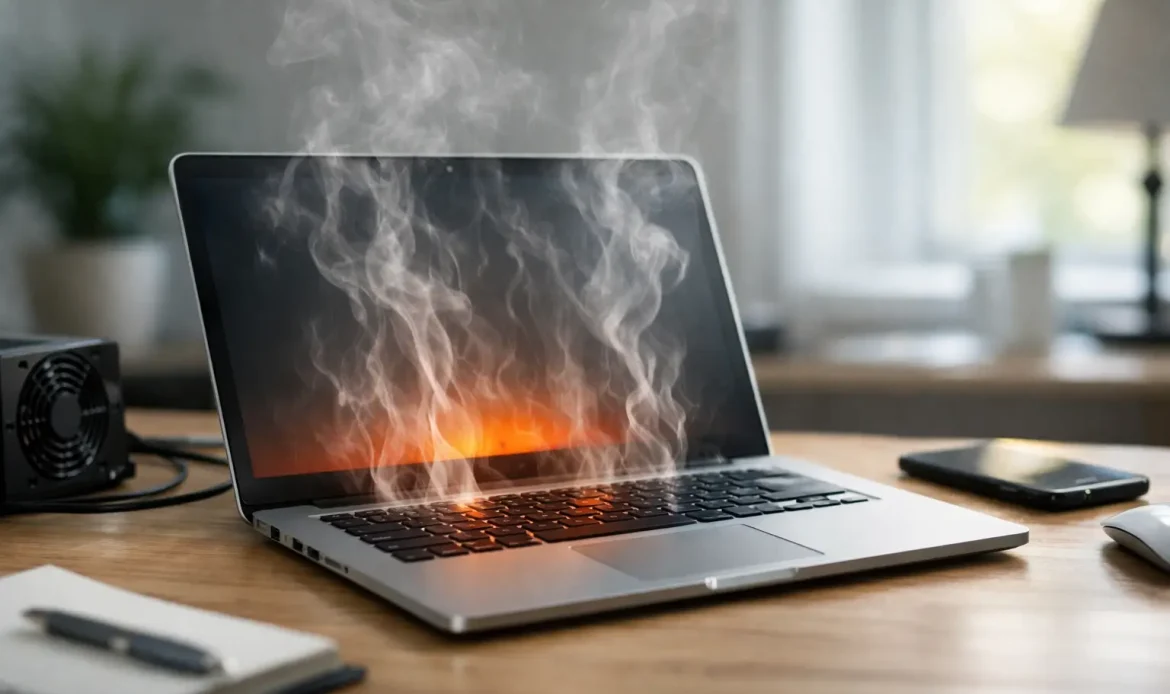
You open your laptop to send a few emails, jump into a video call, or finish some paperwork, and before long the base feels hot enough to notice through the desk. If you have been asking, why is my laptop overheating, the short answer is that heat is building up faster than your laptop can get rid of it. The more useful answer is figuring out why that is happening in your case, because the cause is not always the same.
Some laptops run warm by design, especially slim models with less room for airflow. But when the fan is constantly loud, the keyboard becomes uncomfortably hot, performance drops, or the machine shuts down on its own, that is not just normal warmth. It is a sign the cooling system is under strain.
Why is my laptop overheating during normal use?
A laptop creates heat whenever the processor, memory, storage and graphics are working. Under light use, that heat should be managed by vents, fans and internal heat sinks. If any part of that system is blocked, worn, dirty or simply overwhelmed, temperatures climb quickly.
One of the most common reasons is dust buildup. Dust gets pulled into the cooling vents over time and settles around the fan and heat sink. Even a thin layer can reduce airflow enough to make a noticeable difference. This is especially common in homes with pets, carpeted rooms, or laptops that get used on beds, couches or laps instead of hard surfaces.
The second big cause is restricted airflow. A laptop needs space underneath and around the vents to move hot air out. If it is sitting on a doona, cushion, couch arm or even your knees for long periods, the vents can be partially blocked. The system then traps its own heat.
Another common issue is background activity. Sometimes the laptop feels like it is overheating when the real problem is that something is using far more system resources than expected. That might be Windows updates, cloud syncing, antivirus scans, browser tabs chewing through memory, or unwanted software running in the background. If the processor is working hard all the time, it will run hot all the time.
Older hardware can also play a part. Thermal paste, which helps transfer heat away from the processor, can dry out over the years. Cooling fans can slow down, become noisy or fail altogether. In some cases, the laptop is not dirty on the outside, but the internal cooling parts are no longer doing their job properly.
The signs your laptop is getting too hot
Heat problems do not always start with a shutdown. Often there are smaller warning signs first. You might notice the fan running flat out during simple tasks, or the laptop becoming sluggish after ten or fifteen minutes of use. The bottom panel may feel very hot, or the charger side might become warmer than usual.
Some laptops will reduce performance to protect themselves. That means they deliberately slow the processor down so temperatures do not climb further. To the user, it just feels like the machine is suddenly struggling. Programs take longer to open, video calls stutter, and typing can start to lag.
Random restarts and shut-offs are a more serious sign. If the laptop powers off by itself, there is a good chance the temperature has reached a protection limit. At that point, it is worth taking seriously rather than hoping it fixes itself.
Why is my laptop overheating when I am not doing much?
This is where it gets frustrating. If you are only browsing the web or checking email, the laptop should not feel like it is under heavy load. When that happens, hidden software activity is often involved.
Task Manager can usually tell part of the story. If the CPU or memory usage is sitting high while you are doing very little, something is running behind the scenes. Sometimes it is legitimate, such as a large update or indexing process. Other times it can be adware, spyware or a stuck service that keeps the system busy for no good reason.
Web browsers are another frequent culprit. A laptop might appear idle, but several open tabs, streaming video, online meetings, and browser extensions can push the system harder than many people realise. On older laptops in particular, modern websites can be surprisingly demanding.
Then there is the battery and charging system. If a battery is ageing or failing, it can contribute extra heat, especially while charging. You may notice the laptop gets much hotter plugged in than it does on battery power alone. That does not automatically mean the battery is dangerous, but it does mean it is worth having checked.
What you can safely try at home
Start with the basics. Move the laptop onto a hard, flat surface like a desk or table. If you normally use it on soft furniture, this alone can make a big difference. Make sure the side and underside vents are not blocked.
Next, shut the laptop down fully and inspect the vents with a torch. If you can see dust packed into the openings, airflow is already being restricted. Gentle external cleaning can help, but it is best not to poke objects into the vents or go too hard with canned air if you are not confident. Blasting dust further inside can make things worse.
Check what is running in the background once the laptop is back on. If the fan ramps up straight after startup, open Task Manager and look for unusually high CPU, memory or disk usage. A system update may settle down on its own, but if the same unknown process keeps returning, that points to a deeper software issue.
It is also worth reducing the workload for a test. Close unused browser tabs, pause cloud sync, and quit programs you do not need. If temperatures improve quickly, the problem may be more about demand than damage. That said, a healthy laptop should still cope with everyday tasks without becoming excessively hot.
When overheating points to a hardware problem
If the laptop gets hot even after cleaning up background tasks and improving airflow, internal maintenance may be needed. This can include opening the machine to remove built-up dust properly, checking the cooling fan, and replacing worn thermal paste.
This is where the answer to why is my laptop overheating becomes more specific. In some cases, the fan is spinning but not efficiently. In others, the heat sink has clogged up internally, or the thermal paste has dried so much that heat is no longer transferring well from the processor. A laptop can look fine on the outside and still have serious cooling issues inside.
There is also the age factor. An older laptop that once handled office work comfortably may now struggle with newer software, heavier websites and current Windows updates. If the hardware is constantly close to its limit, more heat is unavoidable. Sometimes a repair and clean restores normal performance. Sometimes the more honest answer is that the machine is being pushed beyond what it was built for.
Don’t ignore repeated overheating
Occasional warmth is normal. Repeated overheating is not something to put in the too-hard basket for months. Excess heat can shorten the life of internal parts, affect battery health, and increase the risk of crashes or data loss. If the laptop is important for work, study or keeping the household organised, waiting until it fails completely usually ends up more inconvenient and more expensive.
For home users and small businesses, the most practical approach is to treat overheating like any other warning sign. If simple checks do not improve it, get it looked at before it turns into a no-start issue or a failing drive. A proper inspection can tell you whether the fix is straightforward, like a clean-out and service, or whether there is a larger hardware problem behind it.
If you are in southern Adelaide and the laptop is getting too hot to trust, local help can save a lot of guesswork. Southern Computer Services SA regularly deals with overheating Windows laptops, whether the cause is dust, failing fans, software load or ageing hardware.
A laptop should be warm now and then, not too hot to rely on. If yours is making more noise, running slower, or heating up for no clear reason, that is usually your cue to act while the fix is still simple.