




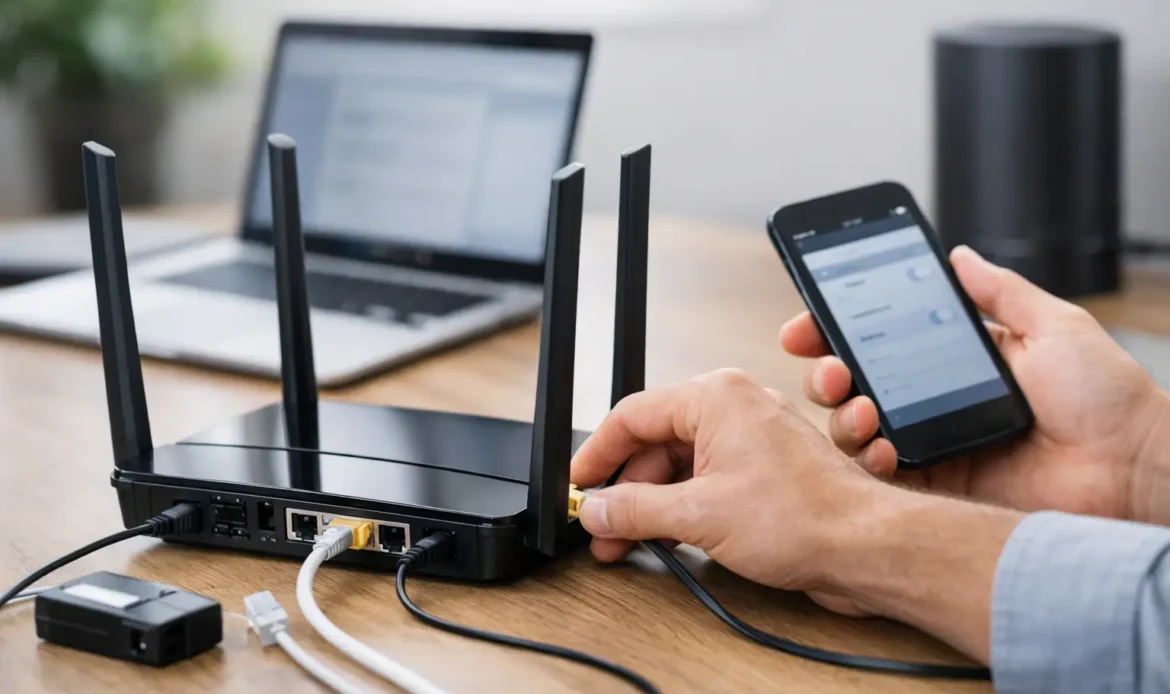
That moment when the old internet keeps dropping out, the Wi-Fi barely reaches the back room, or the new router arrives in the box and sits on the table waiting – that is usually when people start searching for how to set up new router properly. The good news is that most home and small office routers are much easier to install than they used to be. The part that trips people up is not plugging it in. It is choosing the right settings so the network is secure, stable and actually works well where you need it.
If you are replacing an old router, doing the setup carefully now can save a lot of frustration later. A rushed setup often leads to weak Wi-Fi, devices that will not reconnect, or passwords nobody can remember.
Before you set up a new router
Start by checking what equipment you already have. In many homes, there is both a modem and a router. In others, the internet provider supplies one box that does both jobs. If you are unsure, look at what your current internet cable plugs into and whether that device already broadcasts Wi-Fi.
This matters because the new router needs to be connected the right way. If you have a separate modem, the new router usually connects to it with an Ethernet cable from the modem into the router’s WAN or Internet port. If your provider box already acts as a router, things can get more complicated. You may be able to use your new router as the main network device, but sometimes settings on the provider box need changing to avoid conflicts.
Before unplugging anything, take a quick photo of the existing setup. It sounds simple, but it makes life easier if you need to put it back the way it was.
How to set up new router step by step
Set the router up somewhere open and central if possible. Avoid shoving it in a cupboard, behind the TV, or on the floor under a desk. Routers work best when they are out in the open, away from thick walls and large metal objects. If your internet connection point is tucked into a poor spot, the router may still work there, but Wi-Fi coverage may suffer.
Connect the power, then connect the internet cable to the correct port. If you are using a separate modem, power the modem off for a minute, then turn it back on before starting the router. Some internet services need that reset so they recognise the new device.
Once the router powers up, connect a computer or laptop to it. You can do this with the temporary Wi-Fi name printed on the label, or better still, with an Ethernet cable. A cable connection is often more reliable during setup, especially if the router wants to update its firmware straight away.
Open a web browser and go to the router’s setup page. This is often listed on the sticker underneath the unit, along with the default login details. Some brands now use a mobile app instead. Either option is fine, but browser-based setup usually gives you better visibility of the settings.
The first thing to change is the admin password. This is the password that controls the router itself, not the Wi-Fi password your family or staff will use. Leaving the default admin login in place is one of the most common security mistakes.
Choose your Wi-Fi name and password carefully
Most routers will then ask you to create your wireless network name, also called the SSID, and a Wi-Fi password. It can be tempting to reuse the exact same Wi-Fi name and password as the old router so every device reconnects automatically. Sometimes that works well. Sometimes it causes older devices to hang onto bad settings and behave oddly.
If your previous network was unreliable, it is often better to start fresh with a new network name. Pick something easy to recognise but not too personal. Using your street address or full family name is not a great idea.
For the password, choose something strong enough to keep the network secure but simple enough that you can type it into a TV or printer without losing patience. A long passphrase with a mix of words and numbers usually strikes the right balance.
Set the right security options
If the router gives you security choices, use WPA2 or WPA3 if available. Avoid old options such as WEP, which are outdated and insecure. Many newer routers will choose the best option automatically, but it is worth checking.
You may also see a setting that combines the 2.4 GHz and 5 GHz bands under one Wi-Fi name. For many households, that is perfectly fine and easier to manage. In some cases, especially with older smart devices, separate names for each band can make troubleshooting easier. It depends on what you are connecting and how much control you want.
Important settings people often miss
Once the internet is working, many people stop there. That is understandable, but a few extra checks can make a real difference.
First, check for a firmware update. Router manufacturers release updates to fix bugs, improve security and sometimes boost performance. If the router offers an update during setup, do it before you forget.
Next, confirm the time zone and region settings. This sounds minor, but it can affect scheduled rules, logs and some security functions.
If the router has a guest network option, it can be worth enabling. This is useful when visitors need internet access but you do not want them on the same network as your main computers, printer or shared devices. For a small business, it is often the cleaner option for customer or client access.
You should also disable features you do not need. Remote management, WPS and other convenience settings can be handy, but they are not always worth the security trade-off. WPS in particular is rarely necessary now and is often better left off.
Connecting all your devices
After setup, reconnect devices one at a time. Start with the important ones such as desktop PCs, laptops, workstations, printers and any smart TVs or streaming boxes that people rely on daily. Then move on to tablets, cameras and other smart home gear.
If something refuses to connect, do not assume the router is faulty. Often the device has saved the old network details. On that device, forget the old Wi-Fi network and join the new one again. Printers and older smart devices are especially known for needing a bit of extra patience.
For desktop computers or business equipment that stay in one spot, Ethernet is still the better choice where practical. Wi-Fi is convenient, but a cabled connection is usually more stable and can reduce congestion for everything else.
Common setup problems and what they usually mean
When people ask how to set up new router, they are often really asking why the new one is not working after they followed the instructions. A few issues come up again and again.
If the router powers on but there is no internet, the modem may need restarting, the cable may be in the wrong port, or the internet service may require special login settings. Some providers use automatic configuration, while others need PPPoE or VLAN details entered manually. If your old router had custom settings, the new one may need them too.
If the internet works near the router but drops off in other rooms, the problem is usually placement rather than setup. Thick internal walls, mirrors, brick, metal roofing and even where the router sits can affect signal strength. In that case, moving the router, adding a mesh system, or using an access point may be the better fix.
If some devices connect and others do not, the Wi-Fi band or security setting may be the issue. Older devices sometimes struggle with modern settings, while newer routers may have features enabled that older hardware does not like.
When it is worth getting help
A basic home setup is often manageable on your own, but there are times when getting help saves hours of trial and error. That is especially true if you have a home office, a printer that must stay connected, security cameras, range extenders, VoIP phones, or a provider setup that is more than plug-and-play.
For households and small businesses around southern Adelaide, this is the sort of job where local hands-on support can make the whole thing much less painful. A proper setup is not just about getting the blue lights on. It is about making sure the Wi-Fi reaches the rooms that matter, the router is secured properly, and the devices you rely on every day reconnect without drama.
A new router should make your network better, not become another half-finished tech job sitting in the too-hard basket. Take a few extra minutes to set it up properly now, and you will usually end up with faster, safer and more reliable internet where you actually need it.

