



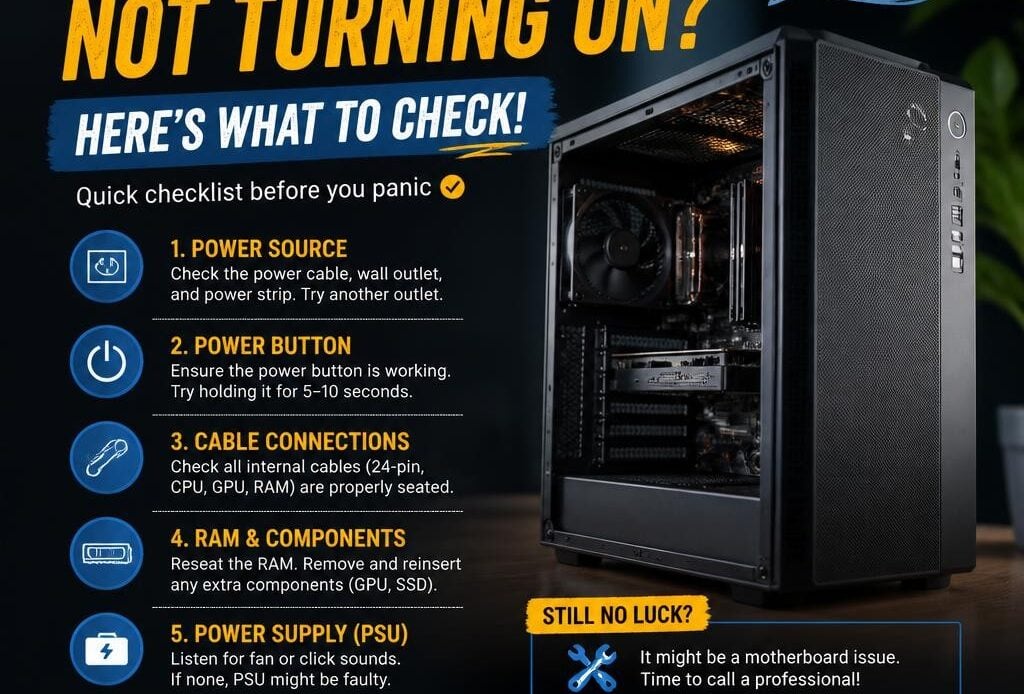
One of the most frustrating tech problems is needing your PC right now and getting absolutely nothing when you press the power button. If you are searching for computer not turning on help, the good news is that a dead computer does not always mean a dead computer. Sometimes the fix is simple. Sometimes it points to a failing part. The key is knowing what to check first so you do not waste time or make the problem worse.
Computer not turning on help starts with one question
When people say a computer is not turning on, they can mean a few different things. It might have no lights at all, it might turn on but show a black screen, or it might start briefly and then switch itself off. Those are different faults, and the details matter.
Take a moment to notice exactly what happens. Do you hear fans spinning? Are there any lights on the case, keyboard or charger? Does the monitor say no signal? Does the laptop charging light come on? Even these small clues can narrow the issue down quickly.
Check the power source before anything else
It sounds obvious, but power is still the first place to look. A loose cable, switched-off power board or faulty charger is more common than most people expect.
On a desktop PC, make sure the power cable is firmly connected at both the wall and the back of the computer. If it is plugged into a power board, check that the board is switched on and working. You can test the same socket with another device such as a lamp or phone charger. Also check the small power switch on the back of the computer power supply if your desktop has one. If that switch has been knocked off, the computer will appear completely dead.
On a laptop, connect the charger and look for a charging light. If there is no light, the charger, charging port or internal battery could be involved. If the charger cable is frayed, bent or unusually hot, stop using it until it is checked.
If it is a laptop, try a hard reset
Laptops can sometimes get stuck in a power state where they seem dead even though the main issue is not catastrophic. A hard reset can help clear that.
Unplug the charger. If the battery is removable, take it out. Hold the power button down for around 15 to 20 seconds, then reconnect power and try again. On many newer laptops the battery is internal, so just disconnect the charger, hold the power button, reconnect the charger and test it.
This will not fix every problem, but it is worth trying because it is safe and quick. If the laptop comes back to life after this, there may still be an underlying battery or power issue, so keep an eye on it.
Do not confuse a monitor issue with a computer issue
A desktop can be running perfectly while the screen stays black. That is why the next check is whether the computer itself is powering on.
If you can hear the fans, see front lights, or notice keyboard lights responding, the PC may be on but not displaying anything. Check that the monitor has power and is set to the correct input. If the monitor cable is loose or damaged, the screen may stay blank even though the computer is working. If your desktop has both motherboard video ports and a separate graphics card, the monitor needs to be plugged into the correct one.
This is a common point of confusion, especially after moving the PC, cleaning around the desk or reconnecting cables.
Look and listen for signs of life
When a computer tries to start, it often gives clues. A brief flash of lights, spinning fans that stop after a second, repeated restarting, or beeping sounds all suggest the machine is getting some power but failing during startup.
That usually points to a hardware problem rather than a simple wall power issue. It could be faulty RAM, a failed power supply, motherboard trouble, overheating protection or another internal component. For home users, this is usually the point where basic checks are enough and further diagnosis becomes more technical.
If you are comfortable opening a desktop case, you can check for obvious signs such as dust build-up, loose RAM, disconnected power leads or swelling capacitors. But if you are not confident, it is better not to poke around. One wrong move can turn a repairable fault into a bigger one.
A computer that turns on briefly and shuts off
This is different from a computer that does nothing at all. If it starts for a moment and then powers down, the system is often detecting a fault or failing to maintain stable power.
On a desktop, the power supply is a strong suspect. Power supplies can weaken over time and become unreliable before they fail completely. In other cases, overheating, motherboard faults or bad RAM can cause the same symptom. If the machine was working fine yesterday and now powers off immediately, that sudden change often points to hardware.
On a laptop, a failing charger, battery or power circuit can create similar behaviour. Sometimes the unit will only stay on while plugged in, or it may flicker on briefly and die again.
If there are lights but no proper startup
If the power light comes on but Windows never loads, the issue may not be that the computer is not turning on at all. It may be turning on but failing during the boot process.
You might see a manufacturer logo, spinning dots, a repair screen, or just a black display after startup. That can be caused by Windows corruption, a failed update, drive problems or hardware faults affecting boot files. The fix here depends on what stage it reaches.
This is where people often try random internet advice and end up making things harder. Some startup problems are straightforward. Others involve data risk. If the computer contains important files and you do not have a backup, be careful before running resets, reinstalls or recovery tools.
What you can safely try at home
If you want a practical starting point, keep it simple. Confirm the wall power works. Check every cable. Try a different power point. Test another charger if you have a compatible one. Disconnect unnecessary accessories like USB hubs, printers and external drives. On a desktop, try another monitor or monitor cable if the PC appears to be powering on.
If it is a laptop, do the hard reset. If it is a desktop and you are comfortable, reseat the power cable and make sure the rear power switch is on. Beyond that, the next steps often involve testing parts properly, and that is where guesswork can cost you time and money.
When computer not turning on help means calling a technician
There is a point where professional help is the faster and cheaper option. If there are no signs of power after basic checks, if the machine starts and stops, if there is a burning smell, or if important files are involved, it is sensible to stop experimenting.
A technician can test the power supply, RAM, motherboard and storage properly instead of replacing parts at random. That matters because symptoms can overlap. A failed power supply can look like a dead motherboard. A display issue can look like a dead PC. A bad Windows update can look like hardware trouble. The right diagnosis saves a lot of frustration.
For local home users and small businesses around southern Adelaide, this is often where on-site support is useful. If the computer is part of your workday, you want someone who can check it quickly, explain the problem plainly and get you back up and running without turning it into a drawn-out mystery.
The biggest mistake people make
The most common mistake is assuming the worst too early or, just as often, assuming it will sort itself out. A computer that does not turn on can be anything from a loose cable to a failed internal component. The trick is not to panic, but also not to keep forcing it.
If something changed just before the fault started, that detail helps. Maybe there was a storm, a power outage, an accidental bump to the case, a charger issue, or the machine had been running unusually hot. Those details can make diagnosis much quicker.
Southern Computer Services SA sees this kind of problem regularly, and in plenty of cases the fix is more straightforward than customers expect. The best first step is a calm one – check the basics, pay attention to the signs, and if the fault is still unclear, get it looked at before a small problem turns into a bigger repair.