



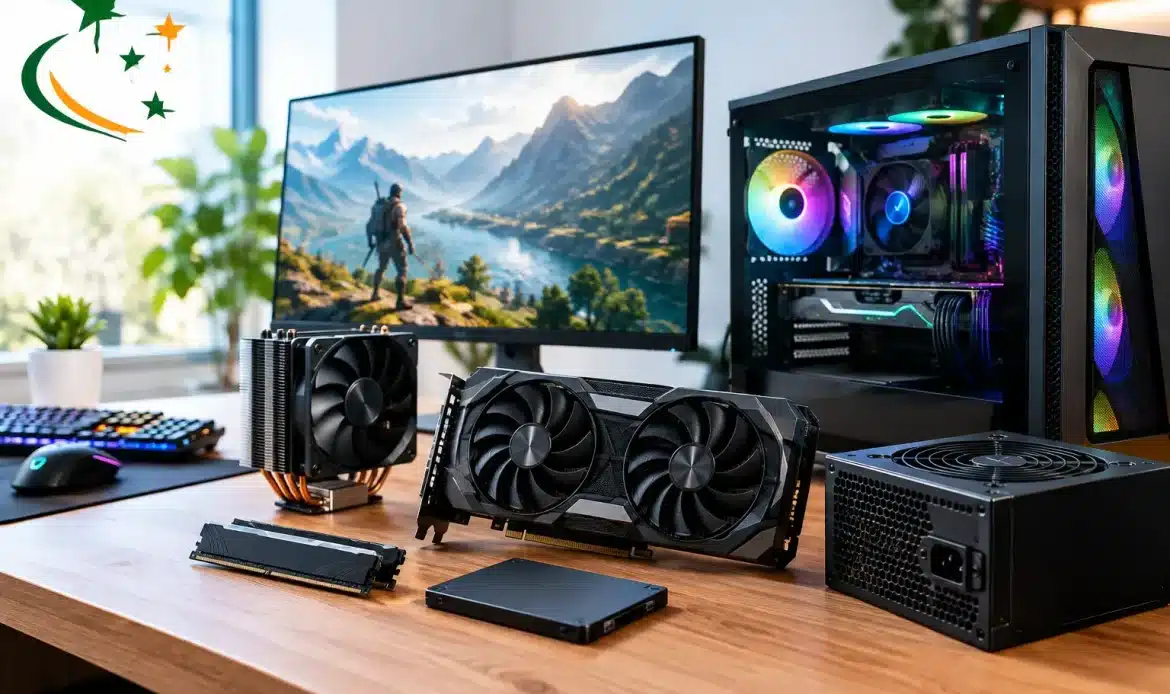
A gaming PC does not need to be brand new to feel dramatically better. If games are stuttering when the action gets busy, taking too long to load, or forcing you to lower settings, the best PC upgrades for gaming can often solve the problem for far less than replacing the whole computer. The key is finding the part that is actually holding your system back.
It is easy to spend money on a shiny component and see very little change. A graphics card may be the right move for one PC, while another will benefit more from an SSD, extra memory or a power supply that can safely support future upgrades. A quick look at how you play, what games you run and the age of your current hardware makes the decision much clearer.
Start with the problem, not the parts
Before choosing an upgrade, take notice of when performance drops. Low frame rates and choppy graphics usually point towards the graphics card or processor. Long waits at startup and between game levels are more likely a storage issue. Random freezes, browser slowdowns while gaming, or games closing unexpectedly can indicate that memory is running short.
Your screen matters too. A PC that handles older games well at 1080p may struggle when connected to a 1440p or 4K monitor. Higher resolutions ask much more of the graphics card. Likewise, a high-refresh-rate monitor will show the benefit of stronger frame rates, but only if the PC can produce them.
Checking the existing specifications is worthwhile before buying anything. You need to know the processor model, installed RAM, storage type, graphics card, power supply capacity, available expansion slots and the physical space inside the case. Compatibility is where many otherwise sensible upgrades come unstuck.
Best PC upgrades for gaming, in order of impact
1. Upgrade the graphics card for higher frame rates
For most gaming PCs, the graphics card delivers the biggest visible improvement. It handles the detailed images on screen, including textures, lighting, shadows and visual effects. If you want smoother motion, better graphics settings or a move to a higher-resolution monitor, this is usually the first component to consider.
But it is not an automatic answer. An older processor can limit a powerful new graphics card, particularly in games that rely heavily on simulation, large multiplayer maps or high frame rates. This is often called a bottleneck. It does not mean the upgrade is useless, but it may mean you are paying for performance your current system cannot fully use.
A suitable card should match the games you play and the monitor you own. There is little value in overspending on top-end hardware for casual 1080p gaming, while a budget card may disappoint if your goal is smooth 1440p performance in demanding new releases. Check the card’s physical length, its power connectors and the recommended power supply before committing.
2. Fit an SSD to cut loading and startup time
Replacing an older hard drive with a solid-state drive is one of the most satisfying upgrades for everyday use and gaming. Windows starts faster, games load sooner, updates install more quickly and the whole PC feels less sluggish. It will not usually double your frame rate, but it removes the frustrating pauses that make an otherwise capable computer feel old.
An NVMe SSD can be faster than a traditional SATA SSD, provided the motherboard has the correct M.2 slot. A SATA SSD is still an excellent improvement for systems without that option. For many gamers, a drive with enough room for Windows, favourite games and free space for updates is more useful than chasing the highest benchmark figures.
Storage upgrades need care because data is involved. The old drive may need to be cloned, or Windows may need a clean installation. Back up important files before any storage work begins. A fast new drive is no help if photos, documents or saved game files have been lost during the changeover.
3. Add RAM when multitasking causes trouble
Memory, or RAM, lets your PC keep game data and background tasks ready to use. Systems with limited RAM can struggle when a game is running alongside voice chat, a web browser, music and other programs. The result may be stutters, slower loading of game assets or frequent swapping to the storage drive.
For a modern Windows gaming PC, 16GB is generally a sensible starting point. Moving to 32GB can be worthwhile for newer games, heavy multitasking, content creation or anyone who likes to leave plenty open in the background. More than that is not necessary for every player, so it pays to be realistic about how the computer is used.
RAM must be compatible with the motherboard. Older and newer memory generations cannot be mixed, and matching modules are preferable. Ideally, memory is installed as a matched pair so the system can operate in dual-channel mode. Adding one random stick because it is cheap can create stability issues or deliver less benefit than expected.
4. Consider a processor and motherboard update together
A processor upgrade can make a real difference in games that are CPU-heavy, particularly strategy games, racing simulators, large open-world titles and competitive games played at high frame rates. It can also improve general responsiveness and help a newer graphics card perform at its best.
This is often a bigger job than a graphics card or RAM upgrade. Processors are limited by the motherboard socket and supported generation. In many cases, the sensible path is to replace the processor, motherboard and RAM together. That adds cost and requires careful setup, but it can give an ageing PC a useful new lease on life.
If your computer already has a reasonably modern processor and your issue is poor graphics performance, a CPU replacement may not be the best value. This is why looking at the whole system first matters. The most expensive upgrade is not always the one you will notice most.
5. Do not overlook the power supply and cooling
A better graphics card or processor can increase power draw and heat. The power supply is not a glamorous component, but it is fundamental to a stable gaming PC. An ageing or low-quality unit may lack the right connectors, have insufficient capacity, or become unreliable under load.
Choose a quality power supply with enough headroom for the components you plan to run, rather than selecting one only just large enough on paper. It should fit the case and provide the correct connectors for the graphics card. Reusing a very old power supply with expensive new hardware can be a false economy.
Cooling is also worth attention. Dust-clogged fans, dried thermal paste and poor airflow can cause high temperatures, noise and performance throttling. Sometimes a thorough clean, correctly positioned case fans and a better CPU cooler will make the PC quieter and more consistent in long gaming sessions. Cooling will not turn an entry-level PC into a high-end machine, but it protects the investment you have made.
Spend where it will make a difference
A practical upgrade plan often starts with an SSD if the PC still runs from a mechanical hard drive, followed by a graphics card where gaming performance is the main concern. RAM is usually good value when the system has less than 16GB, while processor, motherboard and power supply work should be considered as a matched project rather than isolated purchases.
Avoid buying parts based only on a special price or a single online benchmark. A component can be excellent and still be unsuitable for your case, motherboard, screen or budget. It is also sensible to allow for labour, data backup and installation when comparing an upgrade with a replacement PC.
For southern Adelaide gamers who would rather have the compatibility checks and fitting handled locally, Southern Computer Services SA can assess an existing Windows PC and provide straightforward advice on whether an upgrade or a custom-built desktop makes better sense.
The right upgrade should leave you enjoying your games rather than troubleshooting them. Start with the performance issue you can feel, make sure the new part suits the whole PC, and keep your old data safely backed up before any work begins.