



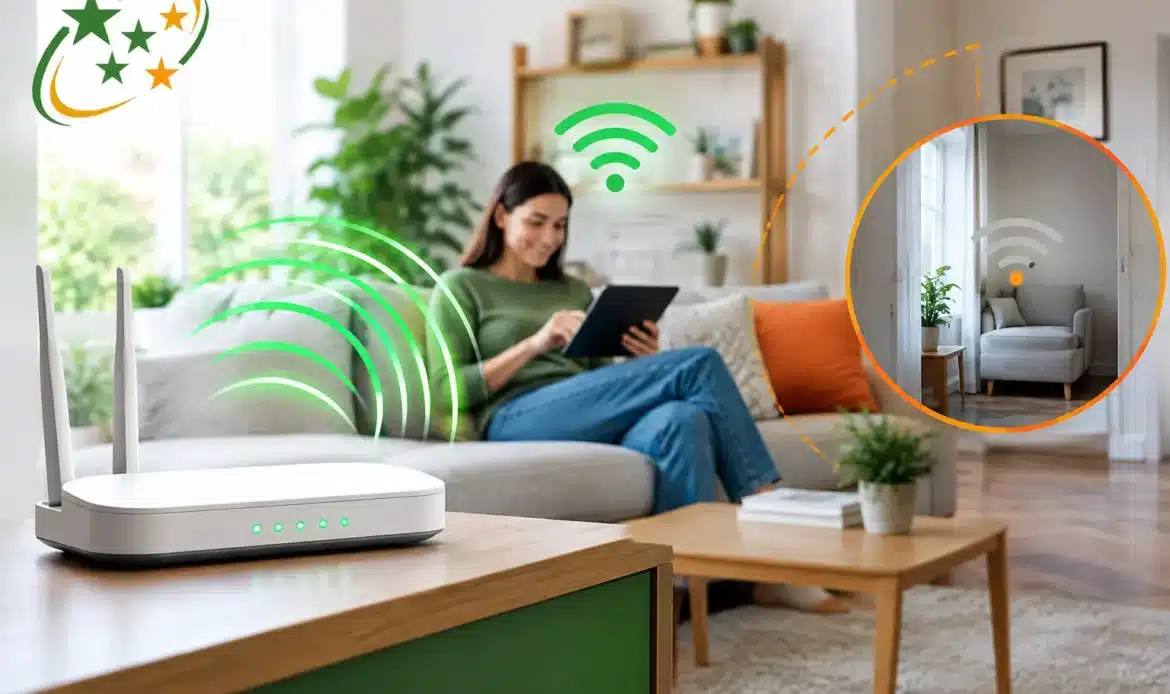
A video call drops out whenever you sit in the back bedroom. The smart TV buffers despite a fast internet plan. Or perhaps your laptop works perfectly at the kitchen table but barely connects in the study. These are familiar signs of Wi-Fi dead zones in house – areas where the wireless signal is too weak or unreliable to be useful.
The good news is that a dead zone does not automatically mean you need a more expensive internet plan. In many homes, the connection reaching the modem is fine. The problem is getting that connection through walls, around appliances and into the places where you actually use your devices.
What causes Wi-Fi dead zones in the house?
Wi-Fi is a radio signal, and it loses strength as it travels. The further a device is from the router, the more chance there is of slow speeds, buffering and drop-outs. Distance is only part of the story, though. A router in a large open room may cover far more area than the same router tucked into a cupboard at the end of the house.
Walls and floors can make a significant difference. Brick, concrete, double brick walls, metal framing, tiled bathrooms and large mirrors can all weaken a wireless signal. Older southern Adelaide homes can be particularly challenging where solid internal walls, extensions or separate rooms create several barriers between the router and a bedroom or home office.
Other electronics can contribute too. Microwave ovens, cordless devices, Bluetooth equipment and neighbouring Wi-Fi networks may interfere with some wireless frequencies. This is more noticeable in units, townhouses and closely built streets where many routers are competing for space.
It is also worth separating Wi-Fi trouble from internet trouble. If every device in the home is slow, including those close to the router, the issue may be with the NBN connection, modem, service provider or router itself. If the trouble only happens in one or two rooms, poor coverage is the more likely cause.
Start by finding the weak spot
Before buying anything, do a simple check around the house. Take a laptop, tablet or mobile from room to room and test the connection in the places where it matters most. Try opening a few web pages, streaming a short video or making a call. Take note of rooms where the connection is slow, unreliable or disappears altogether.
Also check whether the issue affects every device in that location. One older laptop may have a weak wireless adapter, while newer devices work normally in the same room. If only one device struggles, updating its driver or using a suitable USB Wi-Fi adapter may be a more sensible fix than changing the whole network.
The time of day can offer a clue as well. If the connection is mainly poor in the evening, local wireless congestion may be involved. If it becomes unreliable whenever someone uses the microwave or closes a particular door, interference or building materials are likely playing a part.
Move the router before spending money
Router placement is one of the easiest and most overlooked fixes for Wi-Fi dead zones in the house. A router hidden behind the television, placed on the floor or stored inside a cabinet has a harder job sending a signal around the home.
Aim for a central, open position where practical. Put it on a desk, shelf or cabinet rather than down low, and keep it clear of thick furniture, metal objects and other electronics. If the internet connection enters the house at one end, you may be limited in where the modem can sit. Even shifting it a metre or two, raising it up or changing its direction can improve coverage.
Avoid placing the router beside a microwave, cordless phone base or large aquarium. Water and metal are not friendly to Wi-Fi signals. If the router has external aerials, try positioning them differently rather than pointing them all in the same direction. Small adjustments are worth testing before you invest in extra equipment.
Choose the right Wi-Fi frequency
Most current routers provide both 2.4 GHz and 5 GHz Wi-Fi. The names may look similar on your device, but they serve different purposes.
The 2.4 GHz band generally travels further and handles walls better, although it is often slower and more prone to interference. It can be a good choice for a distant bedroom, printer, smart device or outdoor area. The 5 GHz band is usually faster and less congested, but its range is shorter. It often works best near the router for laptops, streaming devices and video calls.
Some routers automatically choose the best band, while others show two separate network names. If your device is hanging onto a weak 5 GHz signal at the far end of the house, connecting it to the 2.4 GHz network may give a steadier result. The trade-off is that maximum speed may be lower, but a stable connection is usually more useful than an intermittent fast one.
When a Wi-Fi extender is a good fit
A Wi-Fi extender can help when there is one troublesome area and a reasonably strong signal nearby. It receives the existing wireless signal and rebroadcasts it further into the house.
The key is placement. An extender cannot create a strong connection from a weak one, so it should sit between the router and the dead zone, not inside the dead zone itself. Put it somewhere it still receives a solid signal, then test the room beyond it.
Extenders are a lower-cost option, but they have limits. Depending on the model and setup, they can reduce available speed or require devices to switch between network names as you move through the house. They suit light browsing, email and general use well, but may not be ideal for a busy home office, gaming setup or regular high-quality video calls.
Consider a mesh system for larger homes
For larger, longer or multi-storey houses, a mesh Wi-Fi system is often the better long-term answer. Instead of one router doing all the work, mesh units are placed around the home to provide broader, more consistent coverage. Your devices can move between units without you manually changing networks.
Mesh is particularly useful for homes with a separate study, a rear extension, thick internal walls or several people online at once. It can cost more than a basic extender, and placement still matters, but it is usually easier to live with once set up properly.
Where possible, mesh units connected by Ethernet cable will provide the best performance. This is called a wired backhaul. It is not essential, but it helps in homes where wireless signals struggle to pass through walls. If cabling is impractical, a well-positioned wireless mesh system can still make a major difference.
Do not forget wired options
Wi-Fi is convenient, but it is not always the best tool for every job. A desktop computer, work station, gaming PC or television that stays in one place can benefit from a direct Ethernet connection. Wired networking is generally faster, more stable and unaffected by wireless interference.
Running a cable is not suitable for every home, especially if it would be visible across a living area. However, for a home office where dropped calls cost time and frustration, it can be the most reliable solution. Powerline networking adapters can sometimes help use existing electrical wiring to extend a network, although results vary considerably between homes and circuits.
Check the router itself
An older router may be the real weak point. Technology changes, and equipment supplied years ago may struggle with a household full of laptops, smart TVs, printers, cameras and other connected devices. A router that needs frequent restarting, runs hot or loses connection even nearby may be due for replacement.
Before replacing it, check for firmware updates and make sure the router is configured sensibly. Changing the Wi-Fi channel can reduce interference from nearby networks, especially on 2.4 GHz. This is straightforward on some models and less so on others, which is where practical help can save a lot of trial and error.
For small businesses working from home, it is also worth considering security and reliability, not just range. A better router or mesh system should be configured with a strong password, current security settings and a separate guest network where appropriate.
Get help when the problem is not obvious
Dead zones can be frustrating because the cause is not always visible. A poor router location may be combined with thick walls, outdated equipment and interference from nearby networks. Replacing one item without checking the rest can lead to wasted money and the same patchy result.
Southern Computer Services SA can assess Wi-Fi coverage in your home or small business, identify the likely cause of weak areas and recommend a practical fix rather than selling equipment you do not need. For households across southern Adelaide, an on-site check can be especially useful when the router location, cabling or building layout makes the answer less clear.
A reliable connection should reach the rooms where you work, relax and keep in touch. Start with placement and simple testing, then choose the solution that suits the size and layout of your home – not just the one that comes in the biggest box.