




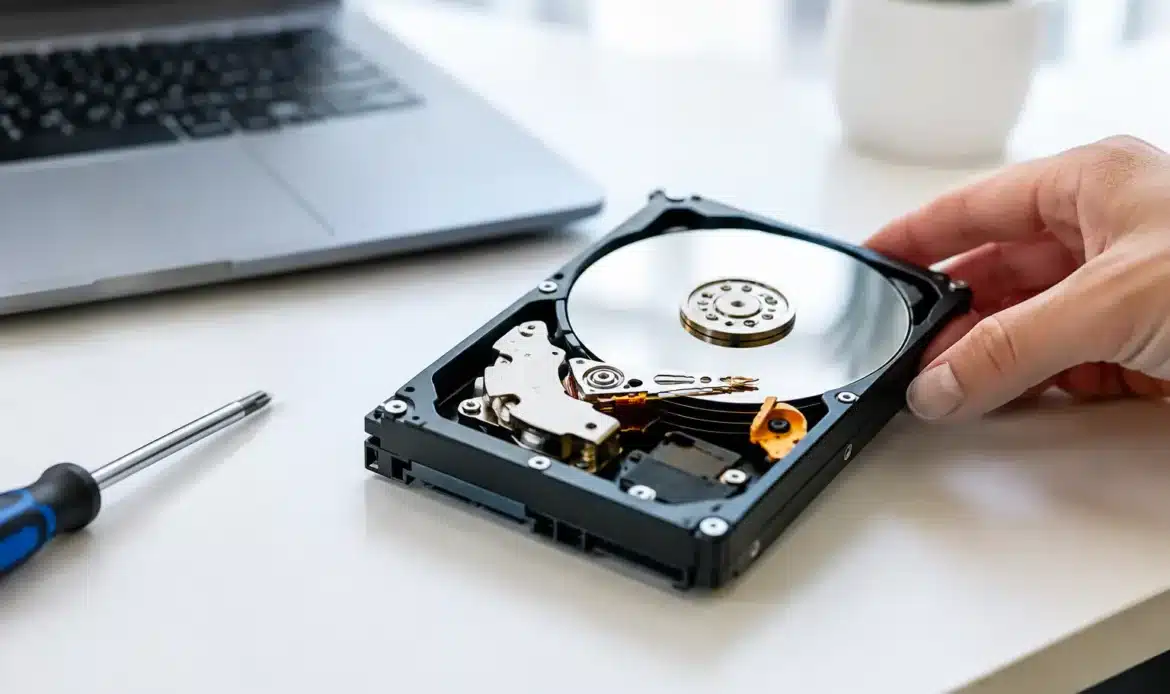
A computer can seem fine right up until the moment it cannot find Windows, your photos, or an important work file. If you are asking, “when should I replace hard drive”, the best time is usually before a complete failure, not after it. A few warning signs can give you time to back up your files and make a sensible decision rather than dealing with an emergency.
Hard drives do not last forever. Traditional hard disk drives have moving parts, so they wear over time. Solid-state drives have no spinning discs, but they can still fail as their storage cells age or if there is a power issue. The good news is that a slow or unreliable drive can often be identified before it stops working altogether.
When should I replace a hard drive?
Replace a hard drive promptly if it is showing signs of physical failure, reporting repeated errors, disappearing from the computer, or making it difficult to start Windows. You should also consider replacement if the drive is old and important files or business work depend on it, even if it still appears to be working.
Age alone does not set a perfect replacement date. Some drives run reliably for many years, while others develop problems sooner. How often the computer is used, how hot it runs, whether it has been knocked or moved while operating, and the quality of its power supply all make a difference.
For a home computer, it is sensible to assess a traditional hard drive once it is around five years old. For a small business computer that is used daily, holds customer records, accounts, or essential documents, it can be worth planning an upgrade earlier. The cost and disruption of a drive replacement is usually far lower than the cost of lost data and unexpected downtime.
1. The computer is much slower than it used to be
A slow computer does not always mean the hard drive is failing. Too many start-up programs, low memory, malware, an older processor, or a nearly full drive can all cause sluggish performance. However, a failing drive often causes a particular kind of delay: programs freeze while opening, File Explorer takes a long time to display folders, and the computer may pause for no obvious reason.
If Windows takes several minutes to start, documents take an unusually long time to save, or the system regularly becomes unresponsive while the drive activity light is busy, the drive deserves testing. In many cases, replacing an older hard drive with a solid-state drive makes a Windows computer feel noticeably quicker. That is an upgrade as well as a preventative replacement.
2. You hear clicking, grinding or repeated spinning sounds
A healthy traditional hard drive makes a gentle whirring sound and occasional light activity noises. Loud clicking, grinding, scraping, or a repeated attempt to spin up is different. These sounds can indicate a mechanical fault inside the drive.
Do not keep restarting the computer to see whether it improves. If the files matter, switch the machine off and avoid further use until the data can be assessed. Continued operation can turn a recoverable problem into a much more difficult data recovery job.
3. Windows reports disk errors or repair messages
A message asking to scan or repair the drive is not always a disaster. It can appear after an improper shutdown, such as a power outage or a flat laptop battery. But if the same warnings return, or Windows reports bad sectors, file system errors, or a drive that needs repairing each time it starts, take it seriously.
Bad sectors are areas of a drive that can no longer reliably store data. A small number may be manageable, but growing numbers are a clear signal that the drive is deteriorating. Back up first, then arrange testing. Repairing Windows may temporarily get the computer running, but it does not fix a drive with an underlying physical fault.
4. Files go missing, will not open or become corrupted
A document that will not open once could be caused by an application issue. Repeated corruption across different files is more concerning. You may notice photos that only partly display, folders that cannot be accessed, error messages while copying files, or files that suddenly show the wrong size.
Treat these as a data protection issue rather than an annoyance. Copy your most valuable files to a separate backup straight away, starting with documents, photos, financial records and business data. Do not assume that copying everything at once will work if the drive is failing. It may be better to save the most irreplaceable material first.
5. The drive disappears or the computer will not boot
If a drive comes and goes from Windows, vanishes after a restart, or produces a “boot device not found” message, replacement may be needed. Sometimes the issue is a loose cable, a failing power supply, or a Windows fault. In a laptop, it could also be a connection problem caused by a knock.
That is why diagnosis matters. Replacing a drive without checking the rest of the computer can waste money and leave the real fault unresolved. A technician can test the drive’s health, check its connections, and confirm whether the problem is the storage device or something else.
Do not wait for every warning sign
You do not need to hear clicking and lose files before replacing a hard drive. A single serious symptom, especially a boot failure or repeated read errors, is enough to act. If the computer contains the only copy of important data, even a mild warning is worth investigating.
This is particularly relevant for small businesses. An older desktop that stores invoices, emails, customer files or stock information might still be usable, but it is a poor place to take chances. Replacing the drive in a planned visit allows time for a backup, Windows transfer or reinstall, and proper testing before the computer returns to daily use.
Back up before testing, repairing or upgrading
Before running repair tools or attempting a Windows reset, make sure your current files are protected. A backup should be separate from the computer itself. An external drive is useful, and a properly configured cloud backup can add another layer of protection. Ideally, keep more than one copy of anything you cannot replace.
If a drive is already unstable, avoid installing lots of software, downloading large updates, or repeatedly rebooting it. Those extra read and write operations can place further strain on the drive. The priority is to secure the data, then determine the safest path forward.
A backup is also valuable when the drive is not failing. Replacing a drive or moving to a new computer is far less stressful when your files are already organised and protected.
Is it better to replace the drive or the whole computer?
It depends on the age and condition of the rest of the machine. A reasonably modern desktop or laptop can often gain several more useful years from a new solid-state drive, extra memory, and a clean Windows setup. This can be a practical choice for web browsing, email, documents and general home use.
On the other hand, if the computer is very old, cannot comfortably run a supported version of Windows, has battery or screen issues, or needs several costly repairs, putting money into a replacement drive may not be the best value. For small businesses, reliability and compatibility with current software should carry more weight than simply keeping an old machine alive.
The choice is not always between a repair and a brand-new retail computer. A custom-built desktop can be a good option where you need a system suited to office work, creative software, gaming or heavier multitasking. The right answer should be based on what you actually use the computer for, not on the most expensive option.
What happens during a hard drive replacement?
Where the old drive is readable, its contents may be cloned to a new drive so that Windows, programs and files are carried across. This is convenient, although it is not always wise if the existing Windows installation is badly damaged, infected, or full of old issues. In those cases, a clean Windows installation followed by restoration of backed-up files may provide a more reliable result.
If the drive has failed completely, data recovery may still be possible, but outcomes vary. Recovery becomes harder when a drive has physical damage or has been used after failure signs began. No honest technician can guarantee every file will be recovered, which is why early action makes such a difference.
For Southern Adelaide home users and small businesses, Southern Computer Services SA can assess a slow or failing Windows computer, help protect available data, and advise whether a drive upgrade or a replacement computer is the better value. The aim is straightforward: get you working again without unnecessary jargon or surprises.
A hard drive replacement is easiest when it is planned, but even an urgent failure does not have to become a disaster. If your computer is slowing down, reporting disk errors or behaving unpredictably, save what you can now and have the cause checked before the next restart is the one that counts.

