



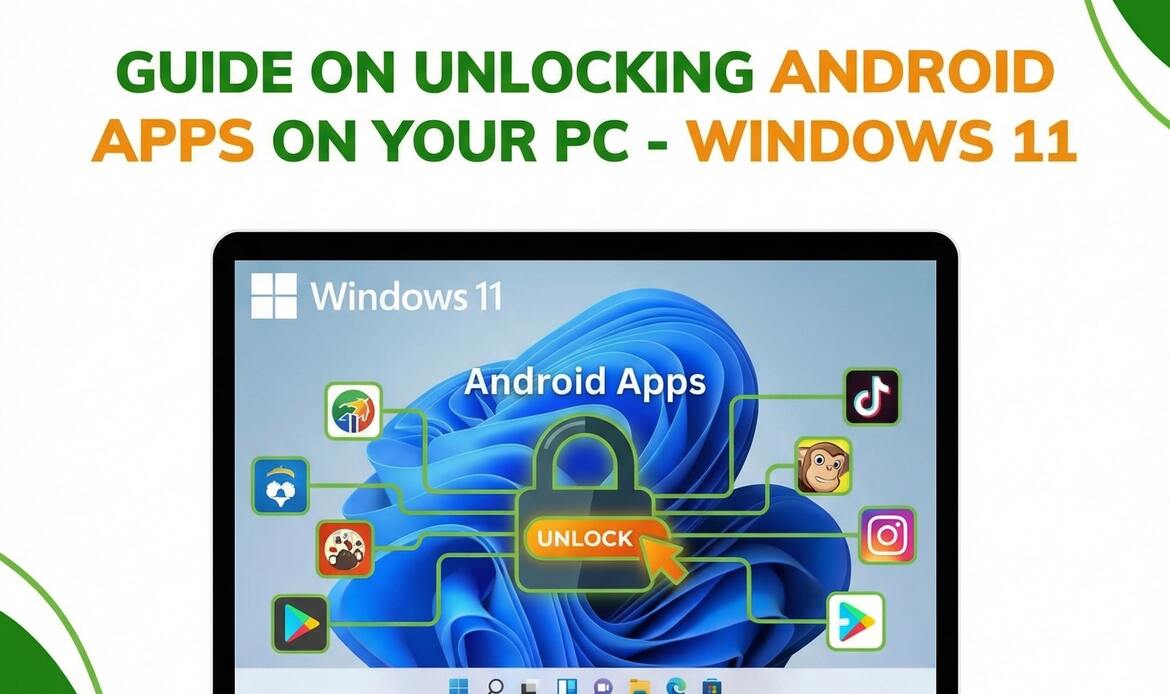
Unlocking Android Apps on Your PC: A Guide to Windows 11’s Windows Subsystem for Android™ Southern Computer Services SA
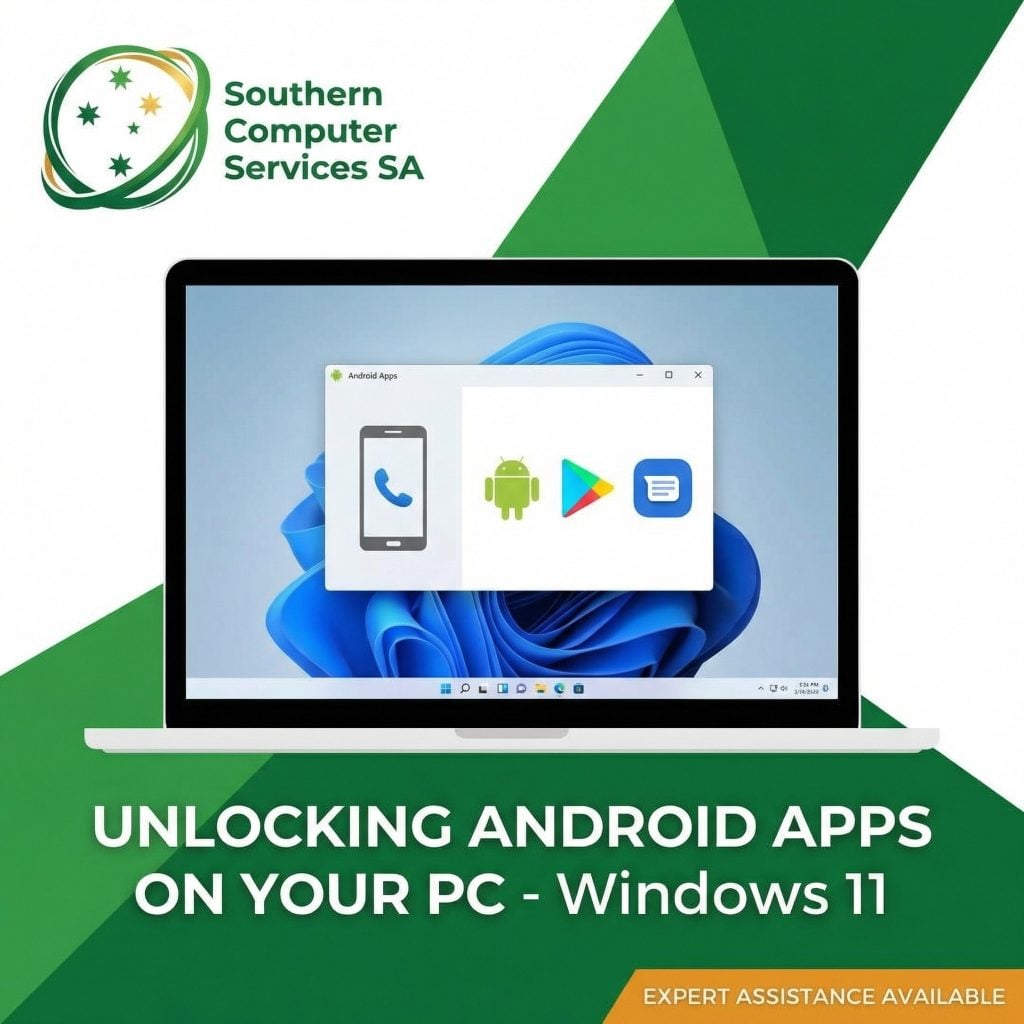
Windows 11 introduces one of the most talked-about features absent from Windows 10: the ability to install and run Android applications natively on your PC. Powered by Windows Subsystem for Android™ (WSA) and the Amazon Appstore, this capability blurs the line between mobile and desktop computing—perfect for businesses and home users looking to simplify their device ecosystem.
Southern Computer Services SA has put together this practical guide to explain what WSA is, how it works under the hood, and how you can start using Android apps on your Windows 11 device today.
1. What Is Windows Subsystem for Android?
Windows Subsystem for Android is a lightweight virtualisation framework that runs a customised version of Android Open-Source Project (AOSP) in the background. It acts as a compatibility layer, translating Android application calls into Windows-compliant instructions while providing the apps with everything they expect from a typical Android environment (e.g., libraries, sensors, network).
Key ingredients:
Hyper-V virtual machine – WSA spins up a small VM that is optimised to start in seconds and consume minimal resources.
Integration hooks – Clipboard, audio, network, and windowing integrate seamlessly with Windows, so Android apps appear in the Start menu, can be pinned to the taskbar, support Snap Layouts, and respond to keyboard/mouse inputs.
Amazon Appstore – Microsoft partnered with Amazon to provide a curated storefront for downloading Android apps, ensuring security and quality.
2. System Requirements
Before diving in, confirm that your hardware and OS build meet Microsoft’s requirements:
Requirement | Minimum |
OS version | Windows 11 (Build 22000.526 or later) |
RAM | 8 GB (16 GB recommended) |
Storage | SSD (HDD not supported) |
CPU | Intel Core i3 8th gen, AMD Ryzen 3000, Qualcomm Snapdragon 8c, or newer |
Virtualisation | Enabled in BIOS/UEFI (Intel VT-x / AMD-V) |
Microsoft Store | 22110 or later |
Southern Computer Services SA can help you verify these specs or upgrade systems where needed.
3. One-Time Setup
Follow these steps to get WSA and the Amazon Appstore running:
1. Enable Virtual Machine Platform
1. Press Win + X → Apps and Features → Optional features → More Windows features.
2. Tick Virtual Machine Platform and Windows Hypervisor Platform.
3. Click OK and reboot when prompted.
2. Update Microsoft Store
Open the Microsoft Store app → Library → Get updates. Ensure the Store is on version 22110 or later.
3. Install Amazon Appstore
1. In Microsoft Store, search for “Amazon Appstore and click” Install.
2. The Store will automatically download and configure “Windows Subsystem for Android.”
3. Once done, restart your PC.
4. Set Up Amazon Appstore
1. Launch Amazon Appstore from the Start menu.
2. Sign in with (or create) your Amazon account. A US-based account often provides the widest app selection.
That’s it—WSA is now active and running in the background.

4. Installing and Using Android Apps
1. Find an app: Browse or search the Amazon Appstore.
2. Install: Click Get → Download. The app will install just like a traditional Windows app.
3. Launch: Find the app in Start, pin it to the taskbar, or create a desktop shortcut.
4. Interact: Use the mouse, keyboard, touchscreen, or pen. Most apps adapt automatically; right-click often simulates a long press.
Pro Tips from Southern Computer Services SA
Snap Layouts: Hover over the maximise button to dock Android apps alongside native Windows apps for multitasking.
File Exchange: Drag and drop files (e.g., images) from File Explorer into Android apps that support it.
Clipboard Sync: Copy text on Windows, paste into the Android app—and vice versa.
Notifications: Android app notifications appear in the Windows Notification Center.
5. How It Works Behind the Scenes
When you open an Android app:
1. Windows launches the WSA virtual machine in milliseconds (if not already running).
2. The Android runtime (ART) in the VM executes the app’s bytecode, while Windows Subsystem for Linux (WSL)-inspired plumbing routes system calls to Windows kernel counterparts.
3. Graphics: Direct3D via ANGLE translates OpenGL ES calls from Android to DirectX for smooth rendering.
4. Networking & Sensors: WSA exposes virtualised Wi-Fi, GPS (approximated), and accelerated networking.
5. Storage & Security: Each app runs in a sandbox. Data directories reside in `%LOCALAPPDATA%\Packages\…`, isolated per app but accessible via File Explorer for advanced users.
6. Frequently Asked Questions
Q1: _Can I sideload APKs?_
• Yes, but it requires enabling Developer Mode in WSA settings and using the Android Debug Bridge (ADB). Note that sideloading bypasses Amazon’s vetting process—proceed with caution.
Q2: _Will this slow down my PC?_
• Resource usage is lightweight. WSA hibernates when idle, consuming minimal CPU/RAM. On older hardware with just 8 GB RAM, consider closing intensive apps before launching multiple Android apps.
Q3: _Is Google Play available?_
• Officially, Google Play Services are not supported. Many popular apps are on the Amazon Appstore or can be sideloaded if EULAs permit.
7. Troubleshooting Tips
• WSA Won’t Start: Ensure virtualisation is enabled in BIOS and Hyper-V features are installed.
• App Crashes on Launch: Update WSA via Microsoft Store → Library → Get updates.
• Slow Performance: Allocate more RAM to your system or close background VMs like Docker.
• Network Issues: Toggle WSA off/on: Search Windows Subsystem for Android → Turn off → Relaunch.
Southern Computer Services SA offers remote and onsite assistance for setup, optimisation, and troubleshooting. Contact us at support@southerncomputerservices.com. au or call 0407396188.
8. Why You or Your Organisation Should Care
1. Consolidate Devices: Run mobile-only business apps (e.g., banking, logistics scanners) right on your desktop.
2. Streamlined Workflows: Seamlessly copy data between Office apps and Android utilities.
3. Cost Savings: Reduce the need for separate Android tablets/phones in certain roles.
4. Future-Proofing: Microsoft continues to expand WSA features—get ahead of the curve now.
Final Thoughts
Windows Subsystem for Android exemplifies Microsoft’s vision of an open platform that welcomes diverse app ecosystems. By harnessing this Windows 11-exclusive feature, users and businesses alike gain unprecedented flexibility.
Need help upgrading to Windows 11 or deploying Android apps across your organisation? Reach out to the experts at Southern Computer Services SA. We’ll ensure your transition is seamless, secure, and tailored to your unique requirements.
Stay tuned to our blog for the latest updates on the home computer industry and technology trends.
_© 2024 Southern Computer Services SA. All rights reserved._


Still Have Questions?
© 2025 Southern Computer Services SA – Computer & Laptop Repair Specialists

