


Harnessing Windows 11 Smart App Control - A New Layer of Protection You Won’t Find in Windows 10
Why This Matters
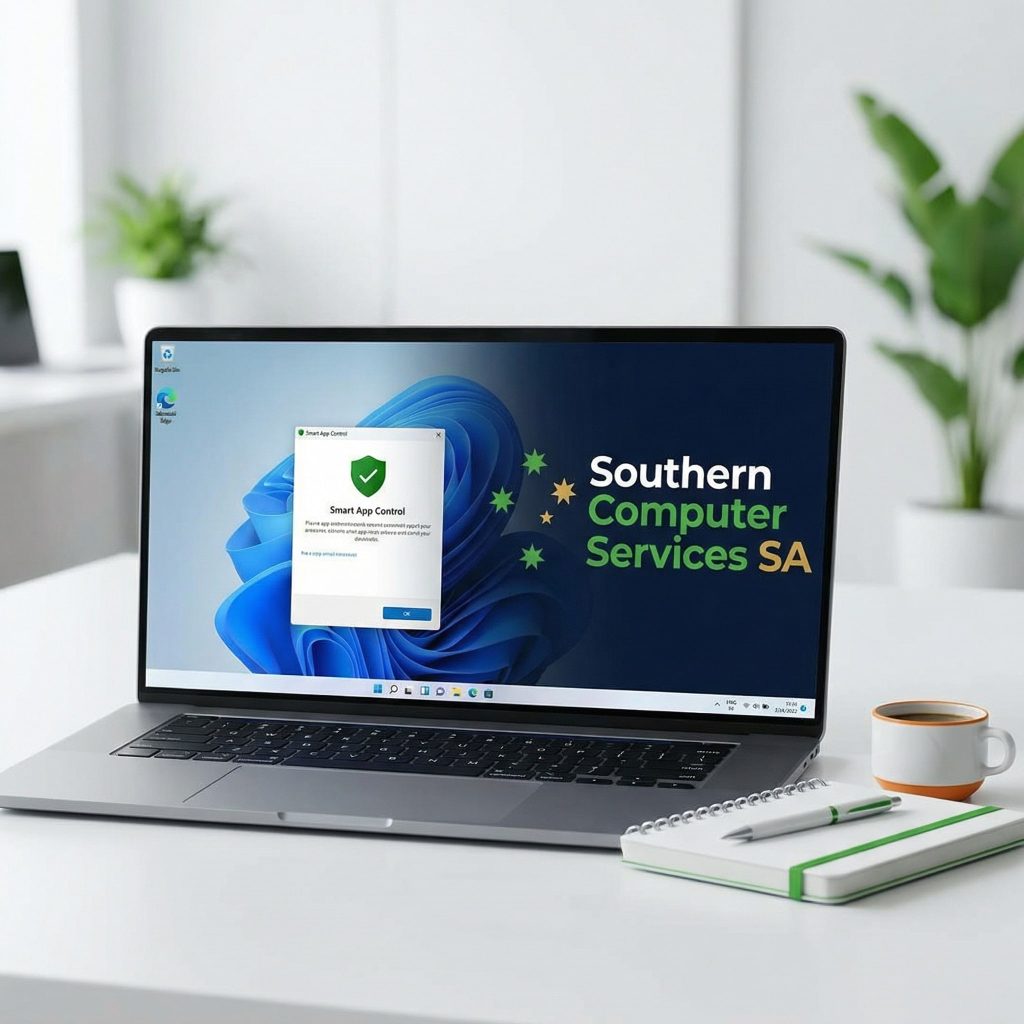
For years, Windows 10 users relied on Windows Defender, SmartScreen, and Application Guard to block malware and phishing attacks. Windows 11 adds an entirely new line of defense: Smart App Control (SAC). Available only on Windows 11 22H2 (and later), SAC uses an AI-driven, cloud-based reputation service to decide—in real time—whether an executable should be allowed to run. The result: dramatically fewer zero-day and script-based attacks slipping through the cracks.
What Smart App Control Does
1. Blocks Untrusted Code Before It Runs
SAC evaluates every `.exe`, `.msi`, and `.ps1` (PowerShell) file that is not already known to be safe or malicious.
2. Uses an AI Reputation Service
The file’s metadata, certificate chain, and behaviour patterns are sent (hashed & anonymised) to Microsoft’s cloud.
3. Enforces “Allow” or “Block” Instantly
• If the file has a known-good signature or positive reputation, it runs.
• If it’s known-bad or unknown, SAC blocks it outright—no user prompt to override.
4. Runs in the Hyper-V Secure Kernel
The decision logic sits in a virtualized container isolated from the main OS, protecting it from tampering.
How Smart App Control Differs from Windows 10 Protection
Capability | Windows 10 | Windows 11 Smart App Control |
Cloud reputation for every unsigned app | Limited (SmartScreen mainly for web downloads) | System-wide for every process start |
Blocking unknown apps (not just known-bad) | ❌ | ✅ |
Runs in Virtualization-Based Security (VBS) | Optional, limited | Mandatory for SAC |
User override | Often allowed | No override (admins can disable SAC, not bypass per app) |
Getting Ready: System Requirements
1. Windows 11 22H2 or later.
2. A clean installation of Windows 11 (SAC will not auto-enable after an in-place upgrade).
3. CPU that supports VBS/Mode-Based Execution Control (virtually every 8th-gen Intel / Zen 2 AMD and newer).
4. UEFI, Secure Boot, and TPM 2.0 enabled (all standard on Windows 11-certified devices).

Step-by-Step: Enabling Smart App Control
> SAC is Off by default unless Windows 11 was installed clean. If you upgraded from Windows 10 or performed an in-place upgrade, follow the steps below.
Option 1 – Clean Install (Recommended for New Deployments)
1. Back up user data.
2. Download the latest Windows 11 ISO from Microsoft or use Windows Deployment Services/Intune.
3. Boot to the installer, delete existing partitions, and proceed with a clean install.
4. During OOBE, keep the default security settings.
5. After first sign-in, go to Settings ➜ Privacy & Security ➜ Windows Security ➜ App & Browser Control ➜ Smart App Control. The status should read “App control is on”.
Option 2 – Test Mode (For Existing Upgrades)
1. Open Settings ➜ Privacy & security ➜ Windows Security.
2. Click App & browser control ➜ Smart App Control Settings.
3. Switch from Off to Evaluation mode.
4. SAC will silently monitor for several days.
5. If the system proves compatible (no frequent false-positives), it auto-switches to On. If not, it returns to Off.
Everyday Usage Tips
• Software Deployment
Use signed installers from trusted vendors or code-sign your own line-of-business apps. Unsigned utilities will be blocked.
• Script Administration
Sign PowerShell scripts with your organisation’s code-signing certificate.
• Incident Response
Blocks are logged in Event Viewer ➜ Applications and Services ➜ Microsoft ➜ Windows ➜ Defender/AppLockerMP/. Forward these logs to Microsoft Sentinel or your SIEM for alerting.
• User Education
Train staff: “If it pops up blocked, raise a ticket—don’t try to ‘make it work’.”
Under the Hood: How SAC Makes Its Decision
1. Trigger – A process launch request hits the SAC filter in **Kernel Mode Code Integrity (KMCI)**.
2. Policy Lookup – SAC checks local allow/deny lists.
3. Hash & Cert Check – Generates a SHA-256 hash, inspects Authenticode signature.
4. Cloud Callout – Sends a hashed request to Microsoft’s Intelligent Security Graph.
5. AI Verdict – Combines global telemetry, ML models, and your organisation’s Microsoft 365 Defender data.
6. Execution Verdict – Returns Allow or Block in milliseconds.
7. Audit Trail – Logs event, optionally uploads to Defender for Endpoint.
Limitations & Best Practices
• SAC cannot be selectively enabled per application; it’s system-wide.
• Legacy line-of-business apps without signatures may require you to disable SAC or re-package them with proper signing.
• Combine SAC with Credential Guard, BitLocker, and Defender for Endpoint for an end-to-end zero-trust posture.
Final Thoughts
Smart App Control is arguably the biggest day-to-day security improvement between Windows 10 and Windows 11. By blocking unknown executables and scripts outright—before they ever get a chance to run—SAC eliminates entire categories of malware and living-off-the-land attacks.
Southern Computer Services SA recommends enabling SAC on all newly deployed Windows 11 machines and planning a phased roll-out (or code-signing remediation) for existing fleets. Need assistance? Our security engineers can audit your environment, package your in-house apps with trusted certificates, and automate SAC policy enforcement via Intune or Group Policy.
Contact us at enquiry@southerncomputerservices.com.au or call 0407396188 to schedule a consultation.
Stay tuned to our blog for the latest updates on the home computer industry and technology trends.
_© 2024 Southern Computer Services SA. All rights reserved._



Still Have Questions?
© 2025 Southern Computer Services SA – Computer & Laptop Repair Specialists