




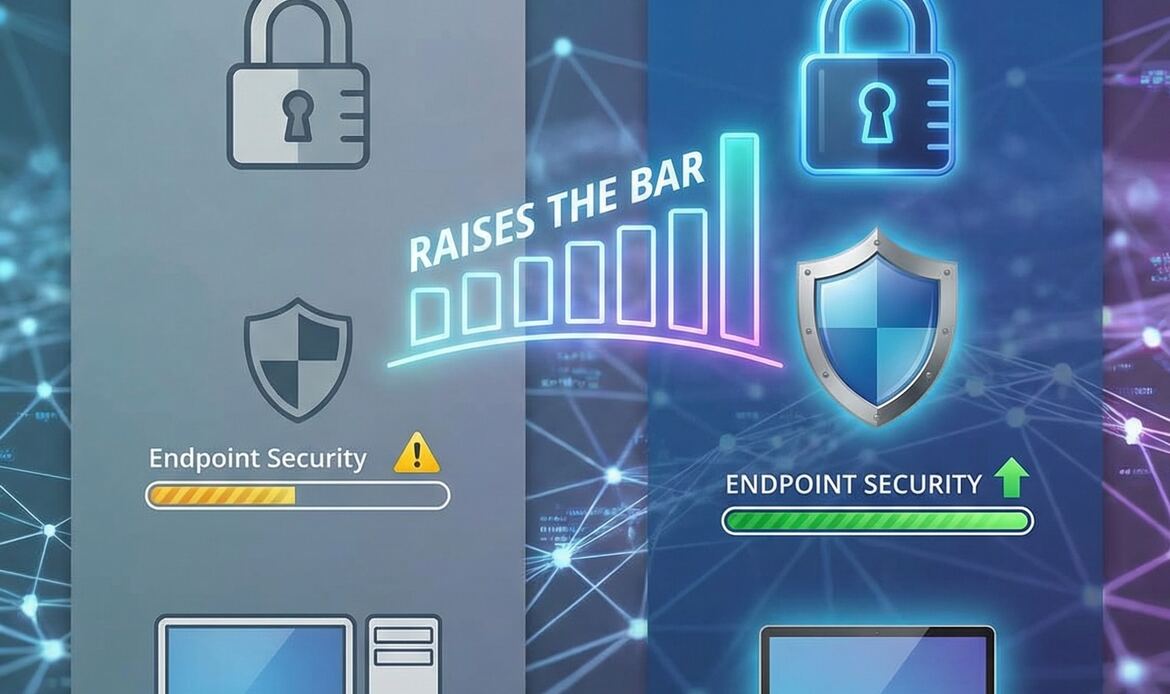
Advanced Endpoint Security and Windows 11
A Practical Guide from Southern Computer Services SA
When Microsoft announced that Windows 11 would have higher hardware requirements, many people assumed the changes were driven by performance or aesthetics. In reality, almost every new requirement is rooted in security. Below is an at-a-glance overview of the Windows 11 security features that do not exist, or are not enabled by default, in Windows 10 and why they matter to South Australian users and businesses.
1. Mandatory TPM 2.0 – Hardware Root-of-Trust for Every PC
Windows 10 could run on machines with no Trusted Platform Module or with the older TPM 1.2 spec. Windows 11 refuses to install unless a TPM 2.0 chip (discrete, firmware or integrated) is present and activated.
What this delivers:
* Hardware-based key storage for BitLocker, Windows Hello, and credential isolation.
* Measurable improvement in protection against firmware and boot-level attacks—important for compliance with the Australian Privacy Act 1988 & GPDR data protection requirements.
2. Pluton Security Processor – “Silicon-to-Cloud” Protection
First shipping on select AMD Ryzen™ and Qualcomm® Snapdragon™ devices, Microsoft Pluton is an on-die security processor originally used in Xbox and Azure Sphere. Pluton is supported natively only in Windows 11.
Benefits:
* Eliminates the communication channel between CPU and TPM, removing an entire attack surface.
* Enables automatic, cloud-delivered firmware updates through Windows Update.
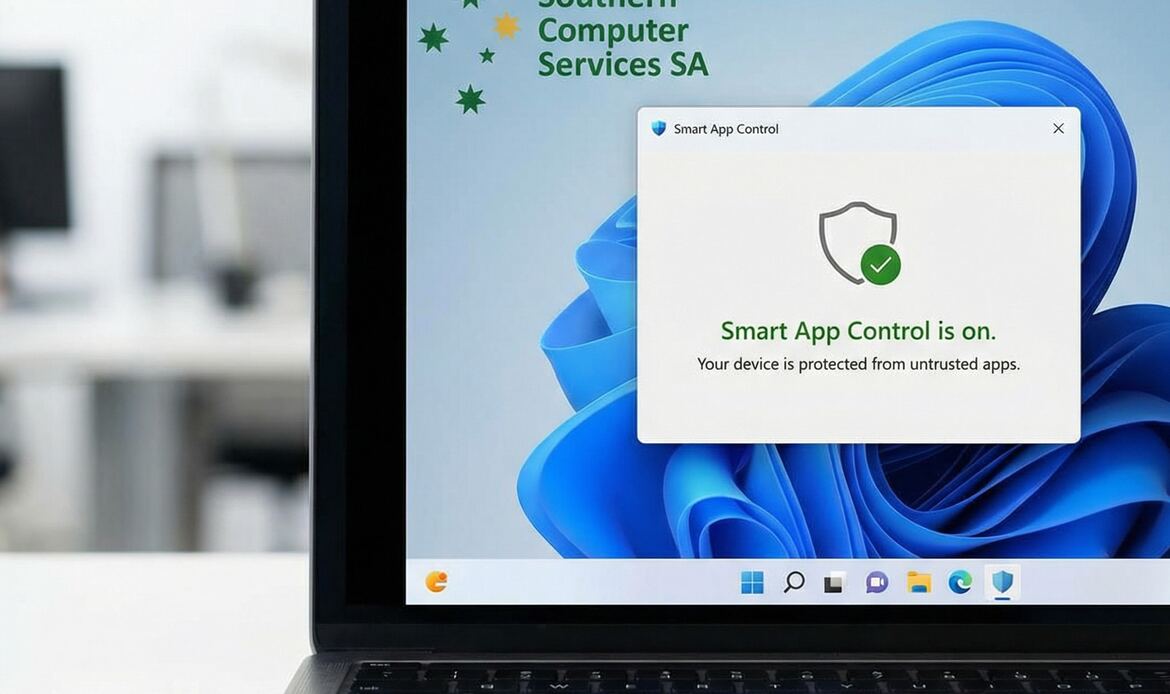
3. Smart App Control – AI-Driven Application Whitelisting
Debuting in Windows 11 22H2, Smart App Control blocks untrusted or unsigned applications before they can run. This feature is not back-ported to Windows 10.
Why it matters:
* Stops zero-day malware and ransomware that traditional signature-based antivirus can miss.
* Operates automatically—ideal for SMB environments with limited IT staff.
4. Mandatory Secure Boot + UEFI Enforcement
Although Secure Boot existed in Windows 10, it was optional and often disabled to maintain legacy compatibility. Windows 11’s installation media validates that Secure Boot is enabled and the system is in native UEFI mode.
Security impact:
* Prevents rootkits and bootkits from loading unsigned code during the boot sequence.
* Simplifies compliance audits for industries such as finance and healthcare.
5. Virtualisation-Based Security On by Default
Windows 10 introduced VBS, Credential Guard and Hypervisor-Protected Code Integrity (HVCI) but left them disabled on most consumer devices. Windows 11 flips the default:
* Credential Guard is automatically enabled on Pro/Enterprise PCs joined to a domain or MDM.
* HVCI is turned on for nearly all new PCs that meet performance baselines.
Business outcome:
* Blocks pass-the-hash, mimikatz and other credential-dumping techniques frequently used in South Australian-targeted cyber-crime.

6. Enhanced Phishing Protection in Microsoft Defender SmartScreen
Exclusive to Windows 11 22H2 and later, SmartScreen now warns users when they:
1. Type corporate credentials into known phishing sites.
2. Re-use work passwords on personal sites.
3. Store credentials in plain text within Notepad, Word or Excel.
This client-side protection reduces the human-factor risk that leads 80 % of breaches, according to Microsoft’s Digital Defence Report.
7. Vulnerable Driver Blocklist Enabled by Default
Threat actors rely on signed yet exploitable drivers to gain kernel-level access. Windows 11 ships with a live, updateable blocklist of these drivers and enforces it automatically on devices running HVCI. Windows 10 requires manual enrolment.
8. Local Security Authority (LSA) Protection
Starting with Windows 11 22H2, LSASS runs as a protected process out of the box, sealing off credential material from memory-scraping tools. In Windows 10, admins have to edit the registry or apply a GPO to achieve the same result.
9. Config Lock – “Self-Healing” Security Baselines
Config Lock continuously monitors security-critical settings (e.g., BitLocker, firewall, password rules). If a user or rogue process changes a protected setting, Windows 11 reverts it in real time—no reboot required. Not available on Windows 10.

10. Windows Hello Improvements and Passkey Support
While Windows 10 introduced biometric login, Windows 11 adds:
* Support for industry-standard FIDO2 passkeys that can replace passwords entirely.
* Anti-spoofing upgrades leveraging the camera’s IR feed and liveness detection.
For businesses adopting password-less strategies, Windows 11 provides a future-proof platform.
11. Better Isolation with Windows Sandbox & Application Guard
Both features exist in Windows 10 Enterprise, but Windows 11 improves performance and extends hardware acceleration, making them practical on more mid-range laptops commonly sold in South Australia.
12. Default Security Baselines Updated Quarterly
Microsoft now publishes Windows 11 security baselines every three months, including:
* Stricter SMB signing and NTLM restrictions.
* Printer spooler attack surface reduction.
* Optional disabling of legacy protocols (e.g., NBT-NS, LLMNR).
These baselines are not retro-fitted to Windows 10, giving Windows 11 a faster security-patch cadence.
Strategic Take-Aways for Southern Computer Services SA Clients
1. Lower Total Cost of Ownership
• Fewer third-party security products needed (application whitelisting, encryption, credential isolation).
• Reduced downtime from ransomware or phishing incidents.
2. Australian Privacy Act 1988 & ISO 27001 Alignment
• Mandatory TPM 2.0, Secure Boot, and BitLocker integration make it easier to prove data-at-rest protection.
• Improved audit trails via Config Lock and Microsoft Defender reporting.
3. Future-Proofing the Hardware Fleet
• Devices purchased today with Windows 11 will continue to receive security innovations Microsoft will never port to Windows 10, whose support ended on 14 October 2025.
4. End-User Experience
• Security is largely invisible—biometrics instead of passwords, automatic driver blocking, silent credential protection.
• Less “security friction” translates into higher productivity and fewer help-desk calls.

Implementation Tips from Southern Computer Services SA
• Verify hardware: Use Microsoft’s PC Health Check or our in-house assessment tool to confirm TPM 2.0, UEFI, and CPU compatibility.
• Plan an in-place upgrade: Windows 10 21H2 → Windows 11 22H2 often requires only 20–30 minutes of downtime per device.
• Review Group Policy: Many new controls (Smart App Control, Config Lock) can be tuned or enforced via Intune or on-prem Active Directory.
• Test line-of-business apps: Legacy drivers or unsigned executables may be blocked; we can help with code-signing or packaging.
• Educate users: Highlight enhanced phishing notifications so employees understand why the OS may warn them about password re-use.
Conclusion
Windows 11 is more than a visual refresh; it is Microsoft’s most secure client operating system to date. By mandating modern hardware, enabling protection features by default, and adding AI-powered defenses such as Smart App Control and Enhanced Phishing Protection, Windows 11 closes gaps that remain open in Windows 10.
For organisations in South Australia facing escalating cyber-risk and tightening regulatory obligations, upgrading to Windows 11 is not just an aesthetic choice—it’s a strategic security investment. Southern Computer Services SA stands ready to guide you through assessment, pilot deployment, and full rollout so your business can operate on a modern, compliant, and resilient platform.
Contact us at enquiry@southerncomputerservices.com.au or call 0407396188 to schedule a consultation.
Stay tuned to our blog for the latest updates on the home computer industry and technology trends.
_© 2024 Southern Computer Services SA. All rights reserved._


Still Have Questions?

© 2025 Southern Computer Services SA – Computer & Laptop Repair Specialists

