




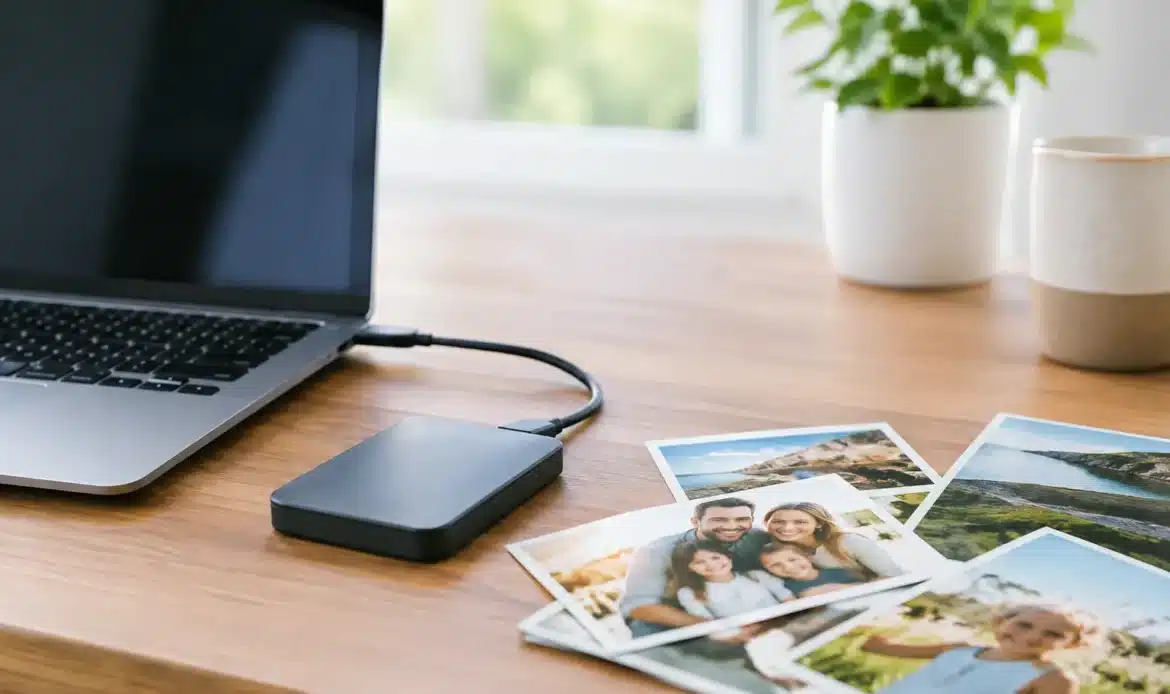
A laptop can fail without warning. A hard drive can stop spinning. A folder can be deleted during a clean-up and not noticed until months later. When the files are family photos – birthdays, school concerts, holidays, old scans and everyday snapshots – the loss can be far more upsetting than replacing a computer.
Knowing how to back up family photos does not require advanced technical skills or expensive equipment. It does require a simple routine that keeps more than one copy of your pictures in more than one place. The aim is not to create a complicated system you will abandon. It is to set up a practical plan that still works when life gets busy.
Start by finding where your photos actually live
Before copying anything, take stock of the places your photos are stored. For many households, pictures end up scattered across a Windows desktop or laptop, a Downloads folder, Documents, Pictures, an old external drive, USB sticks, memory cards and cloud storage. You may also have photo folders copied from older computers years ago.
On a Windows PC, start with the Pictures folder, then check Documents, Desktop and Downloads. Search File Explorer for common photo file types such as JPG, JPEG, PNG and HEIC if you are unsure where everything has gone. Take your time here. The photos you most want to protect are often in an old folder with a name such as “Camera Uploads”, “Mum’s photos” or “Holiday 2014”.
Do not assume that photos visible on a device are safely backed up. They may only exist on that one device. Likewise, a folder that appears in cloud storage may be syncing rather than being independently protected. If a synced file is deleted, that deletion can sometimes be copied everywhere.
Use the 3-2-1 rule for family photos
The easiest reliable approach is known as the 3-2-1 backup rule. Keep three copies of your important photos, on two different types of storage, with one copy kept away from your home.
For a typical family, that could mean the original photo collection on the home computer, a second copy on an external hard drive and a third copy in a reputable cloud storage account. If a computer fails, the external drive gives you a quick local copy. If there is theft, fire, water damage or a power event affecting equipment at home, the off-site cloud copy provides another layer of protection.
You do not need to buy the biggest drive on the shelf. First check the size of your current photo collection by right-clicking the main folder in File Explorer and choosing Properties. Then choose an external drive with plenty of room to grow. Photos and videos accumulate faster than most people expect, particularly when several family members contribute files.
Why one external drive is not enough
An external drive is an excellent first step, but it is not a complete backup plan when it is the only extra copy. It can be misplaced, accidentally dropped or plugged in when a virus infects a computer. It also does not help much if it sits beside the PC during a house fire or break-in.
Use the external drive as a convenient working backup, then add an off-site copy. For some people, cloud storage is the simplest option. Others prefer to keep a second encrypted external drive at a trusted family member’s house and update it regularly. Cloud storage is generally easier to maintain, while an off-site drive can suit people with slower internet or a very large collection of videos.
How to back up family photos to an external drive
Connect the external drive to your Windows computer and create a clearly labelled main folder, such as “Family Photo Backup”. Copy your organised photo folders into it. Avoid dragging files from one folder to another unless you are certain you are copying them rather than moving them. In File Explorer, using Copy and then Paste is the safer choice.
Once the copy finishes, open several folders and photos directly from the external drive. Check older pictures as well as recent ones, and open a few videos if you have them. A backup that cannot be opened is not much use when you need it.
For ongoing backups, keep the same folder structure each time. If your main collection is arranged by year and event, mirror that structure on the backup drive. It makes finding photos easier later and reduces the chance of overlooking a folder.
A simple routine works well: add new photos to your main collection during the month, then back up the collection to the external drive once a month. Put a reminder in your calendar. If you have just returned from a major holiday, held a wedding or scanned a box of old family prints, back up sooner rather than waiting for the next scheduled date.
Add an off-site copy you can manage
A cloud storage service can automatically upload selected folders and keep them available if your computer is damaged or replaced. When setting it up, confirm exactly which folders are included. A common mistake is assuming the entire Pictures folder is uploading when only a single camera folder has been selected.
Pay attention to storage limits as well. Free plans may fill quickly once videos are included. A paid plan can be worthwhile if it protects irreplaceable memories, but choose one you are comfortable paying for over the long term. If payments stop and the account is over its limit, you need to know what will happen to new uploads and existing files.
It is also wise to use a strong, unique password and turn on two-step verification for the account. Your backup is no help if you cannot access it, and family photos deserve the same account security you would use for banking or email.
Cloud sync is convenient, but check whether the service offers version history or deleted-file recovery. These features can help if photos are accidentally deleted or changed. Even then, retain your external-drive backup. Different copies protect you from different problems.
Organise before the collection becomes unmanageable
You do not need to rename every photo individually, but a little organisation makes backups and future searches much easier. Create folders by year, then add events beneath them, such as “2025 – Easter” or “2026 – Sophie’s school concert”. Keep scans of older prints in their own folders and make a note of where the originals are stored.
Try to avoid keeping the only copy inside a photo-editing program, an email attachment or a messaging app. Save the original file into your main photo collection as well. If relatives send you precious older photos, download and file them promptly rather than assuming the message history will always be available.
Duplicates are common, especially after moving between computers or importing photos from several sources. You do not have to sort every duplicate before making a backup. Protect everything first. You can clean up copies later, once there is no risk of losing the original files during the process.
Test your backup before you need it
A backup is only proven when you can restore a file from it. Every few months, pick a handful of photos from different years and open them from the external drive and cloud copy. If you are using backup software, try restoring a folder to a temporary location on the computer.
This small check can reveal problems such as a disconnected drive, a paused upload, an account that has run out of space or folders that were never included. It is much less stressful to fix those issues now than after a computer failure.
Also check your external drive itself. Keep it somewhere dry, away from direct heat and where it will not be knocked off a desk. Label it clearly so it is not mistaken for an empty spare drive and reformatted.
When it is worth getting hands-on help
If your photos are spread across old computers, damaged drives and USB sticks, or you are not confident about which copies are original, it is sensible to get help before reorganising anything. A careful technician can assess the collection, recover accessible files where possible and set up a backup approach that suits how your household uses its Windows computers.
For families in southern Adelaide, Southern Computer Services SA can assist with photo transfers, backup set-up and checking that important files are safely copied. The goal should be a system you understand and can keep using, not a technical solution that becomes another chore.
Set aside an hour this week to find your main photo folders and make one extra copy. That small job can protect decades of family history, and it is far easier to do while every device is still working.

