




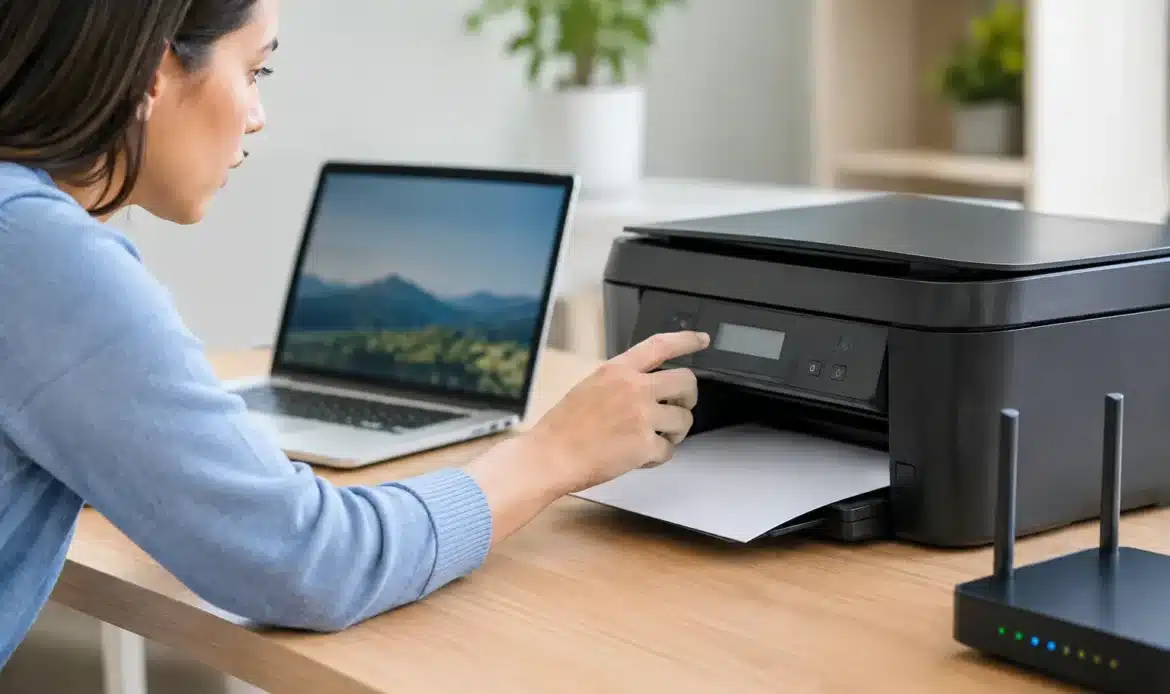
A printer that was working yesterday can suddenly show as offline, refuse every print job or disappear from your computer altogether. The good news is that most cases can be resolved without replacing the printer. To fix printer connection problems, start with the simple physical and network checks before changing settings in Windows.
First, work out how the printer is connected
The right fix depends on the connection type. A USB printer plugs directly into one computer. A Wi-Fi printer connects to your home or office wireless network, while some printers use an Ethernet cable to connect to the router or network switch.
If the printer is connected by USB, the issue is usually the cable, USB port, printer driver or Windows print queue. If it is on Wi-Fi, the problem is more often the wireless network, a changed router password, poor signal, or the computer and printer being connected to different networks.
Before adjusting anything, check the printer screen or status lights. Many printers will clearly show a Wi-Fi symbol, an error message, paper jam warning or low ink alert. A connection problem may not be the only issue stopping a job from printing.
How to fix printer connection problems step by step
Check power, paper and obvious error messages
It sounds basic, but it saves time. Make sure the printer is switched on, has paper loaded properly and has no flashing error lights. Turn it off at the power point, wait 30 seconds, then turn it back on. Restart the computer as well.
This clears a surprising number of temporary faults, particularly after a power interruption, Windows update or router restart. If the printer screen says it is offline or disconnected, do not keep sending print jobs yet. They can build up in the queue and make the next step harder.
Test the cable or wireless connection
For a USB printer, firmly reconnect the cable at both ends. Try another USB port on the computer and, if available, another known-good USB cable. Avoid relying on an unpowered USB hub, as it can cause unreliable connections.
For Wi-Fi printers, confirm that your internet is working on the computer first. Then look at the printer’s network status on its screen or print a network configuration page if the printer allows it. The printer should show the same Wi-Fi network name that your computer uses.
A common issue occurs after changing internet providers or replacing a router. The new Wi-Fi name or password may be different, and the printer will still be trying to join the old network. Reconnect it to the current Wi-Fi network using the printer’s wireless setup menu.
Also check the distance from the router. A printer at the far end of the house, behind brick walls or near electrical equipment may have a weak signal. Moving the router, using a network cable where practical, or improving Wi-Fi coverage can provide a more dependable long-term result than repeatedly reconnecting the printer.
Make sure Windows can see the correct printer
On a Windows computer, open Settings, then Bluetooth & devices, then Printers & scanners. Select the printer and check its status. If it shows as offline, open the print queue and look for an option to use the printer online.
It is also worth checking whether Windows has selected the wrong printer. After an update, Windows can sometimes choose a virtual printer, an old printer entry, or a copy of the same printer with a slightly different name. Set the current printer as the default and remove clearly outdated entries only after confirming they are no longer needed.
If you are printing from a small business workstation, take extra care before removing devices. The printer may have specialised settings for labels, invoices, envelopes or different paper trays. A quick screenshot of the current printer preferences can save time if those settings need to be restored.
Clear stuck print jobs
A single corrupted document can hold up every job behind it. Open the printer queue in Windows, cancel all pending documents, then restart the printer. Give it a minute before trying a simple one-page test print.
If jobs will not clear, restart the Windows Print Spooler service. Search for Services from the Start menu, find Print Spooler, right-click it and choose Restart. This is safe in most home and small office situations, but any jobs waiting to print may be removed, so save important documents before sending them again.
Check the printer’s network address
Wi-Fi and Ethernet printers are usually found on your network by an IP address. When a router restarts, it can sometimes give the printer a new address. Your computer may still be looking for the old one, which makes the printer appear offline even though it is connected to Wi-Fi.
Printing the printer’s network status page can show its current IP address. If it has changed, removing and adding the printer again in Windows may resolve the issue. In offices where several people rely on the same printer, assigning it a fixed network address is often a better solution. It reduces the chance of the printer disappearing after future router restarts.
Remove and reinstall the printer only when needed
Reinstalling the printer can help when the Windows driver is damaged or the device has been added incorrectly. Remove the printer from Printers & scanners, restart the computer, then add it again. For network printers, allow Windows to search first, then use the printer’s current IP address if it is not detected automatically.
This step has a trade-off. It may solve a stubborn connection fault, but it can also reset preferences such as double-sided printing, paper size and scan settings. For a basic home printer, that is usually manageable. For a business printer used for specific forms or labels, checking the driver and network setup first may be the safer approach.
When the problem is the router, not the printer
If more than one device is dropping off Wi-Fi, or the printer reconnects briefly and then disappears again, focus on the network. Restarting the router can help, but frequent dropouts may point to weak coverage, an ageing router, interference, or a network setup that needs attention.
Some older printers only support the 2.4 GHz Wi-Fi band. If the router is set up with separate 2.4 GHz and 5 GHz network names, the printer needs to join the 2.4 GHz option. Your computer can still use 5 GHz, as long as both networks are part of the same local network and the router allows devices to communicate.
Guest Wi-Fi is another common trap. Devices on a guest network are often isolated from each other for security, so a computer may have internet access but be unable to find the printer. Connect both devices to the main network instead.
Signs you may need hands-on support
Most printer faults are straightforward, but some are worth getting checked properly. This is especially true when the printer repeatedly goes offline, several computers cannot print, Windows shows driver errors, or a new router has changed how the network operates.
For a small business, avoid spending hours trying random fixes while staff cannot print orders, invoices or customer paperwork. The issue may be a simple setting, but it could also involve an IP address conflict, Wi-Fi coverage problem, outdated driver or a broader network fault.
Southern Computer Services SA can provide practical on-site or remote help for Windows computers, home networks and small business printing across southern Adelaide. Clear advice is often more useful than replacing a printer that still has plenty of life left.
Start with a restart, confirm the printer is connected to the right network, and clear any stuck jobs before making bigger changes. If the fault keeps returning, treating the Wi-Fi or Windows setup as the real problem can save plenty of frustration and wasted ink.

