




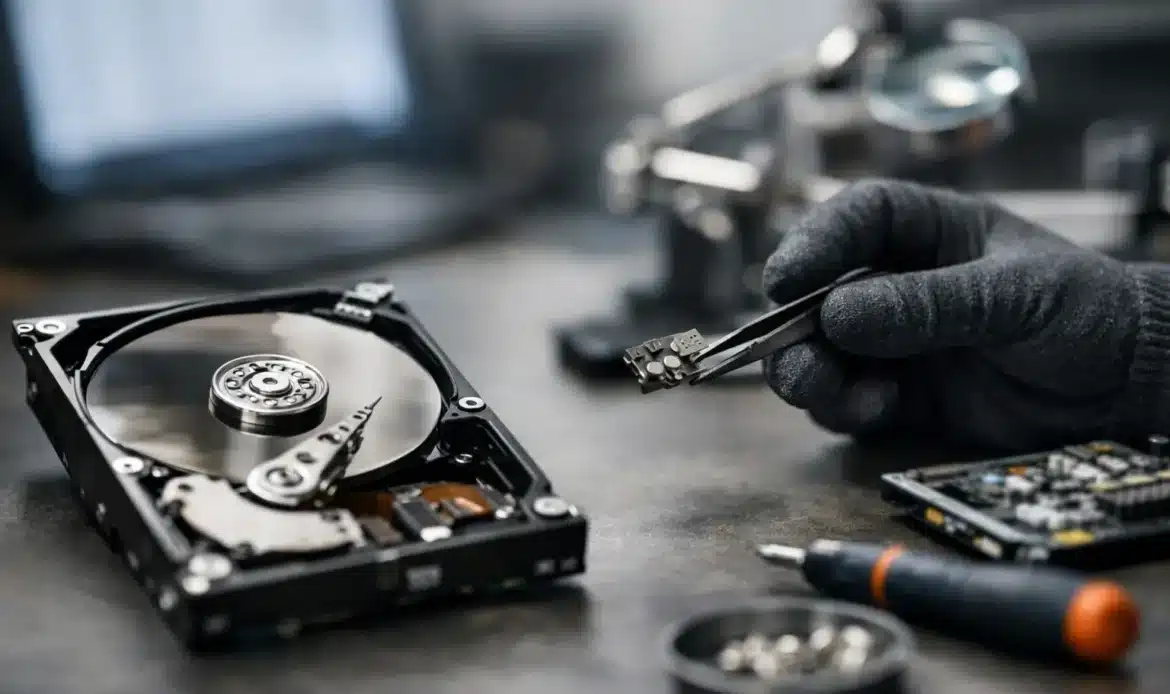
Your computer will not start, an external drive has vanished from File Explorer, or you can hear an unsettling clicking sound. The question is usually urgent: can a dead hard drive be recovered? Often, yes – but the best outcome depends on what has actually failed and what happens next.
A drive described as “dead” may have a minor connection issue, corrupted Windows files, a failed enclosure or a serious internal mechanical fault. Those problems look similar from the outside, but they need very different solutions. The wrong DIY attempt can turn a recoverable drive into one that is much harder, or more expensive, to recover.
What “dead” usually means
Hard drives do not always fail all at once. Sometimes the computer cannot see the drive because of a loose cable, failed USB adaptor, damaged power supply, or a fault in the computer itself. In those cases, the files may still be perfectly intact.
Other faults are more serious. Traditional spinning hard drives contain moving parts. Their read/write heads, motor and internal platters can fail after a knock, age, overheating or a power problem. Solid-state drives have no moving parts, but they can still fail through controller faults, worn memory cells or electrical damage.
The key point is that a drive that will not open normally is not necessarily beyond recovery. It does mean you should stop treating it as an ordinary computer problem until you know what is going on.
Signs a hard drive may be failing
A few warning signs are worth taking seriously, especially if the data has not been backed up. A mechanical hard drive may click, repeatedly spin up and down, make scraping noises, or take a very long time to show files. You might see frequent freezing, folders that will not open, corrupted files, or messages asking to format a drive that previously worked.
With internal drives, Windows may report that no boot device is available, display a blue-screen error, or fail to load altogether. An external drive may light up but not appear in File Explorer, or it may appear with the wrong size or no accessible files.
None of these symptoms confirms the exact fault. However, clicking, scraping, burning smells or a drive that was dropped are strong reasons to switch it off promptly. Continuing to power a mechanically damaged drive can cause further damage each time it tries to read the disk.
What to do immediately
Your first decision should be based on the value of the files. Family photos, business records, accounting data, client documents and years of work are not the right files to experiment on.
Start by shutting the computer down or safely disconnecting the external drive. Do not keep restarting it in the hope that it will suddenly work. If it is making unusual noises, do not run repair software, copy files repeatedly, or try to install Windows again. Those actions can write new data to the drive and reduce the chance of retrieving what is already there.
For a quiet external drive that simply does not appear, it is reasonable to check the basics once. Try a known-good power supply if the model uses one, a different USB cable, and another USB port. If possible, test it on another Windows computer. Do not open the drive casing or remove the internal disk unless you are confident it is only the external enclosure that has failed. Some external drives use hardware encryption through their original USB board, so swapping parts can complicate access to the data.
If the drive is detected and opens normally, copy the most important files straight away to a separate drive or cloud storage. Start with irreplaceable documents and photos, not with a full system backup that may fail halfway through.
Can a dead hard drive be recovered at home?
Sometimes. If Windows starts but files have been deleted, a partition has become corrupted, or the drive is readable but unstable, recovery software may help. The safest approach is to make a sector-by-sector image of the drive first, then work from that copy. Recovery tools should never be installed onto the affected drive.
This approach has limits. Software cannot repair a seized motor, damaged read/write heads, failed electronics or severely degraded storage chips. In fact, scanning a physically failing drive for hours can place it under more stress and make matters worse.
Avoid internet myths such as putting a drive in the freezer, tapping it, opening it on the kitchen bench, or swapping circuit boards at random. Modern drives are not simple plug-and-play devices internally. Their calibration information is often unique to that drive, and opening a mechanical disk outside a clean environment can contaminate the platters.
If the data is useful but not critical, a local technician can assess whether the fault is likely to be logical, electrical or mechanical before you spend money on specialist recovery. If the information is irreplaceable, particularly after physical damage, the sensible option may be a specialist clean-room recovery provider.
When professional assessment makes sense
Professional help is particularly worthwhile when the drive contains business data, financial records, photos with no other copies, or documents needed for an insurance claim, legal matter or tax obligations. It is also the right call when the drive has been dropped, makes clicking or scraping sounds, has water damage, or is not detected by any computer.
A good assessment should be honest about the likely options. Some cases can be resolved by replacing a failed enclosure, recovering files from a healthy disk, or repairing Windows boot issues. Others require specialised equipment and may have a lower chance of success. No reputable technician should promise that every drive can be recovered before diagnosing it.
For homes and small businesses in southern Adelaide, Southern Computer Services SA can help assess a non-working Windows PC or external drive, explain the practical next step, and help protect any accessible data before further work is carried out. Clear advice matters here because the cheapest repair is not always the best choice if it risks valuable files.
Recovery is not the same as getting the computer running
It is easy to focus on the computer that will not boot, but data recovery and computer repair are separate jobs. A technician may be able to get a computer running with a replacement drive and a fresh Windows installation, while the old drive still needs separate recovery work. Conversely, files might be recovered from a failing drive even if the drive itself is no longer suitable for use.
Once data has been retrieved, do not put trust back in the failed drive. Replace it with a reliable new drive, reinstall the required software, and restore only the files you need. If malware or file corruption may have been involved, check recovered documents carefully before returning them to daily use.
Small businesses should also consider the downtime involved. A replacement workstation can often be configured faster than waiting for a damaged drive to be repaired. Recover essential documents where possible, then focus on getting email, accounting software and day-to-day work operating again.
Preventing the next data emergency
Hard drives are consumable hardware. They may last many years, but none should be treated as the only home for important files. A practical backup arrangement keeps at least one copy separate from the computer. For many households, that means an external backup drive plus a cloud copy for important documents and photos.
For a small business, backups should run automatically, be checked regularly, and be protected from ransomware. A backup that has not been tested is only a plan, not proof. Keep the backup drive disconnected when it is not in use if you are relying on it as protection from power issues or malware.
If a drive is acting strangely today, deal with it before it becomes completely inaccessible. Stop using it, protect the files that matter most, and get clear advice before trying fixes that may do more harm than good.

